


TiviMate is one of the most popular IPTV players for Amazon Firestick, Fire TV, Android TV, Google TV, and Android TV boxes.
This guide covers the regular version of TiviMate. TiviMate can be installed and used with its standard features, while additional Premium features require a separate purchase from TiviMate.
We'll show you how to install TiviMate, add your IPTV login, and start using it on your television.
Need an IPTV Account for TiviMate?
Get a free 36-hour IPTV trial and use the Server URL, Username, and Password we provide to set up TiviMate.
No Credit Card Required • Nothing to Cancel
Table of Contents
- Quick TiviMate Installation
- What Is TiviMate?
- TiviMate Free vs Premium
- Before You Begin
- Step 1: Install Downloader
- Step 2: Enable Unknown Apps
- Step 3: Download TiviMate
- Step 4: Install TiviMate
- Step 5: Add Your IPTV Account
- Using TiviMate
- TiviMate Premium
- How to Update TiviMate
- Troubleshooting
- Frequently Asked Questions
Quick TiviMate Installation
If you're already familiar with installing apps on Firestick or Android TV, here's the short version:
- Install the Downloader app.
- Allow Downloader to install unknown apps.
- Open Downloader.
- Enter the official TiviMate Downloader code 272483.
- Download the TiviMate APK.
- Select Install.
- Open TiviMate.
- Select Add Playlist.
- Choose Xtream Codes.
- Enter the Server URL, Username, and Password supplied with your IPTV account.
You can also enter tivimate.com/apk directly into Downloader to access the official TiviMate APK.
What Is TiviMate?
TiviMate IPTV Player is an Android-based IPTV player designed primarily for televisions and devices controlled with a remote.
Its TV-friendly interface makes it easy to organize and browse live channels, program guide information, movies, series, favorites, and IPTV playlists.
TiviMate works particularly well on devices such as:
- Amazon Firestick
- Fire TV Stick 4K and 4K Max
- Fire TV Cube
- Android TV
- Android TV boxes
- Google TV devices
- NVIDIA Shield TV
- Other compatible Android-based TV devices
Important: TiviMate is an IPTV player. It does not provide an IPTV subscription or content by itself. You'll need compatible IPTV credentials to use it.
TiviMate Free vs TiviMate Premium
The regular TiviMate application can be installed without purchasing Premium, but some of TiviMate's more advanced features are reserved for TiviMate Premium.
If you decide you want those additional features, Premium is purchased separately through TiviMate's own system.
If you've already purchased and activated TiviMate Premium and your setup is working properly, there's no reason to uninstall or redo your existing installation. You can simply add the IPTV credentials from your trial or subscription to your current TiviMate setup.
Before You Begin
You'll need:
- A compatible Firestick, Fire TV, Android TV, or Google TV device
- An internet connection
- The Downloader app if you're using the sideloading method
- Permission for Downloader to install unknown apps
- An IPTV Server URL, Username, and Password
If you don't have IPTV login information yet, you can get a free 36-hour IPTV trial here.
We'll provide the login information you need to follow the TiviMate setup instructions below.
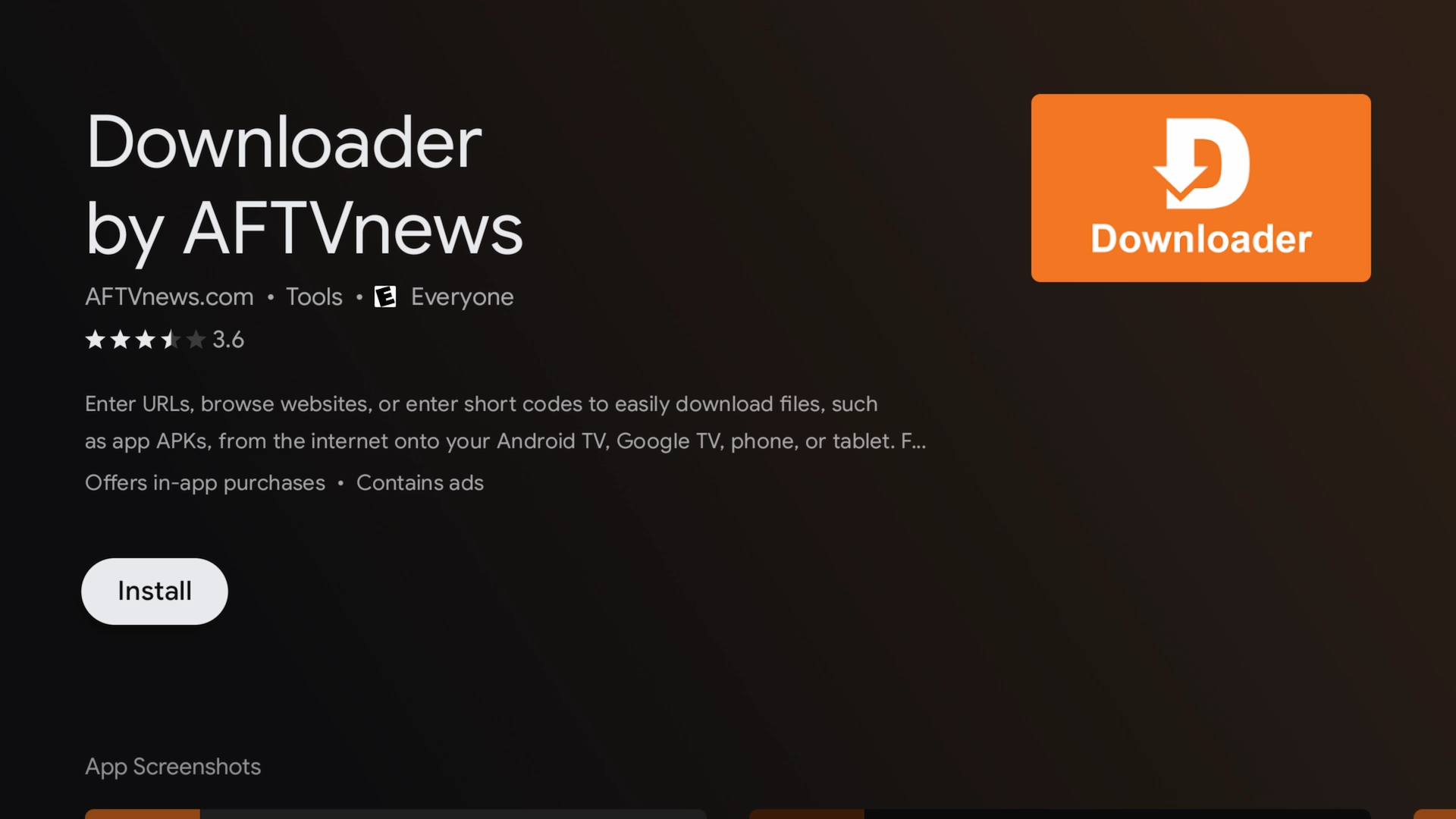
Step 1: Install the Downloader App
Downloader makes it easy to download and install compatible APK files on Fire TV and many Android TV devices.
Firestick & Fire TV
- From the Fire TV home screen, select Find.
- Choose Search.
- Search for Downloader.
- Select the orange Downloader application.
- Choose Download or Get.
Android TV & Google TV
Open the Google Play Store, search for Downloader, and install the application.
The exact menu names may vary slightly depending on your television or streaming device.
Step 2: Enable Developer Options & Unknown Apps
Fire TV devices require permission before Downloader can install an APK.
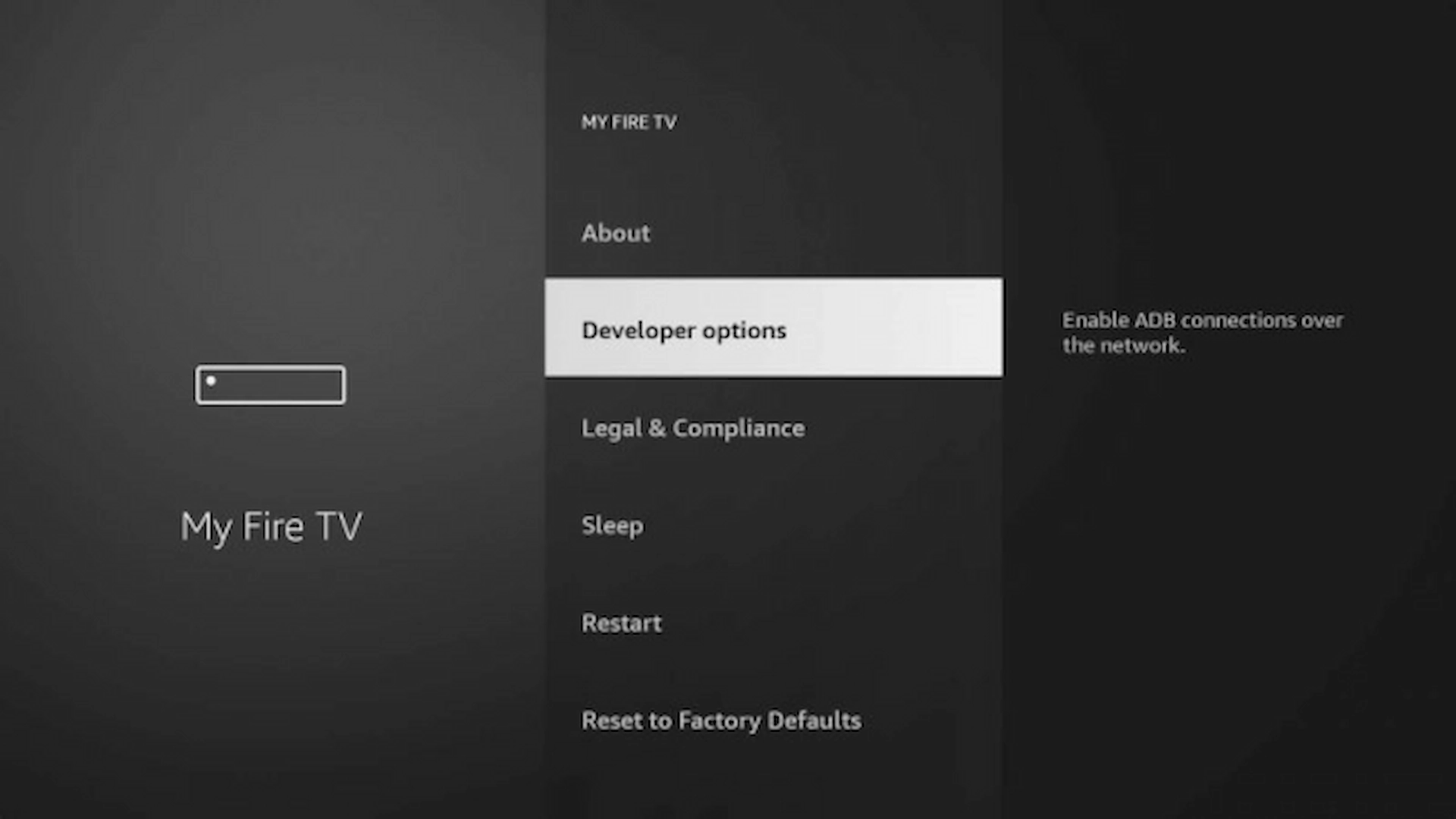
Open My Fire TV
Go to:
Settings → My Fire TV
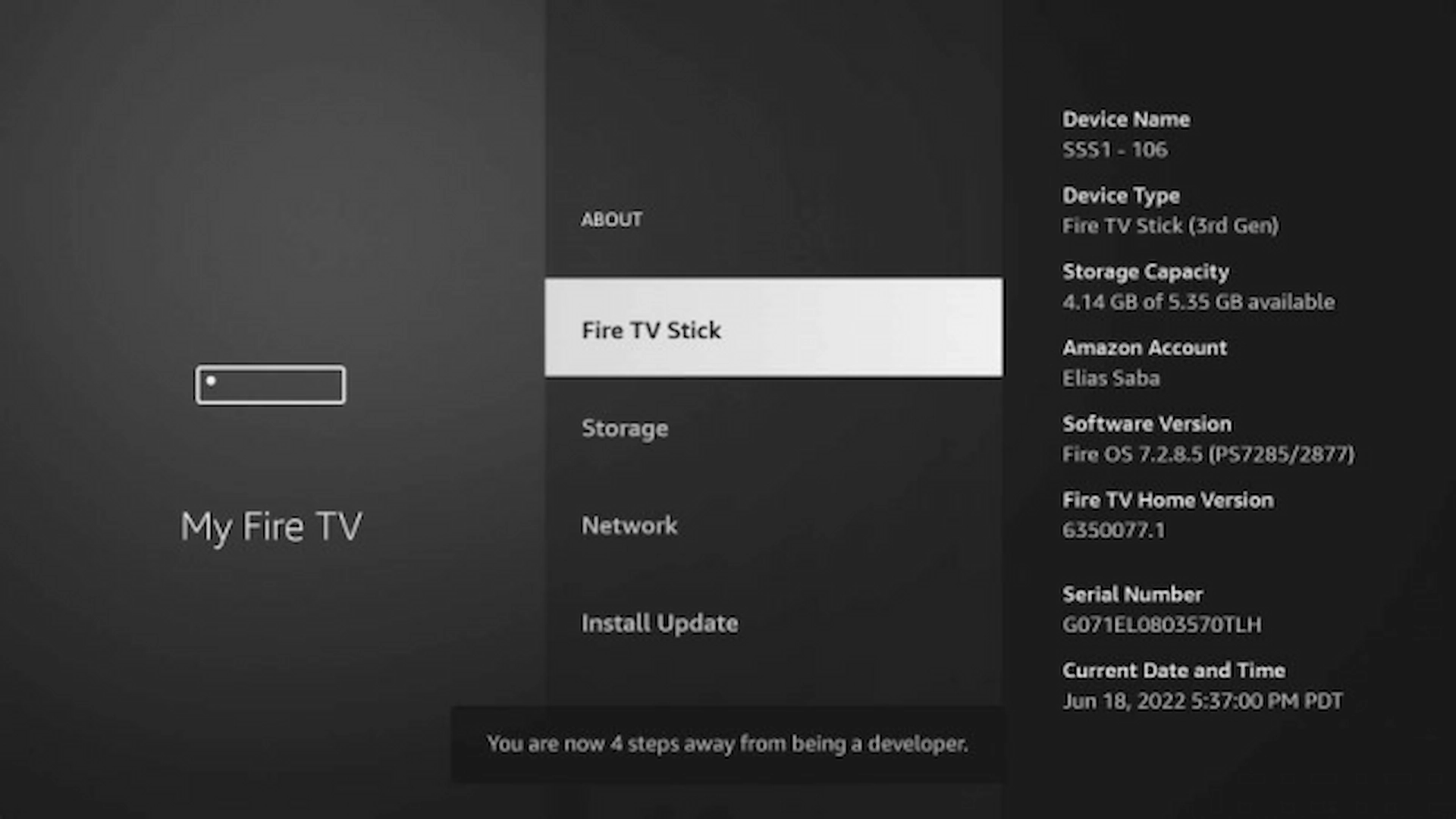
Open About
Select About.
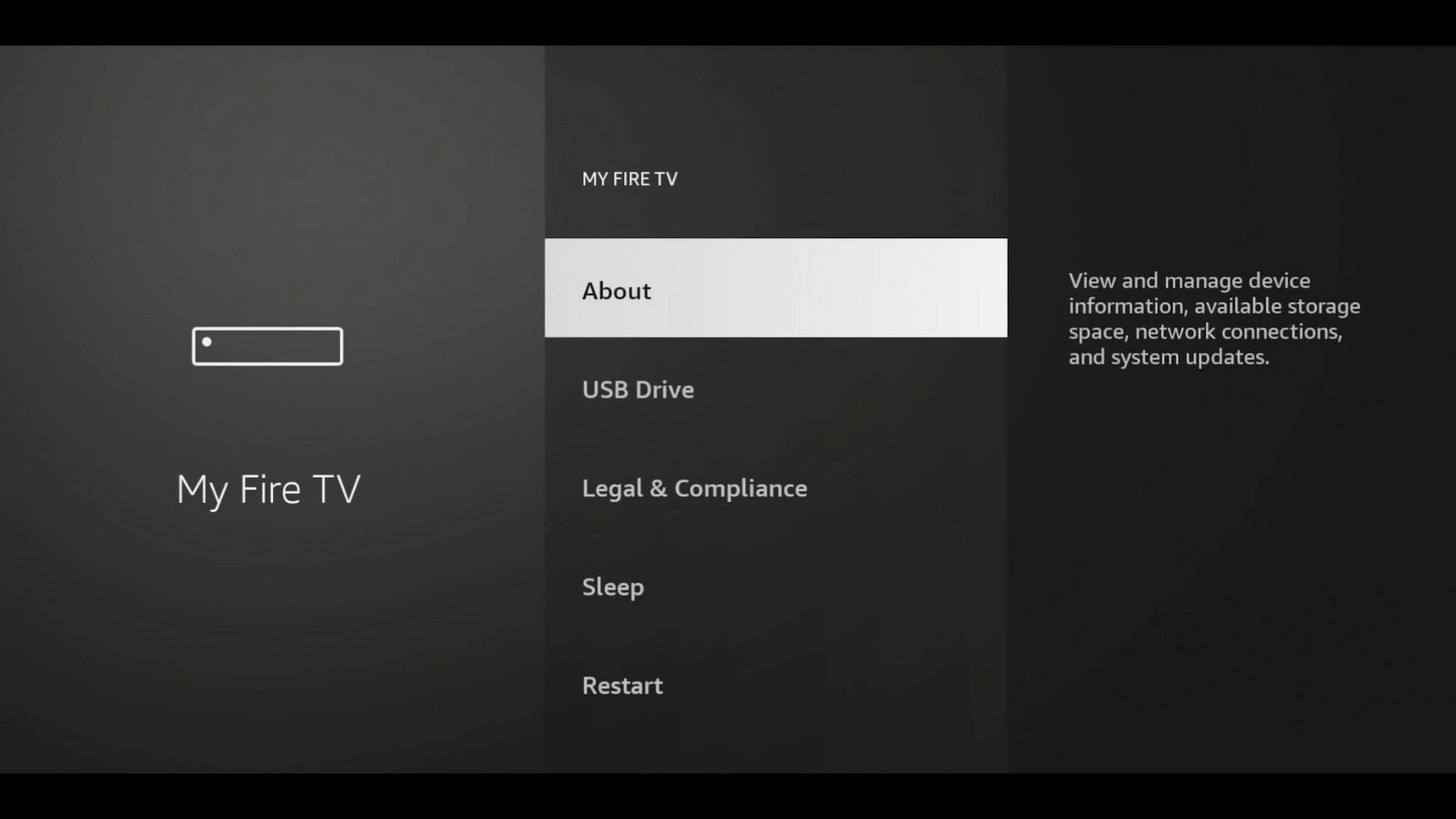
Enable Developer Options
Highlight the name of your Fire TV device and press the center Select button on the remote 7 times.
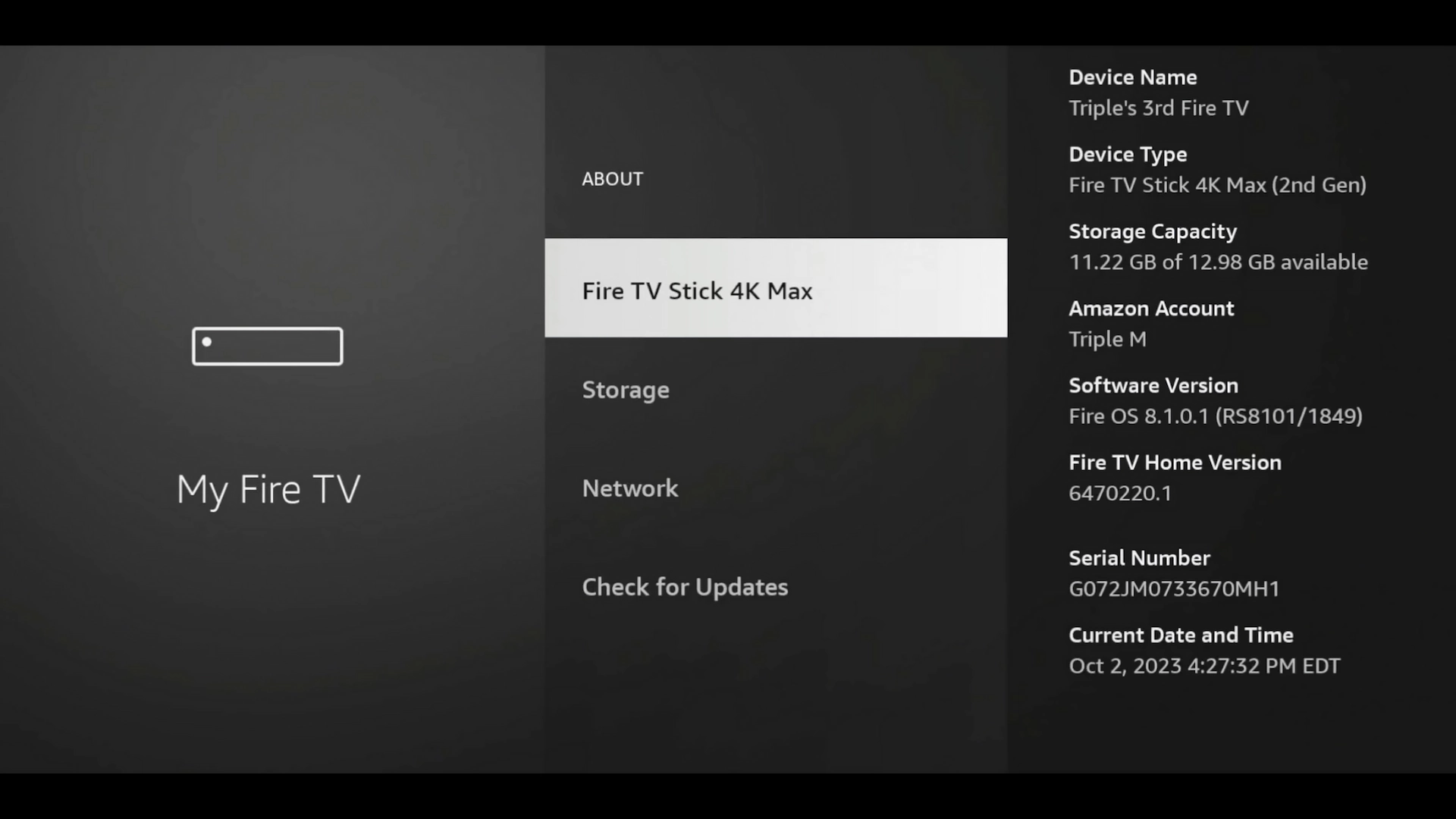
Return to the previous menu and you should now see Developer Options.
Allow Downloader to Install Apps
Open Install Unknown Apps or Apps from Unknown Sources.

Find Downloader. It may initially show as OFF.

Change Downloader to ON.
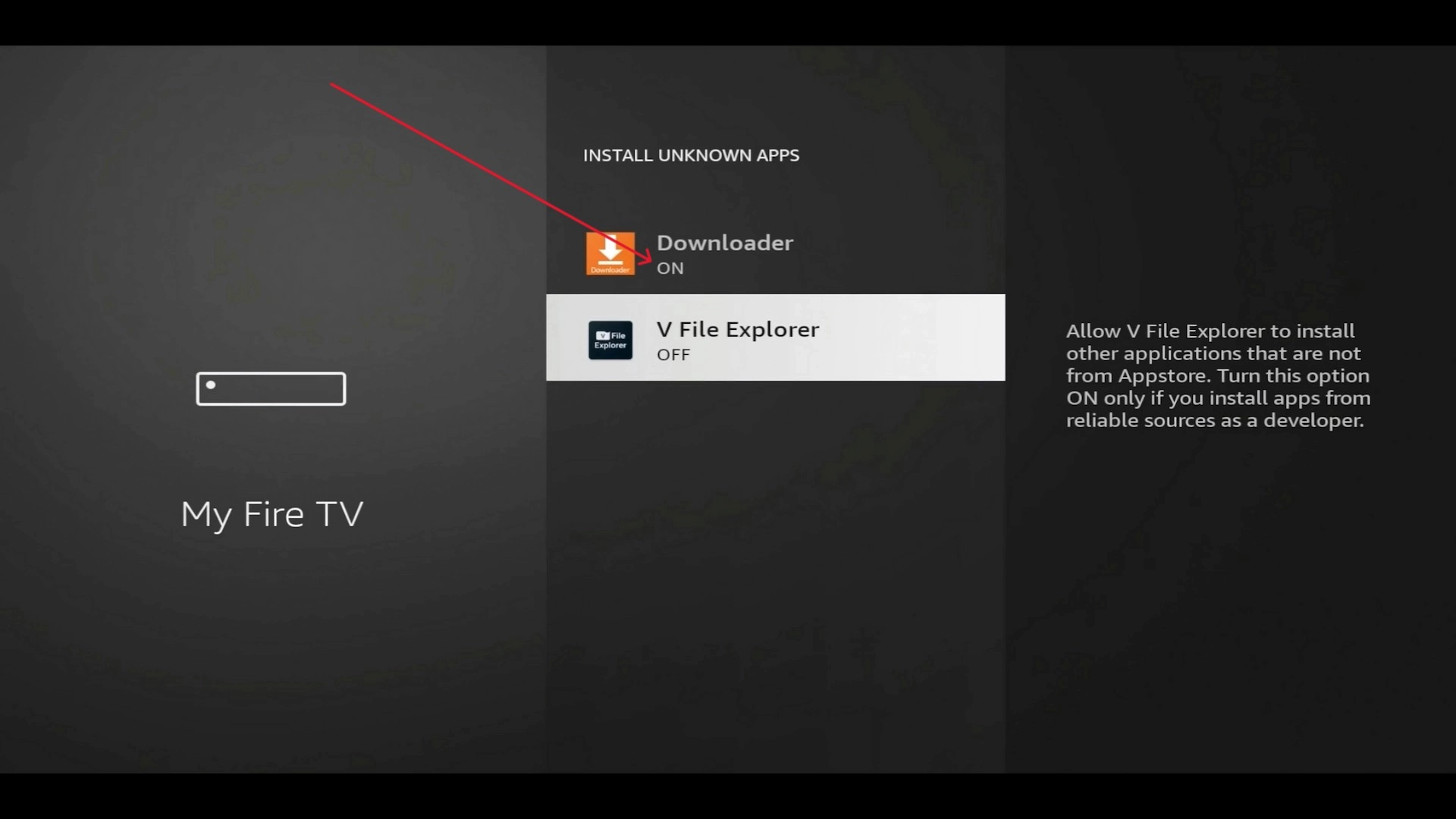
On Android TV and Google TV, the equivalent setting may appear under:
Settings → Apps → Special App Access → Install Unknown Apps
Step 3: Download TiviMate
Now open the Downloader application.
For the regular TiviMate application, you can use TiviMate's official Downloader code:
- Open Downloader.
- Select the URL/code box.
- Enter 272483.
- Select Go.
You can alternatively enter:
tivimate.com/apk
Downloader should begin downloading the TiviMate installation file.

The screenshot may show an earlier TiviMate version or download page. TiviMate versions change over time, so use the current version provided through TiviMate's official download method.
Important: Only install TiviMate from a source you trust. Avoid random websites offering cracked or modified versions of the regular TiviMate application.
Step 4: Install TiviMate
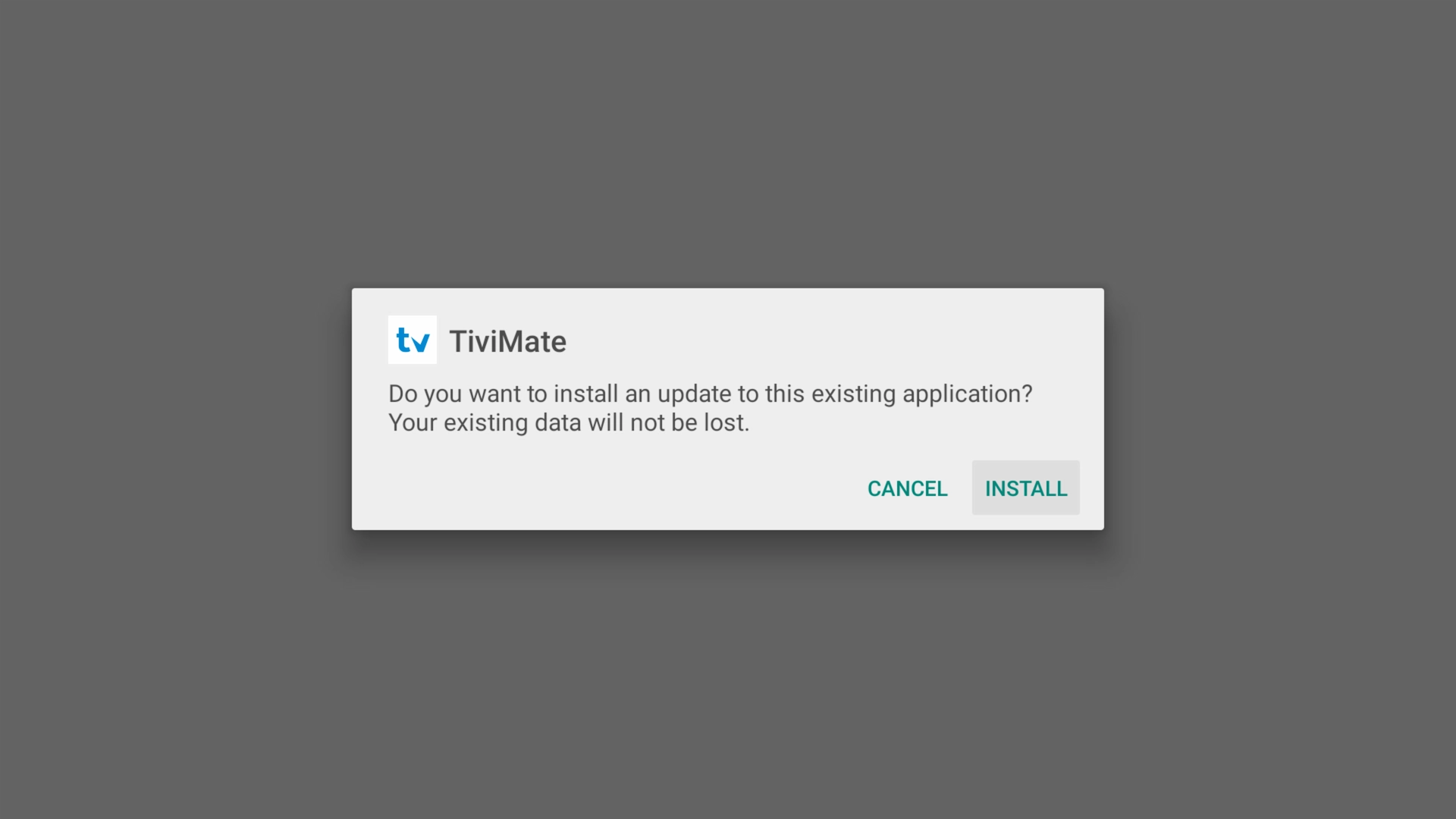
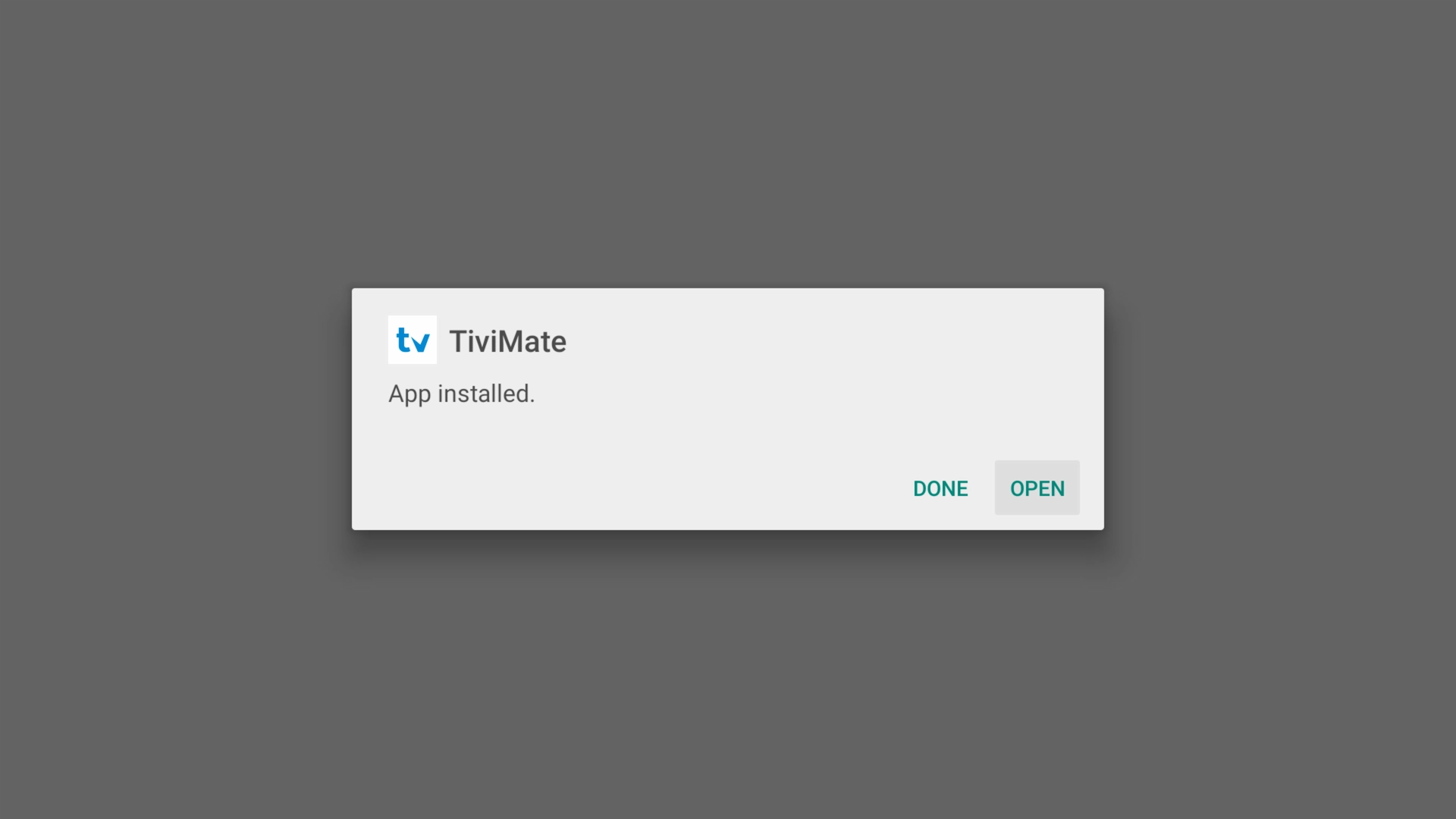
Once the APK finishes downloading, the Android installation screen should appear.
Select Install.
Wait while TiviMate installs.
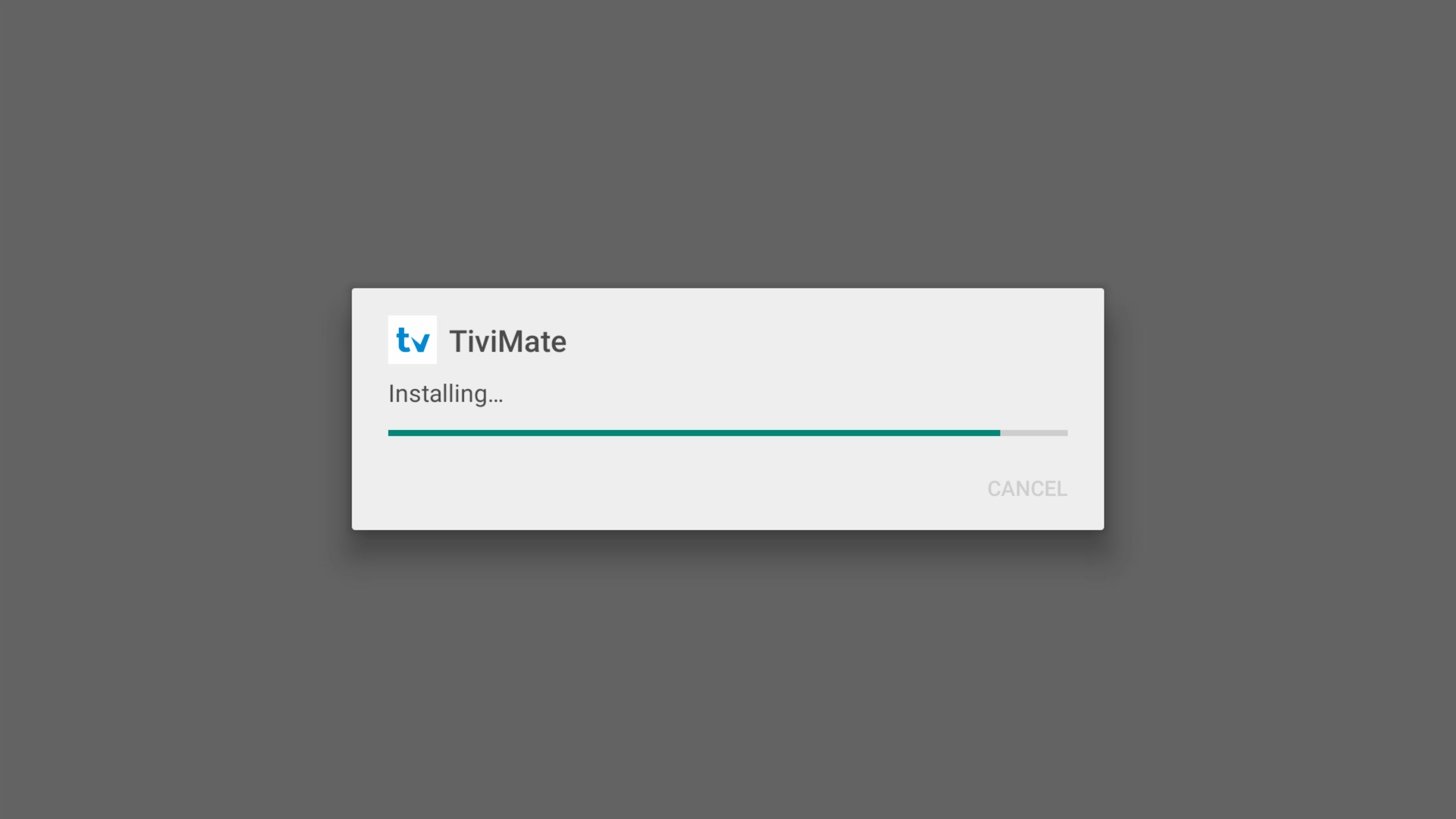
When installation finishes, select Open.
Delete the APK After Installation
Downloader may ask whether you'd like to delete the downloaded APK.
Once TiviMate has successfully installed, you can safely delete the installation file. This does not uninstall TiviMate and can help free storage space on your Firestick.
Step 5: Add Your IPTV Account to TiviMate
When TiviMate opens for the first time, you'll need to connect it to an IPTV service.
For the setup shown here, you'll need:
- Server URL
- Username
- Password
Don't Have IPTV Login Details?
Get our free 36-hour IPTV trial. We'll provide the login details you need to test the service in TiviMate on your own device.
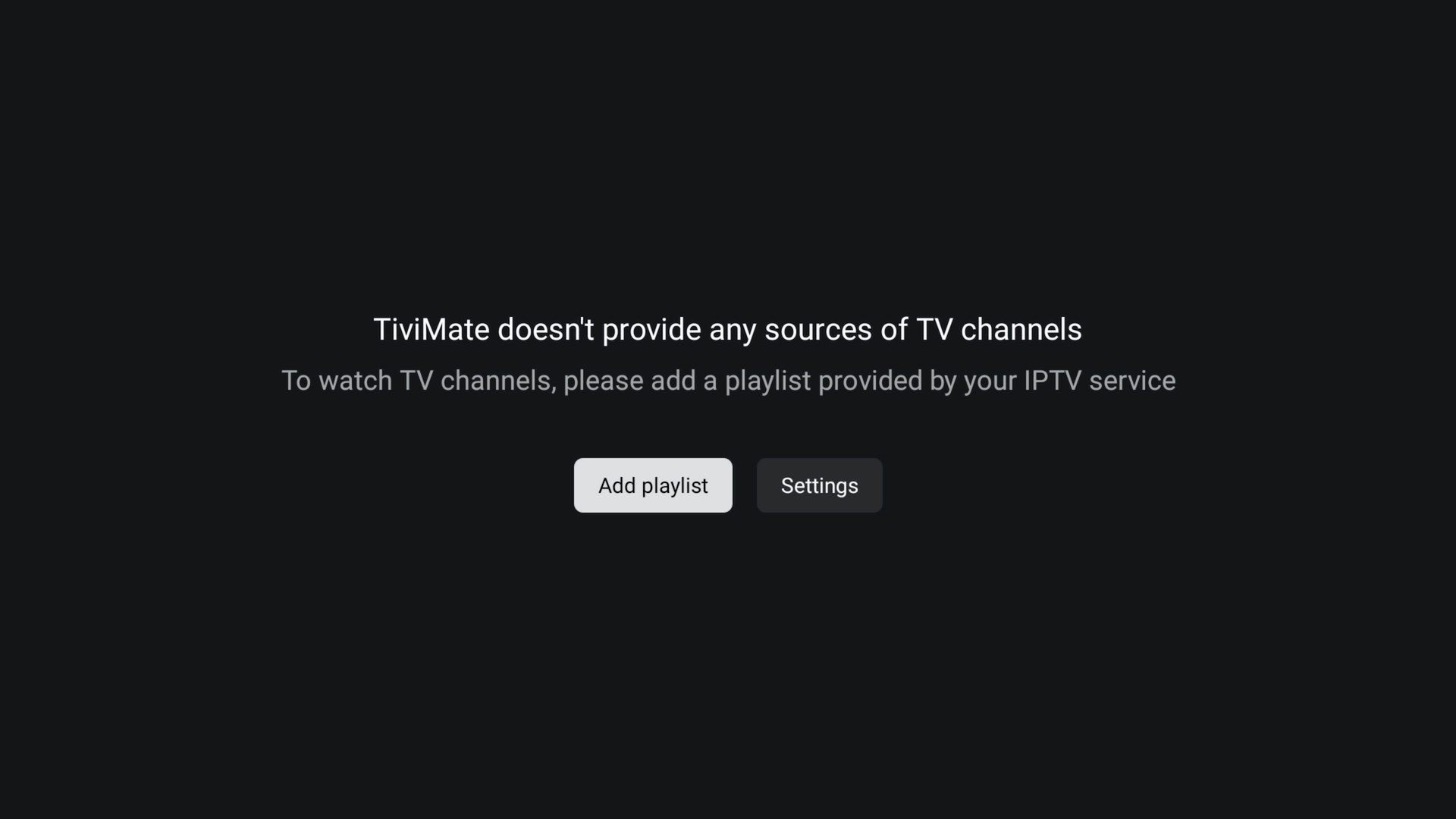
Choose Add Playlist
On the TiviMate welcome screen, select Add Playlist.
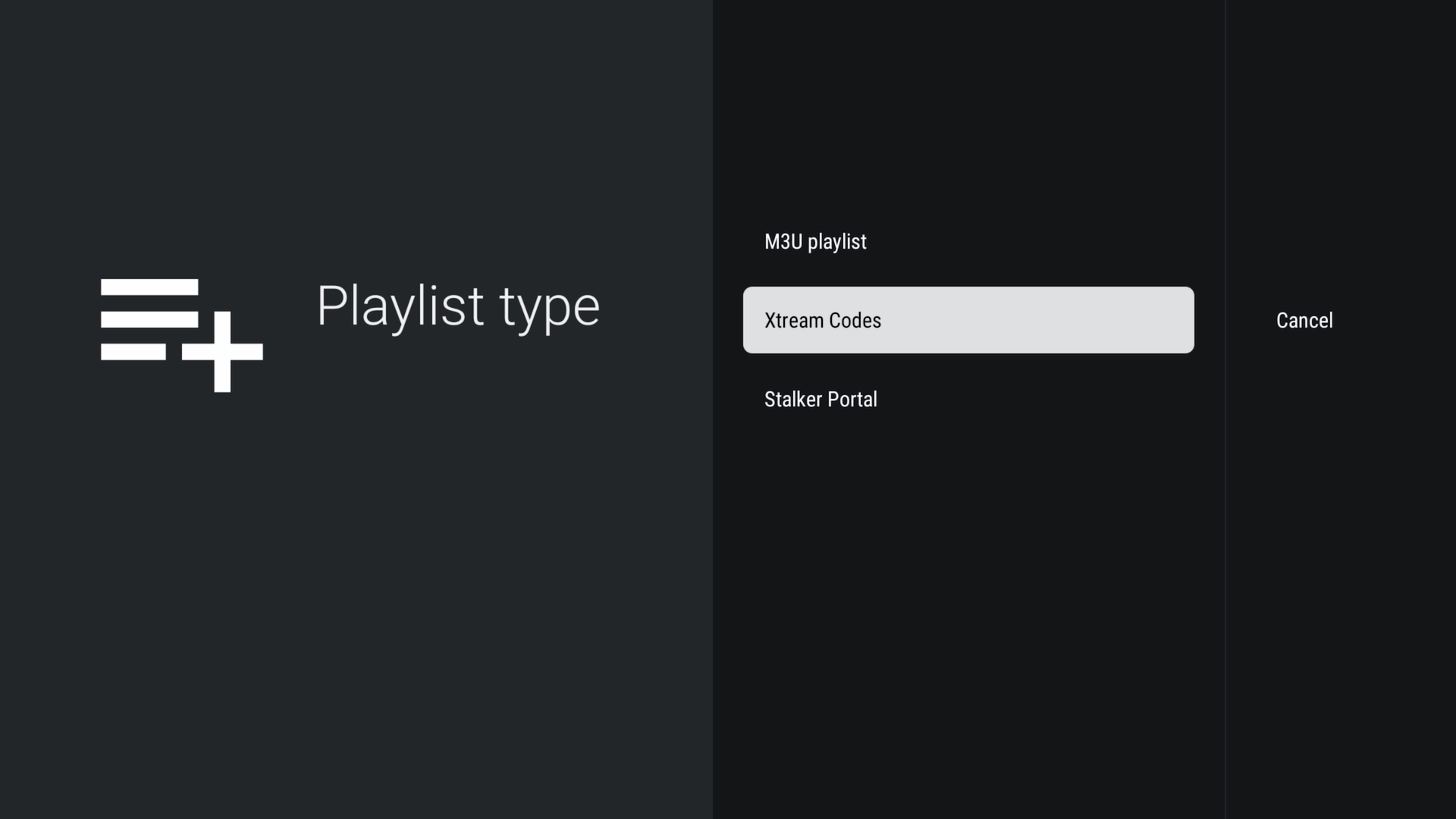
Select Xtream Codes
Select Xtream Codes. This allows you to sign in using the Server URL, Username, and Password provided with your IPTV account.
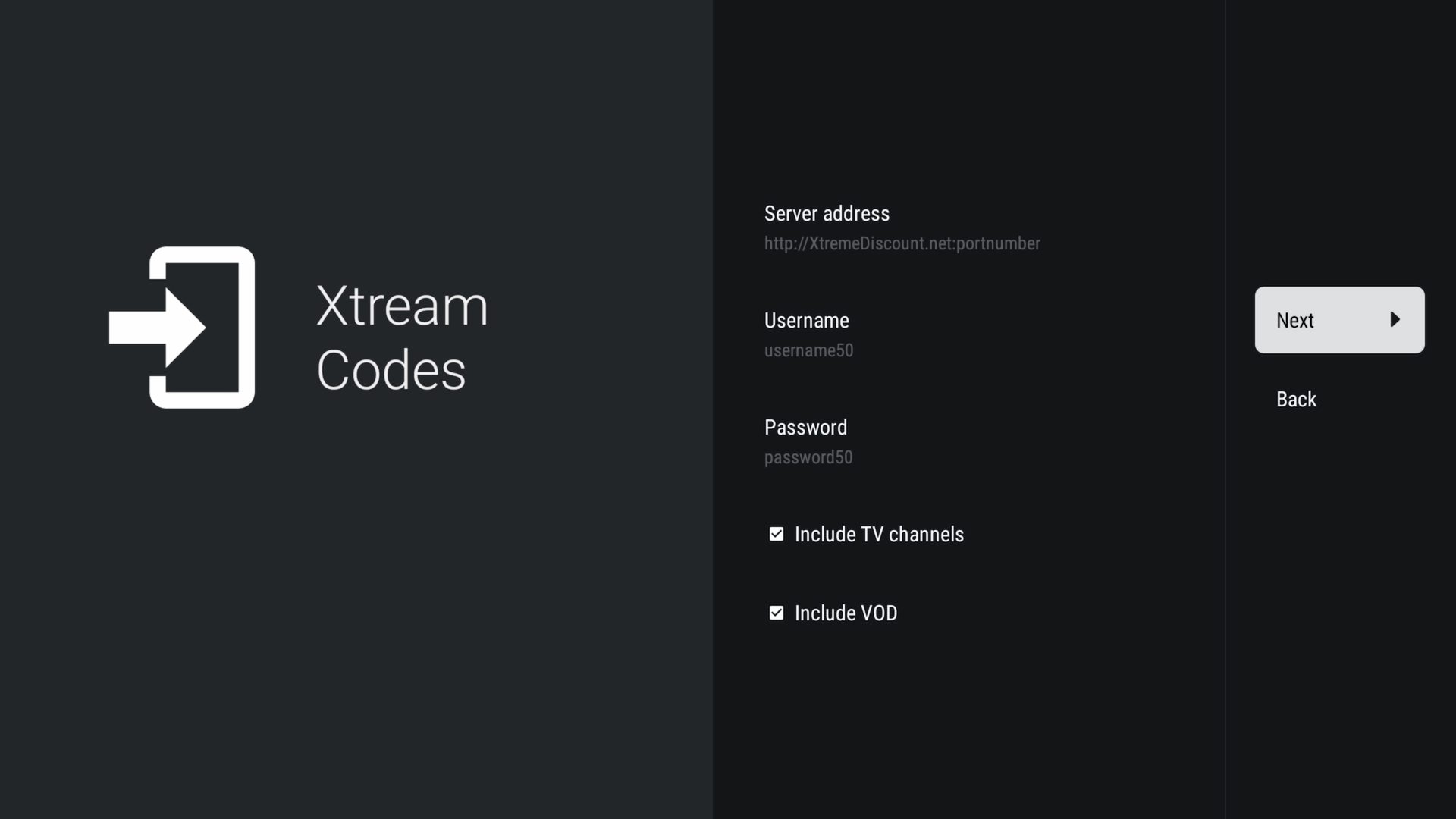
Enter Your Login Details
Carefully enter:
- Server Address: Enter the complete URL provided with your account.
- Username: Enter your IPTV username.
- Password: Enter your IPTV password.
Enter everything exactly as provided. Usernames and passwords can be case-sensitive.
Wait for TiviMate to Process Your Playlist
TiviMate will connect and begin processing the information associated with your IPTV account.
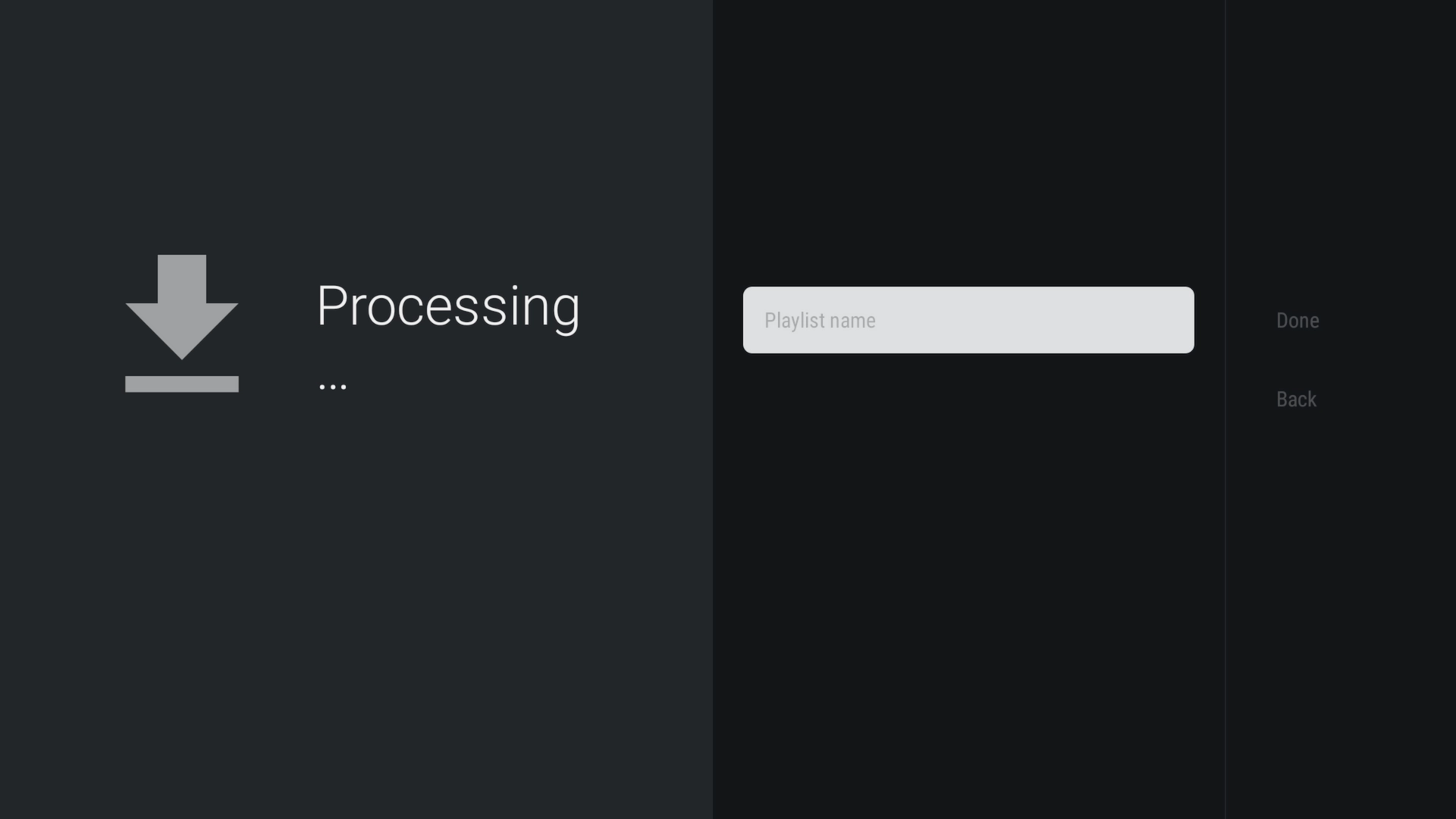
Larger services can take a little longer to load initially.
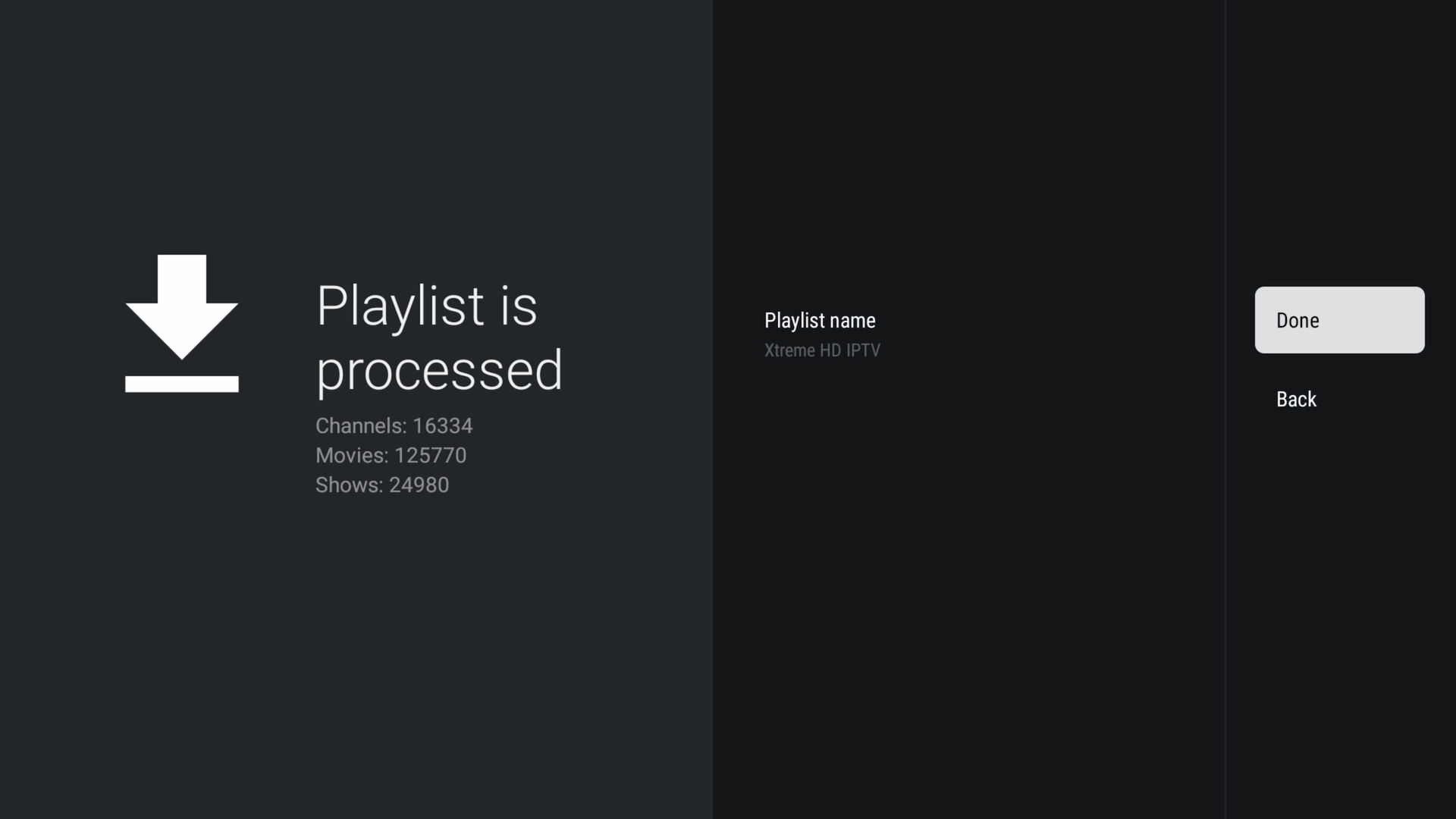
Name Your Playlist
Give the playlist a name you'll recognize and select Done.
Using TiviMate
Once your playlist finishes loading, TiviMate organizes the available content into a television-friendly interface.
Live TV, Movies & Series
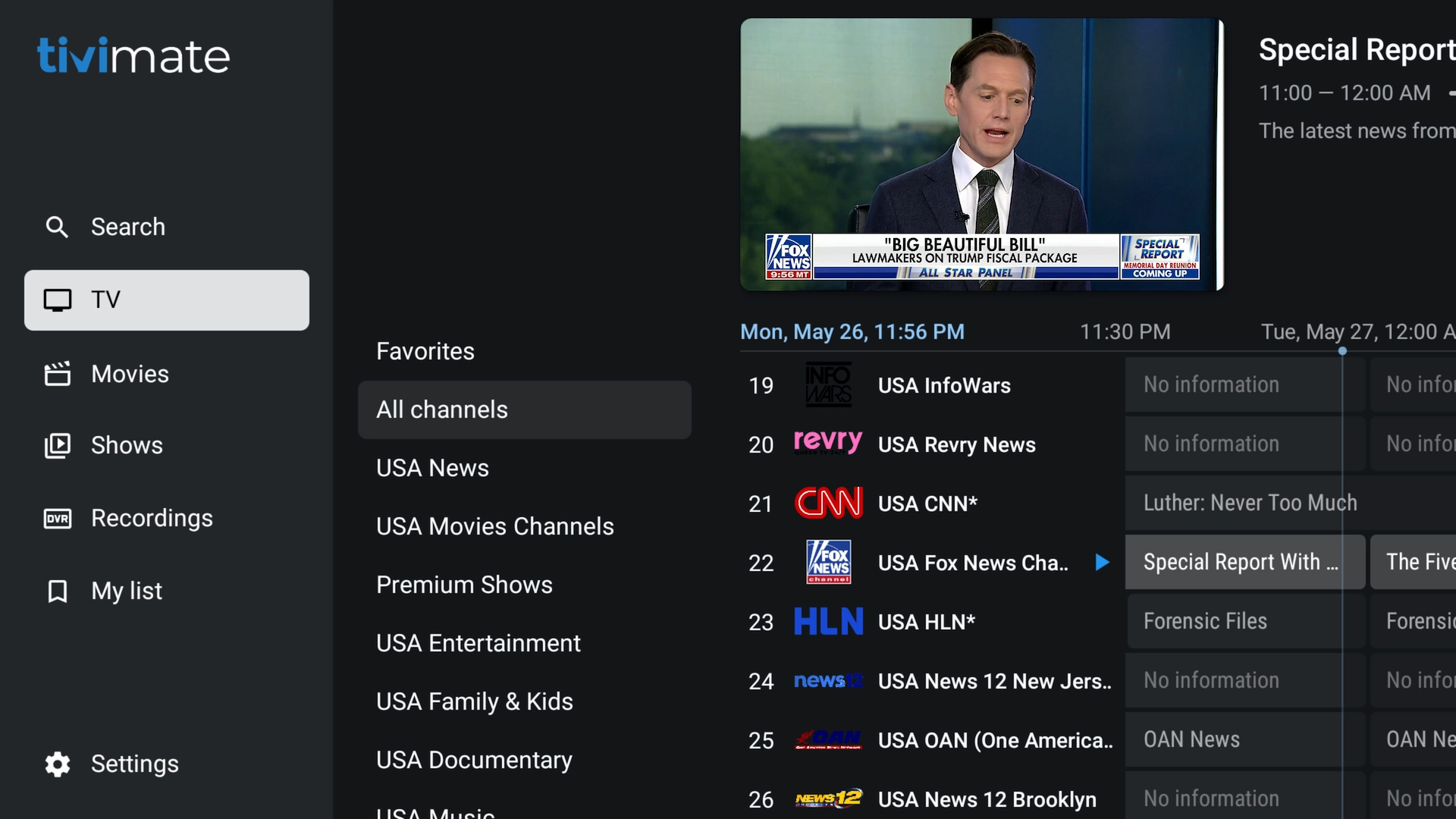
Channel Categories
Live channels can be organized into categories, making a large IPTV service much easier to navigate.
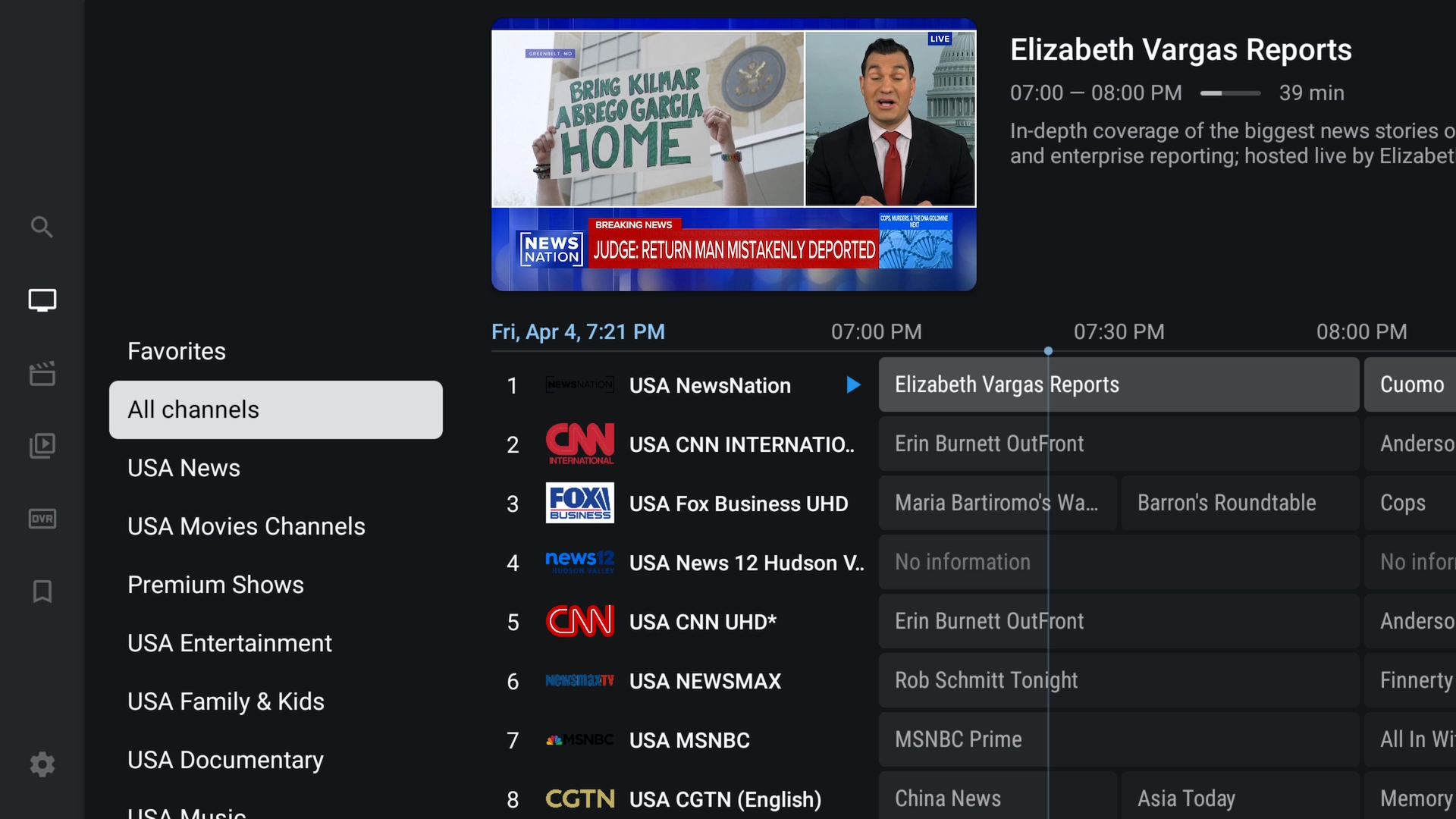
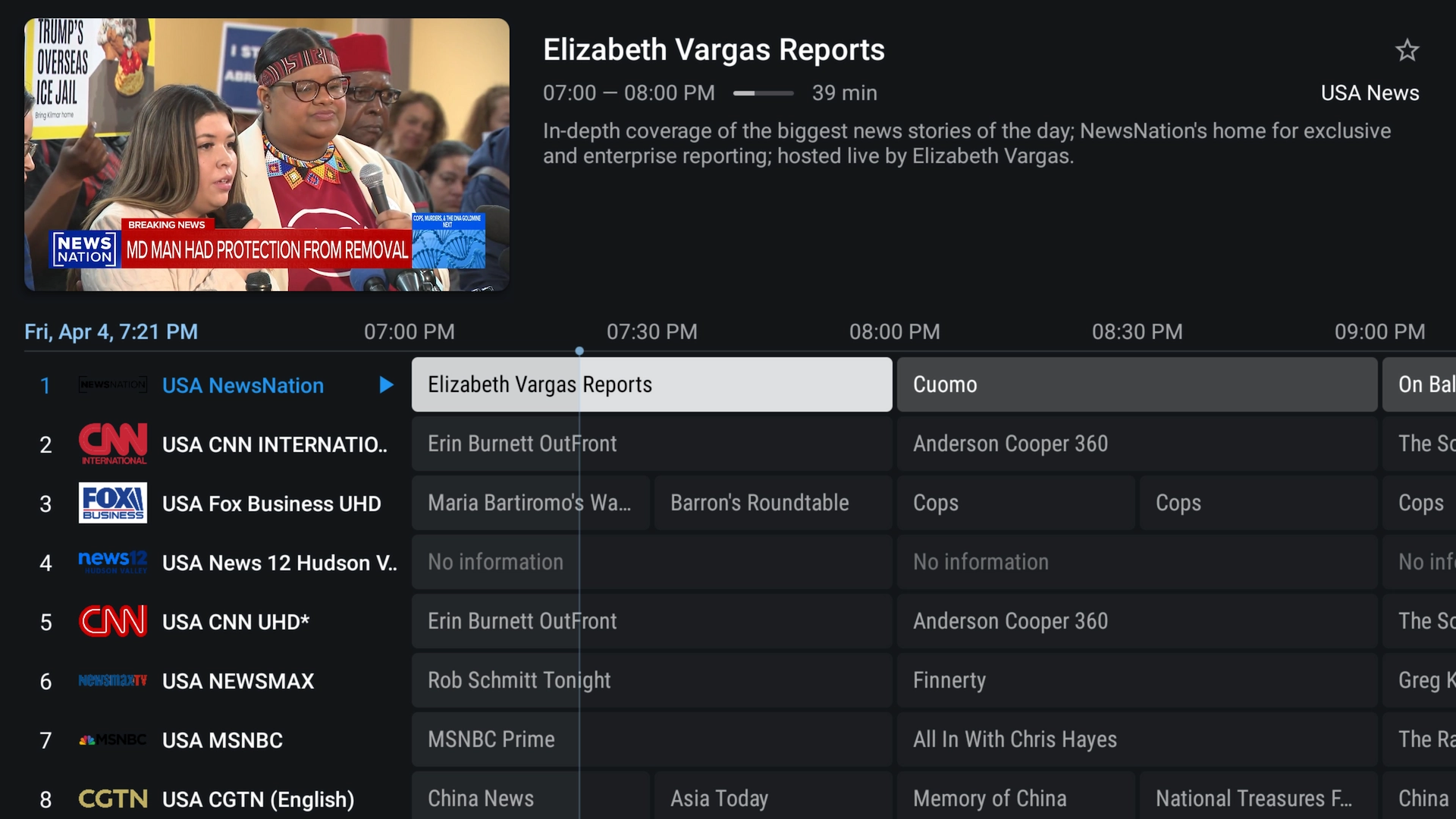
Electronic Program Guide
When your service supplies compatible EPG information, TiviMate can display a traditional television-style program guide.
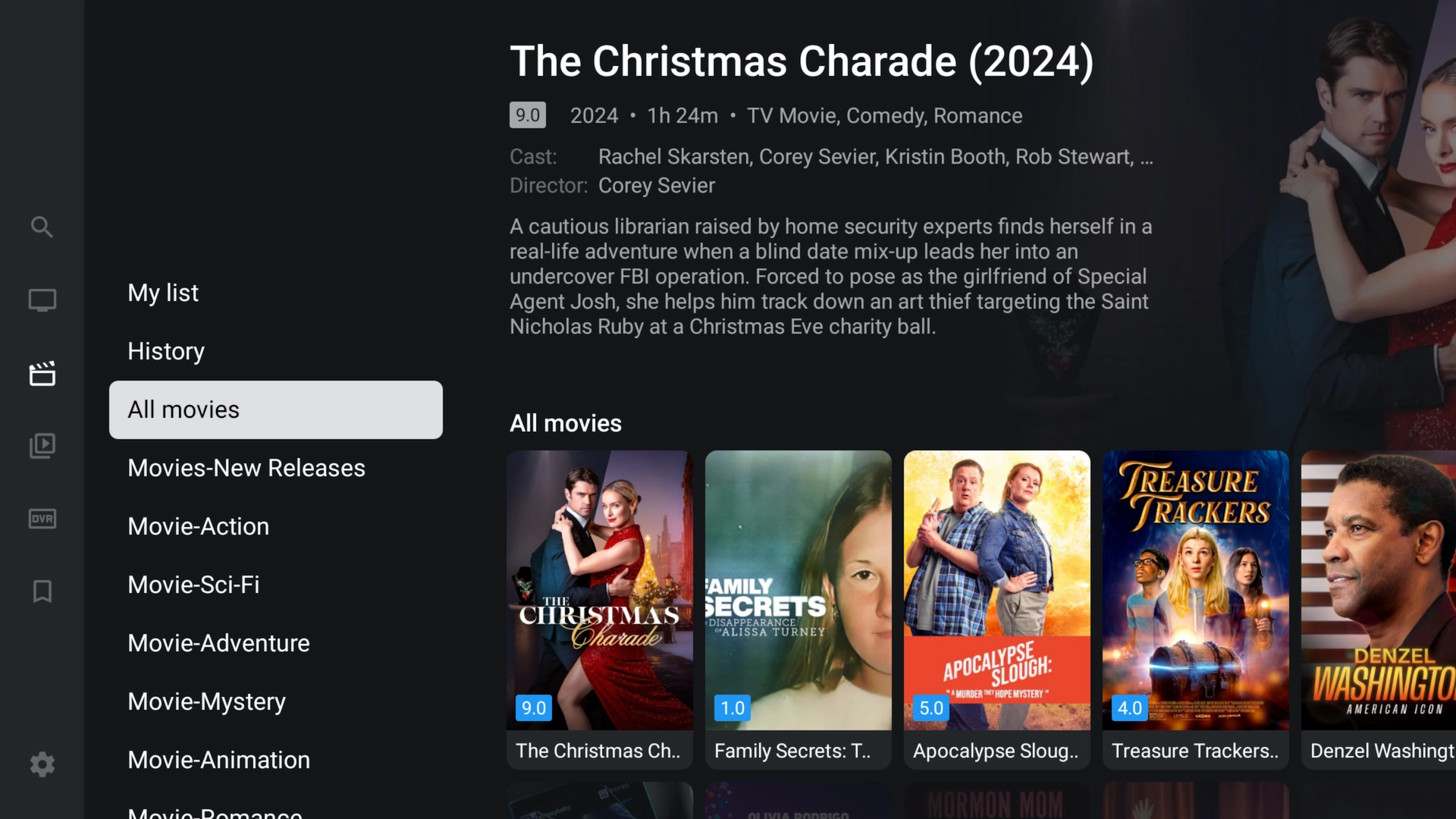
Movies
When supported by your IPTV service, TiviMate can also organize available on-demand movies.
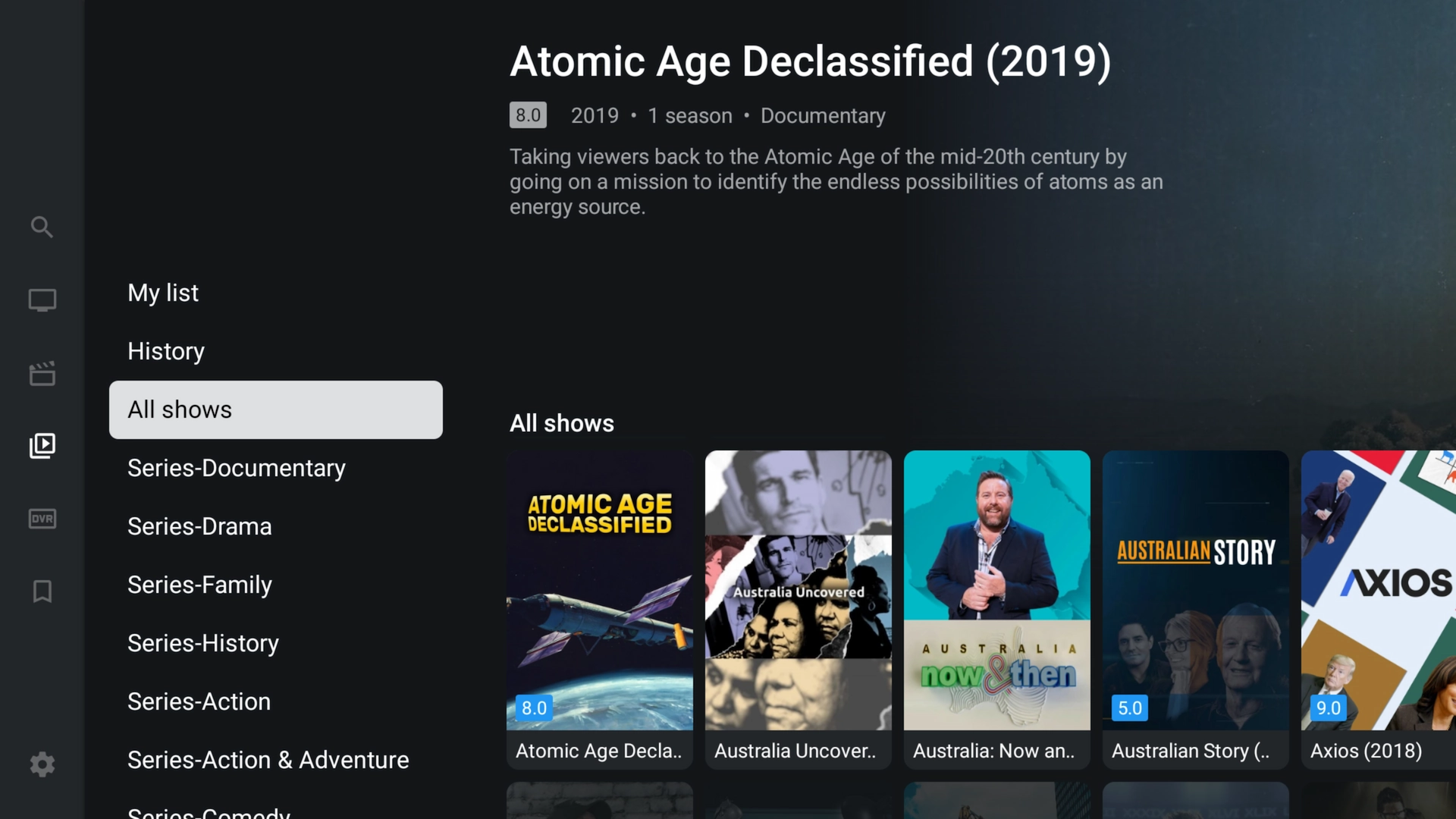
TV Series
What About TiviMate Premium?
The regular TiviMate app has basic functionality available without Premium. However, TiviMate also offers a separate Premium upgrade that unlocks additional app features.
The Premium upgrade is separate from your IPTV service. Purchasing an IPTV subscription does not automatically purchase TiviMate Premium, and purchasing TiviMate Premium does not provide IPTV service.
If you want the official TiviMate Premium features, follow TiviMate's current instructions for purchasing and activating Premium.
If you're simply trying IPTV for the first time, you can start by installing TiviMate and using your free 36-hour IPTV trial before deciding what additional app features you want.
How to Update TiviMate
When a newer TiviMate version becomes available, use TiviMate's official download method to obtain the current APK.
- Open Downloader.
- Enter 272483 or tivimate.com/apk.
- Download the current version.
- Install it over your existing TiviMate installation.
Installing an update directly over your current installation should normally preserve the application's existing data.
Don't uninstall TiviMate first unless necessary for troubleshooting. Uninstalling the application can remove locally stored settings and playlists.
TiviMate Troubleshooting
Downloader Code 272483 Isn't Working
Make sure you entered 272483 correctly.
You can alternatively enter:
tivimate.com/apk
Downloader Won't Install TiviMate
Return to your Firestick or Android TV settings and confirm that Downloader has permission to install unknown applications.
TiviMate Says "App Not Installed"
Possible causes include:
- Not enough free storage space
- An incomplete APK download
- A conflicting TiviMate installation
- An incompatible Android version
Restart the device, check available storage, and try downloading the installer again.
My IPTV Playlist Won't Process
Double-check your Server URL, Username, and Password.
Common mistakes include:
- A missing letter or number
- An incorrect server port
- Using HTTP instead of HTTPS or vice versa
- Extra spaces in the username or password
- An expired account
If you're using one of our trials and can't get it working, use Live Chat or open a Support Ticket and we'll help you with the setup.
My TV Guide Is Empty
Give TiviMate several minutes to download the EPG information after adding a new playlist. You can also manually refresh the EPG from TiviMate's settings.
TiviMate Is Buffering
Restart your streaming device and router, close unnecessary background apps, and check the quality of your Wi-Fi connection. Ethernet can also be useful for troubleshooting when your device supports it.
If the problem continues with your trial or subscription, contact support so we can help determine whether the issue is related to the app, device, network, or service.
Frequently Asked Questions
What is the official TiviMate Downloader code?
The Downloader code used in this guide for the regular TiviMate application is 272483. You can also enter tivimate.com/apk in Downloader.
Is TiviMate an IPTV service?
No. TiviMate is an IPTV player. It does not provide an IPTV subscription or content by itself.
Do I have to pay for TiviMate Premium?
You don't have to purchase Premium simply to install TiviMate. However, some of TiviMate's additional features require its separate Premium upgrade.
Is TiviMate Premium included with my IPTV trial?
No. The IPTV service and TiviMate Premium are separate products. Your trial provides the IPTV credentials that you can enter into a compatible IPTV player.
Can I install TiviMate on Firestick?
Yes. TiviMate can be installed on compatible Firestick and Fire TV devices using the Downloader method described above.
Does TiviMate work on Android TV and Google TV?
Yes. TiviMate is designed for Android-based television devices and is a popular option for Android TV and Google TV.
Can I install TiviMate on Roku?
Roku doesn't run Android APK applications, so the Android TiviMate application cannot be installed directly on a Roku device.
Can I install TiviMate on iPhone, iPad, or Apple TV?
The regular TiviMate Android application isn't available for Apple's operating systems. Apple users should use an IPTV player designed for Apple devices, such as UHF – Love Your IPTV or another compatible player.
Can I use my free IPTV trial with TiviMate?
Yes. When you receive your free trial, use the supplied Server URL, Username, and Password with the Xtream Codes option in TiviMate.
Where can I get IPTV login information for TiviMate?
If you don't already have an IPTV service, you can get a free 36-hour IPTV trial here. No credit card is required.
What if I need help setting up TiviMate?
Use our Live Chat or open a Support Ticket. Let us know which device you're using and where you're getting stuck, and we'll help you through the setup.
Install TiviMate and Try IPTV Free
Once TiviMate is installed, you're only a few steps away from seeing how IPTV works on your Firestick, Android TV, or Google TV device.
Get a free 36-hour IPTV trial, enter the credentials into TiviMate using the steps above, and explore the service on your own device before purchasing anything.
Try IPTV Free for 36 Hours
Get your login details, add them to TiviMate, and test the service on your own Firestick or Android TV device.
No Credit Card Required • Nothing to Cancel