


IPTV Smarters is one of the easiest and most popular IPTV players to set up on Android phones and tablets, Android TV, Firestick, iPhone, iPad, and Apple TV.
If you want to see what IPTV is actually like before paying for a subscription, this guide will also show you how to install IPTV Smarters and connect it to a free 36-hour IPTV trial. No credit card is required, so you can test the service on your own device first.
Want Something to Test in IPTV Smarters?
Get a free 36-hour IPTV trial, receive your login details, and follow this guide to load them into IPTV Smarters.
No Credit Card Required • Nothing to Cancel
Table of Contents
- Android Phones & Tablets
- Android TV & Firestick
- iPhone, iPad & Apple TV
- How to Add Your IPTV Account
- What IPTV Smarters Looks Like
- Frequently Asked Questions
Install IPTV Smarters on Android Phones & Tablets – Two Easy Steps
Android phone and tablet users have the easiest installation method. You do not need to install Downloader or enter a Downloader code.
You can download our branded IPTV Smarters Xtreme Edition directly from the Xtreme Toolbox.
Step 1: Open Xtreme Toolbox
On your Android phone or tablet, open your web browser and go to:
Step 2: Tap Download Next to IPTV Smarters Xtreme Edition
Find IPTV Smarters Xtreme Edition in the Toolbox and tap the blue Download button.
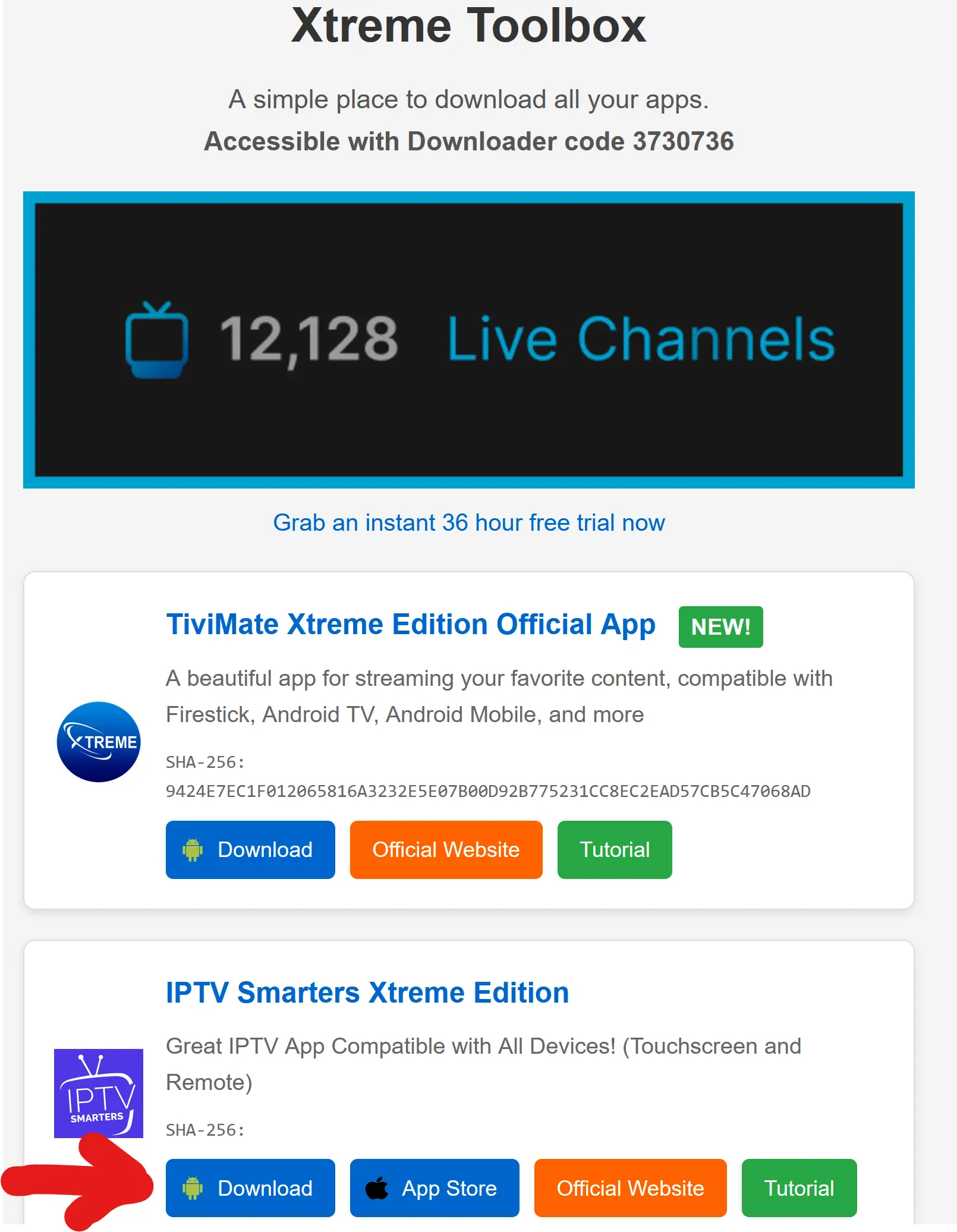
Once the APK finishes downloading, open the downloaded file and tap Install.
That's it — two easy steps!
IPTV Smarters Xtreme Edition is our branded Android version of Smarters and includes premium Smarters features at no additional charge, VPN support, remote settings management, and remote support options. There is no separate website or premium activation process required.
Android security note: If your phone or tablet asks for permission to install apps from your browser, choose Settings, enable Allow from this source, then return to the downloaded APK and install it.
Install IPTV Smarters on Android TV & Firestick
Firestick and Android TV devices can install IPTV Smarters Xtreme Edition using the Downloader app. The process only takes a few minutes.
Step 1: Install the Downloader App
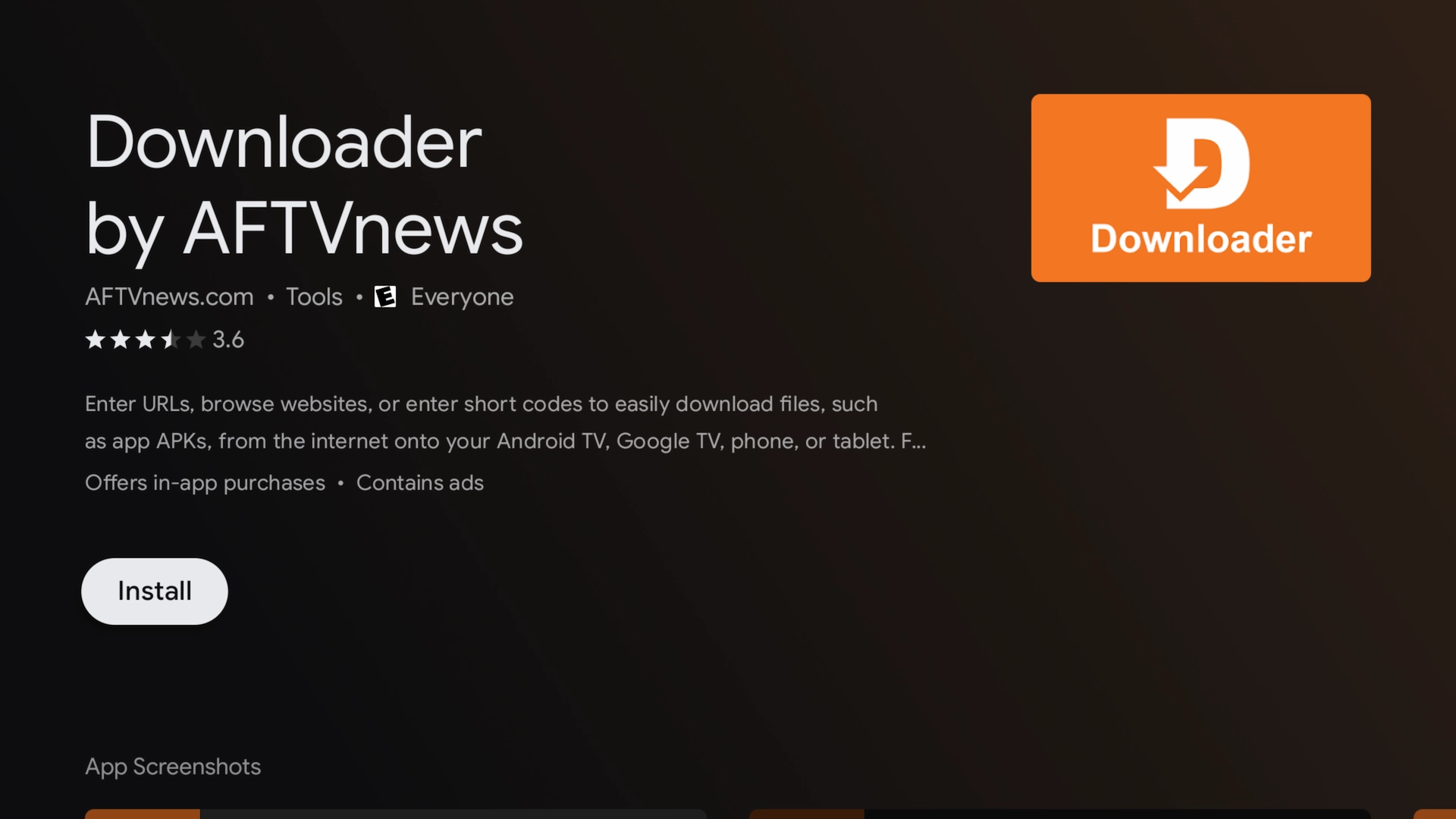
First, install the Downloader app on your device.
- Amazon Firestick / Fire TV: Search for Downloader in the Amazon Appstore and install it.
- Android TV: Search for Downloader in the Google Play Store and install it.
Step 2: Enable Developer Options & Unknown Sources
Before installing IPTV Smarters through Downloader, your device may need permission to install apps from outside its normal app store.
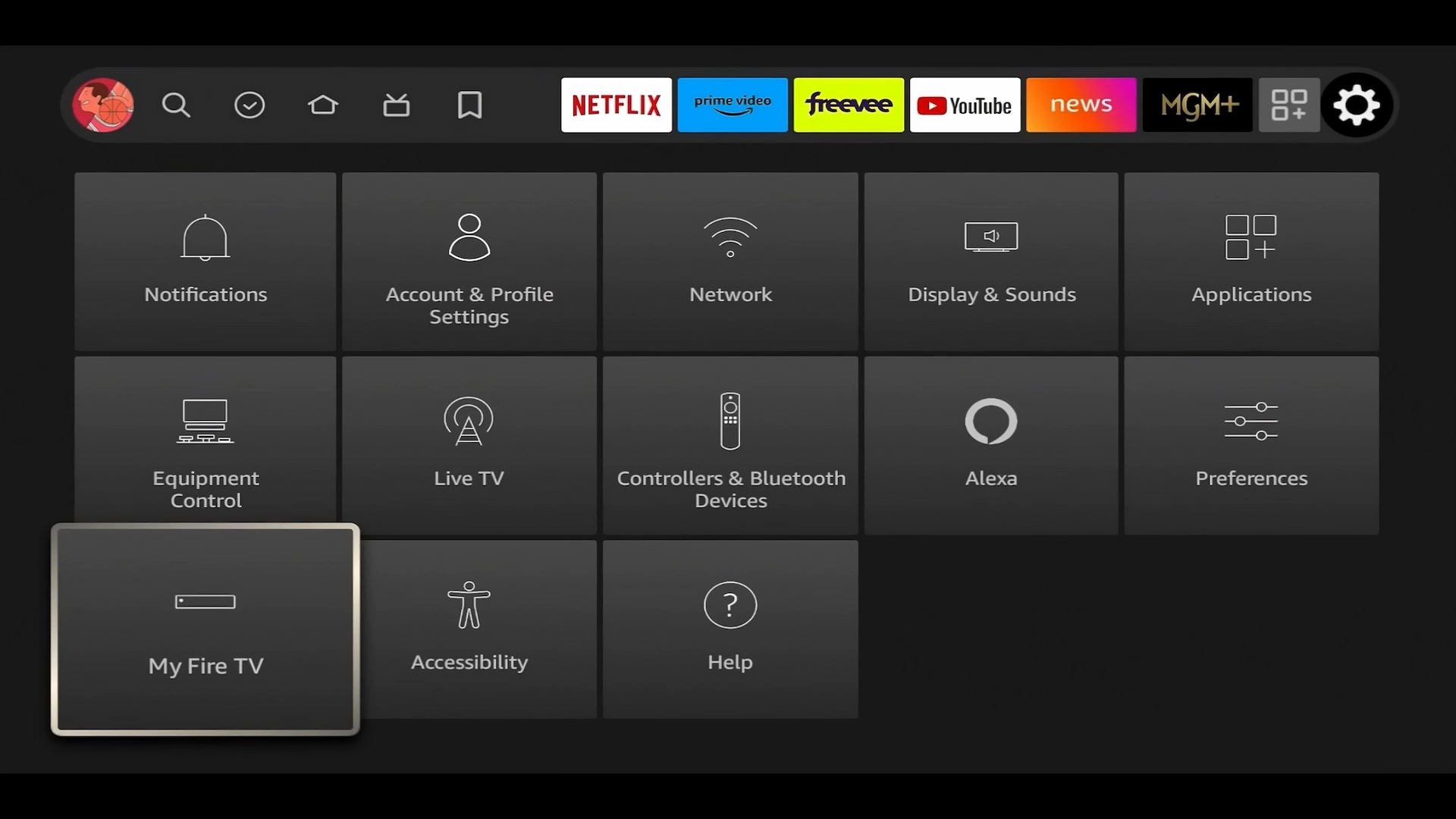
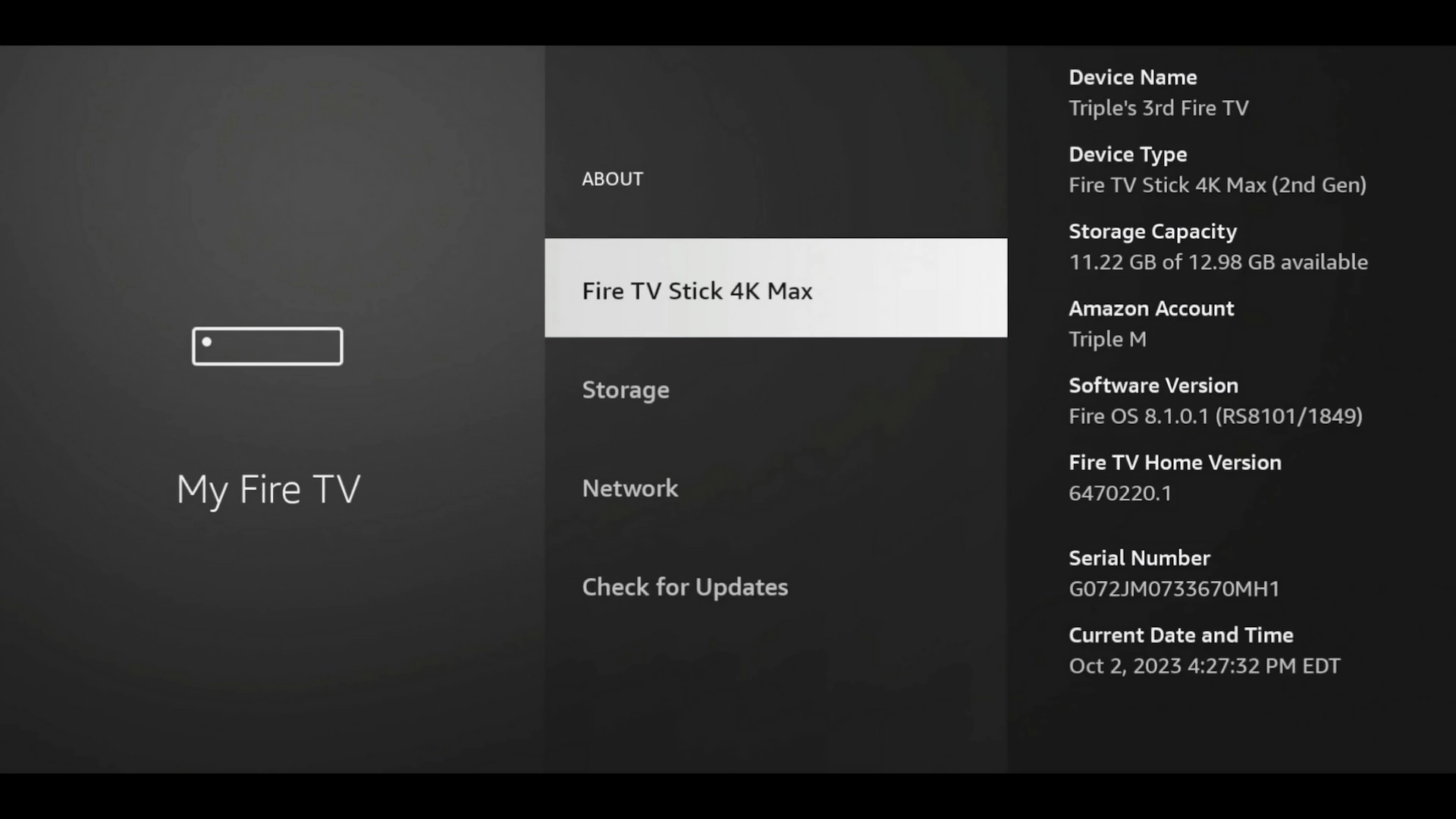
1. From your Firestick home screen, open Settings and select My Fire TV.
2. Select About.
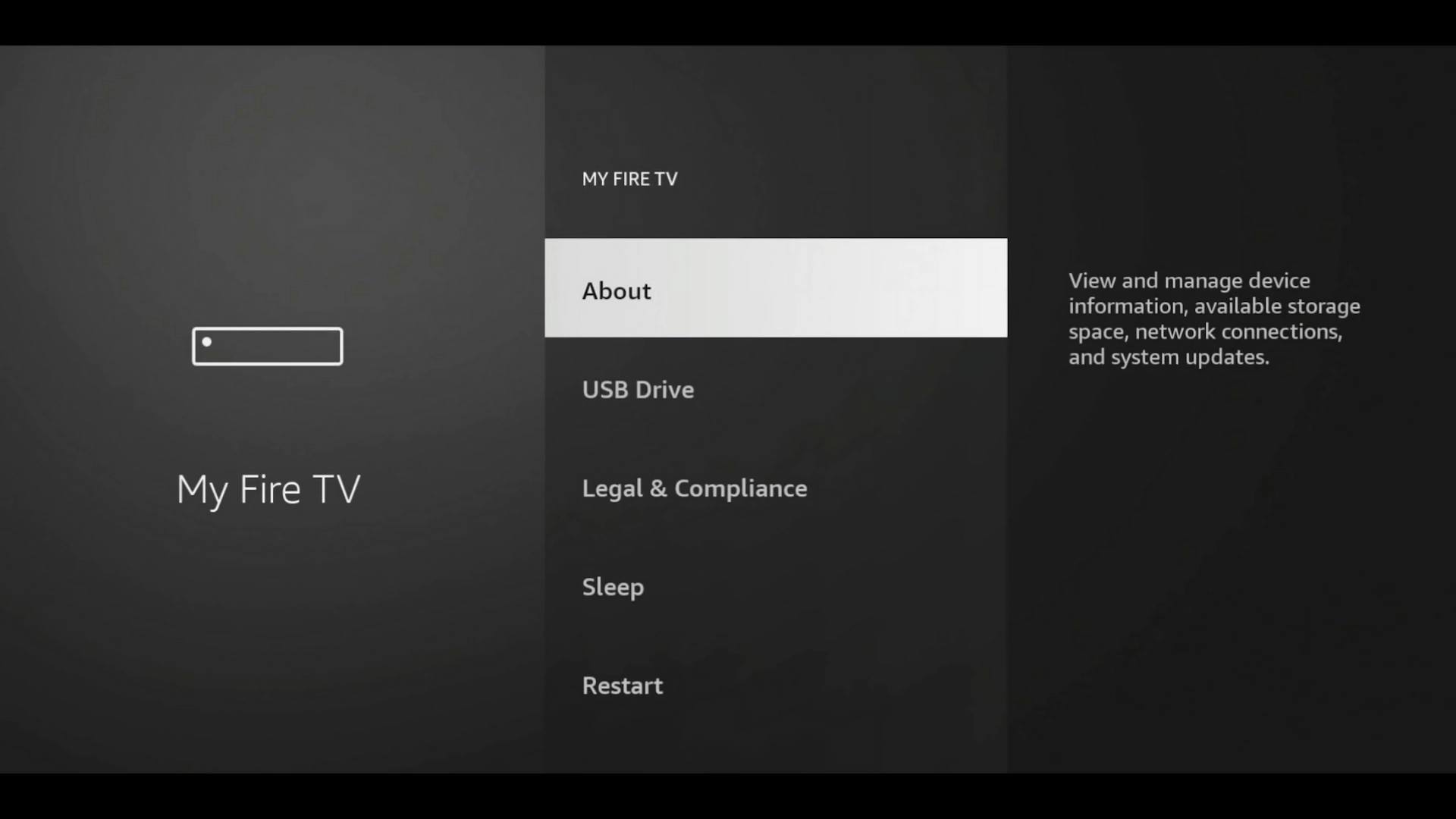
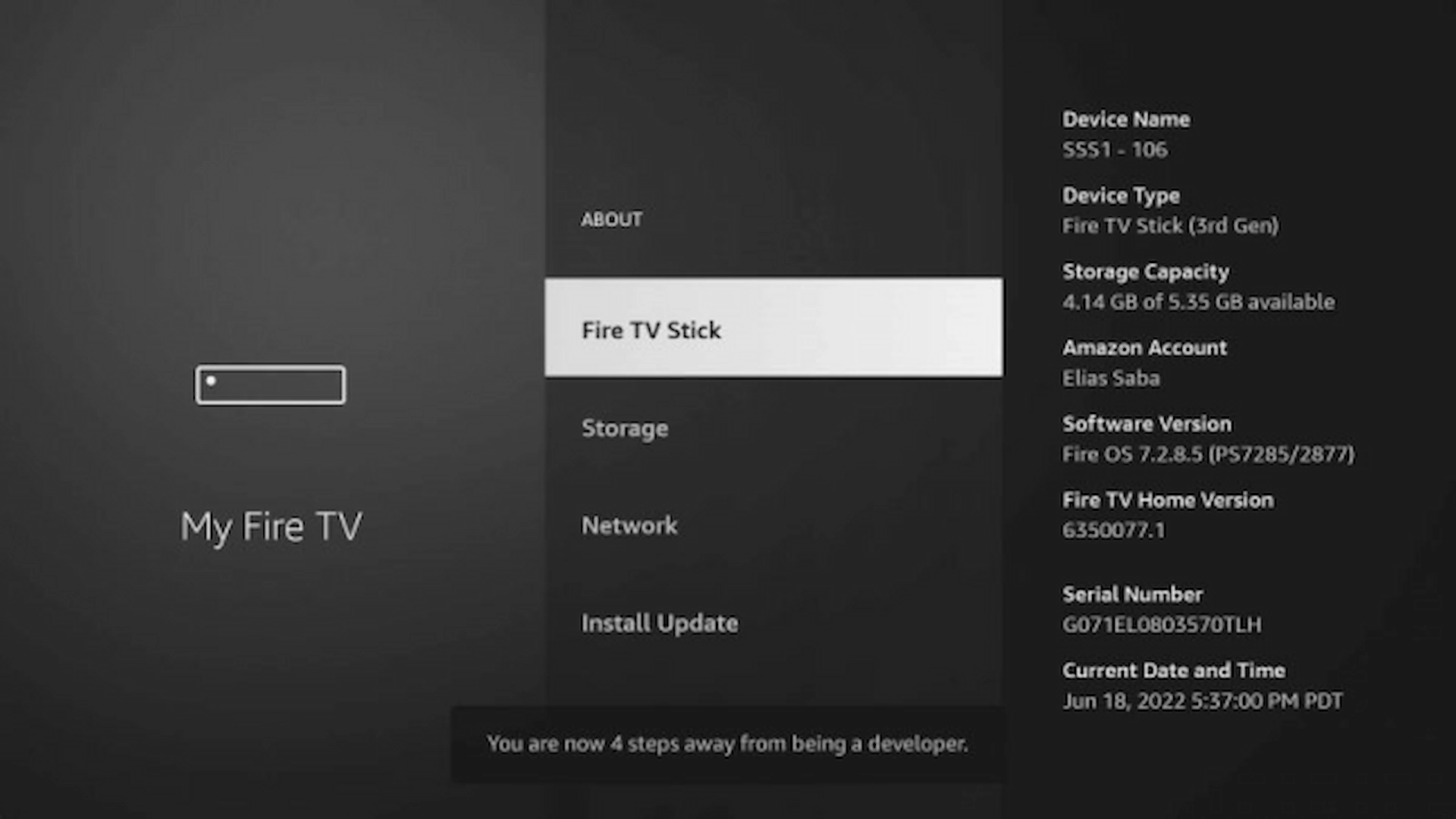
3. Highlight the name of your Fire TV device and press the Select button on your remote 7 times quickly.
This unlocks Developer Options if they aren't already visible.
You may see a message indicating how many steps remain before Developer Options are enabled.
4. Return to the previous screen. You should now see Developer Options.
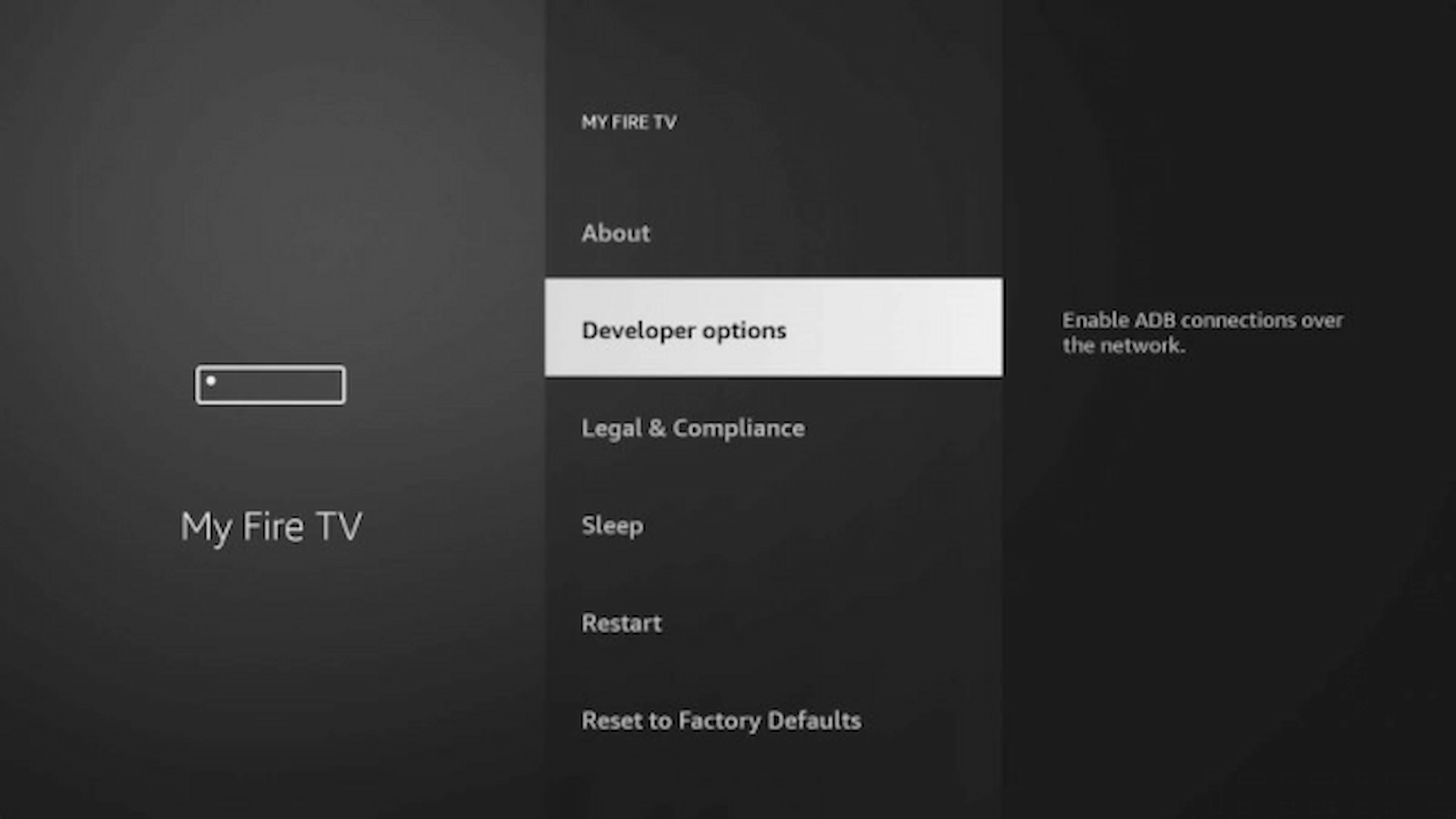
5. Open Developer Options and choose Install Unknown Apps.
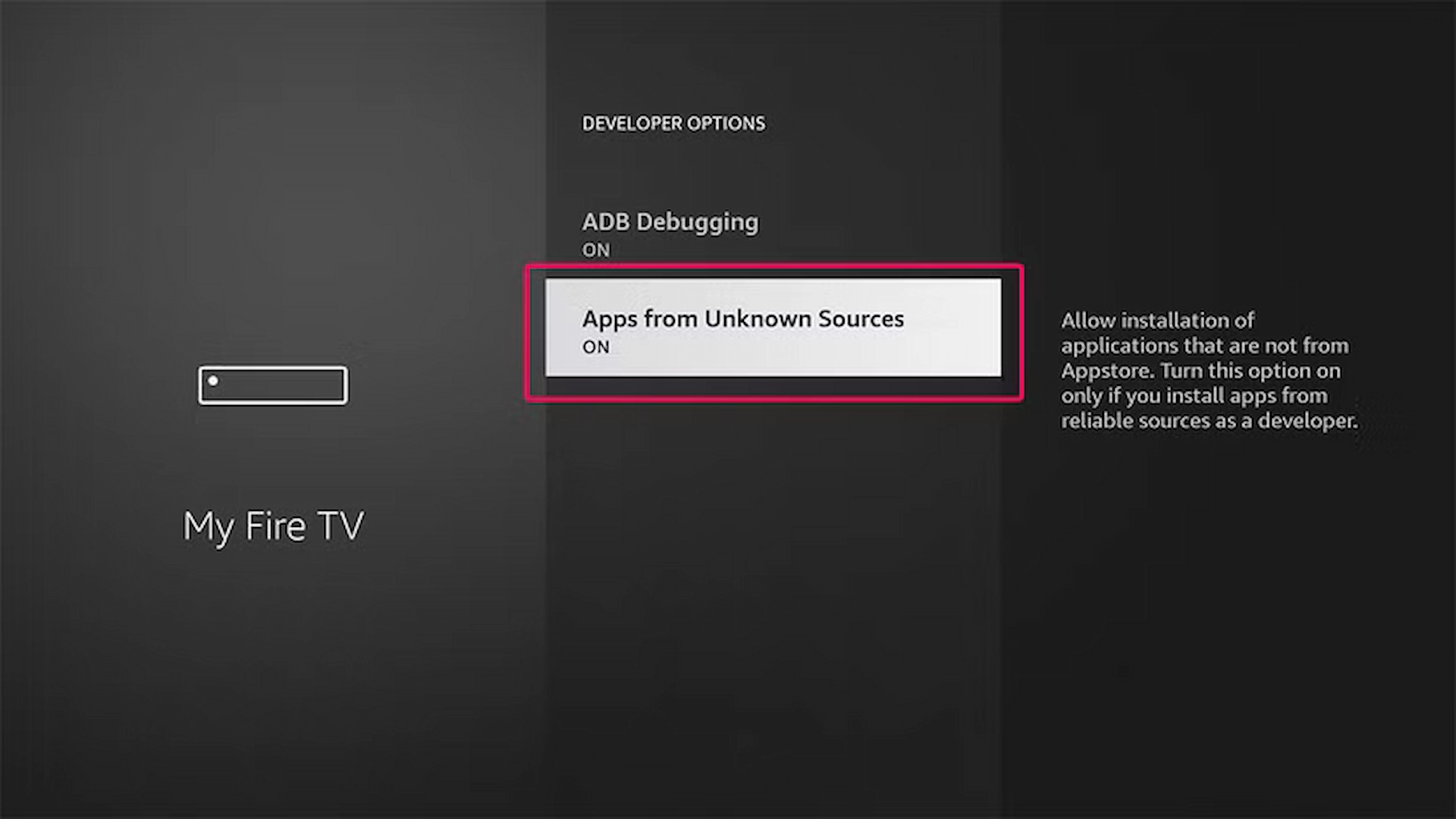
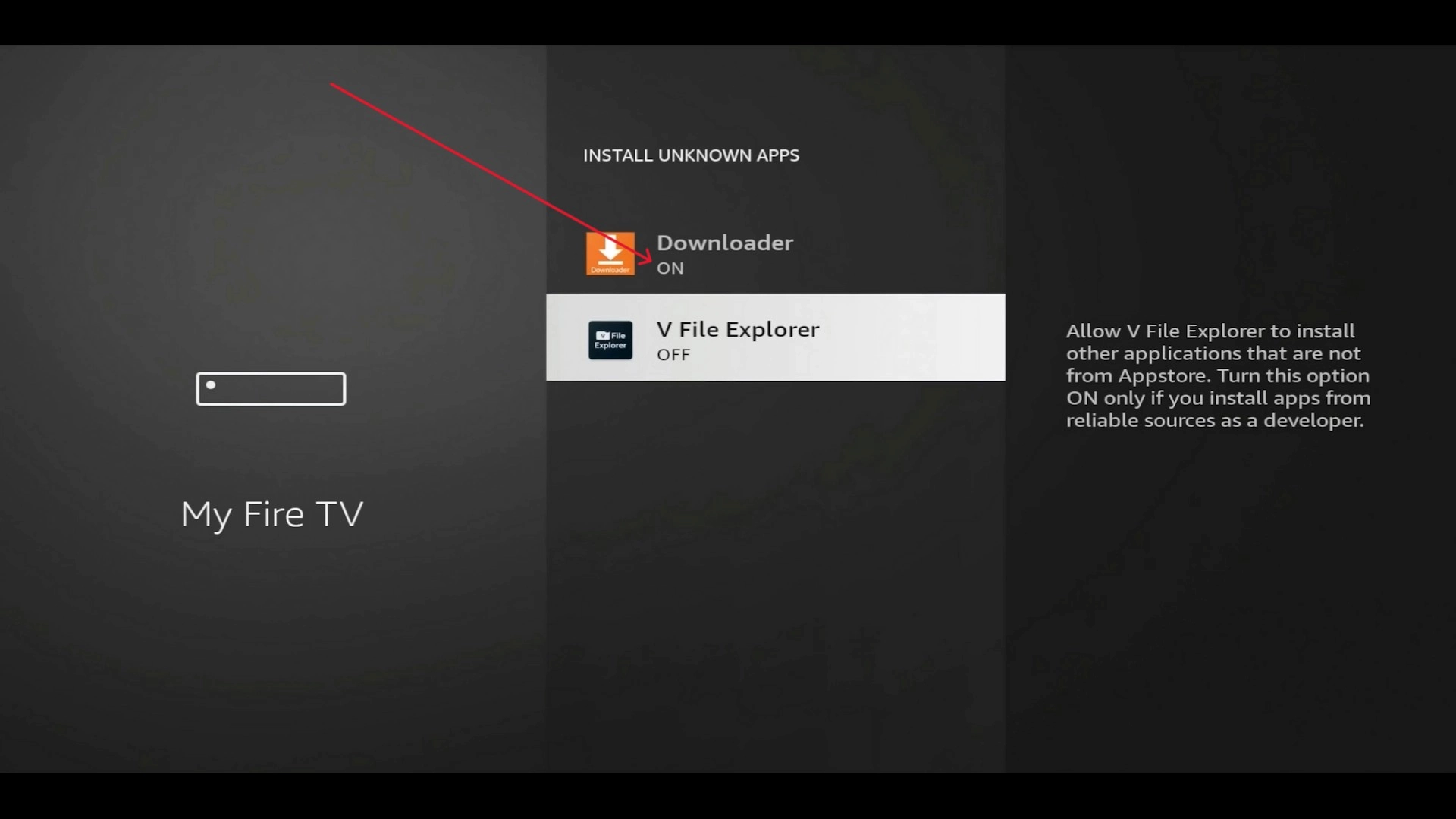
Find Downloader in the list.
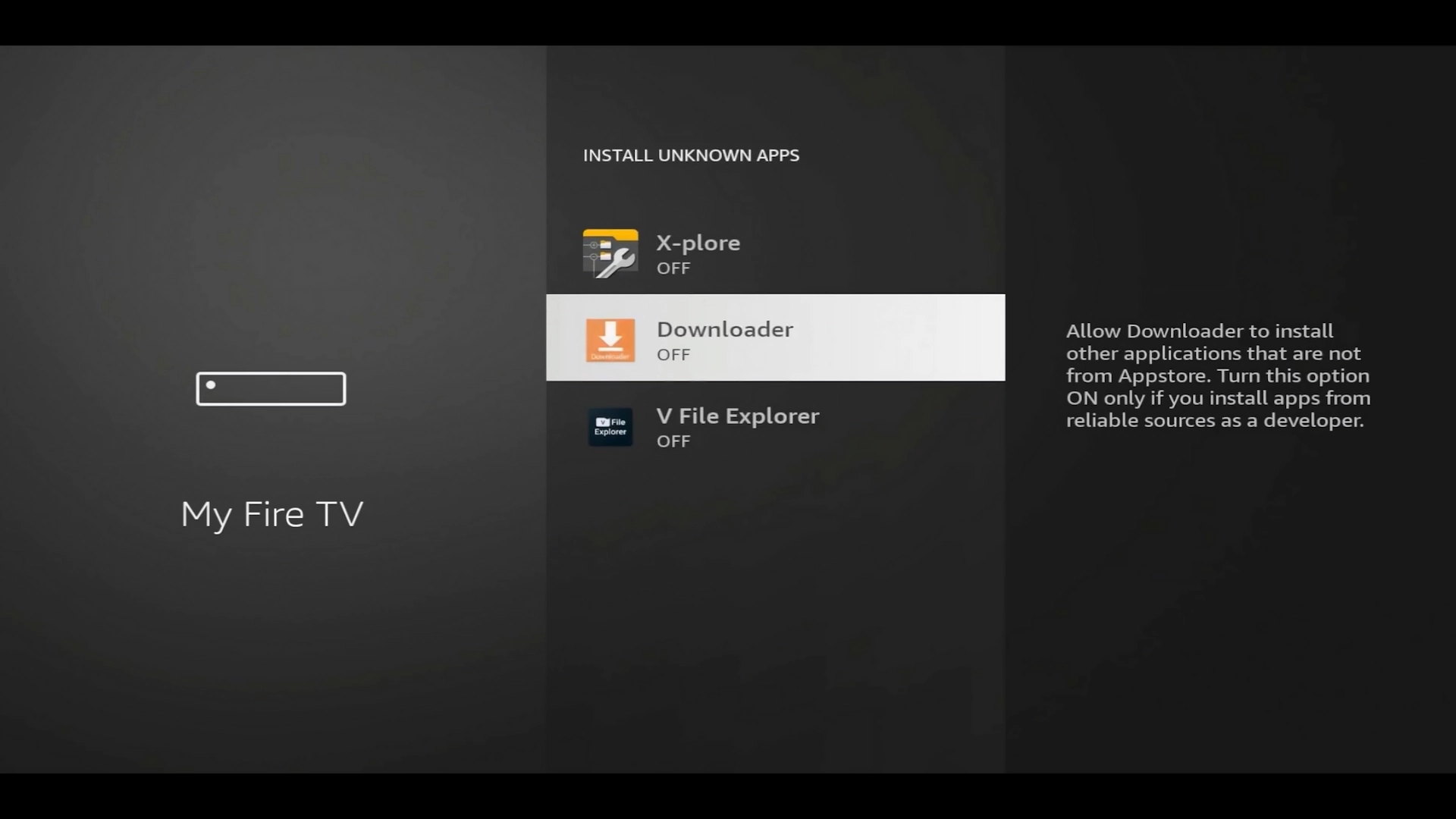
Turn Downloader ON.
Step 3: Download IPTV Smarters Xtreme Edition
Now open the Downloader app.
In the URL/Search/Short Code box, enter our current IPTV Smarters Downloader code:
Enter 4626831 and select Go.
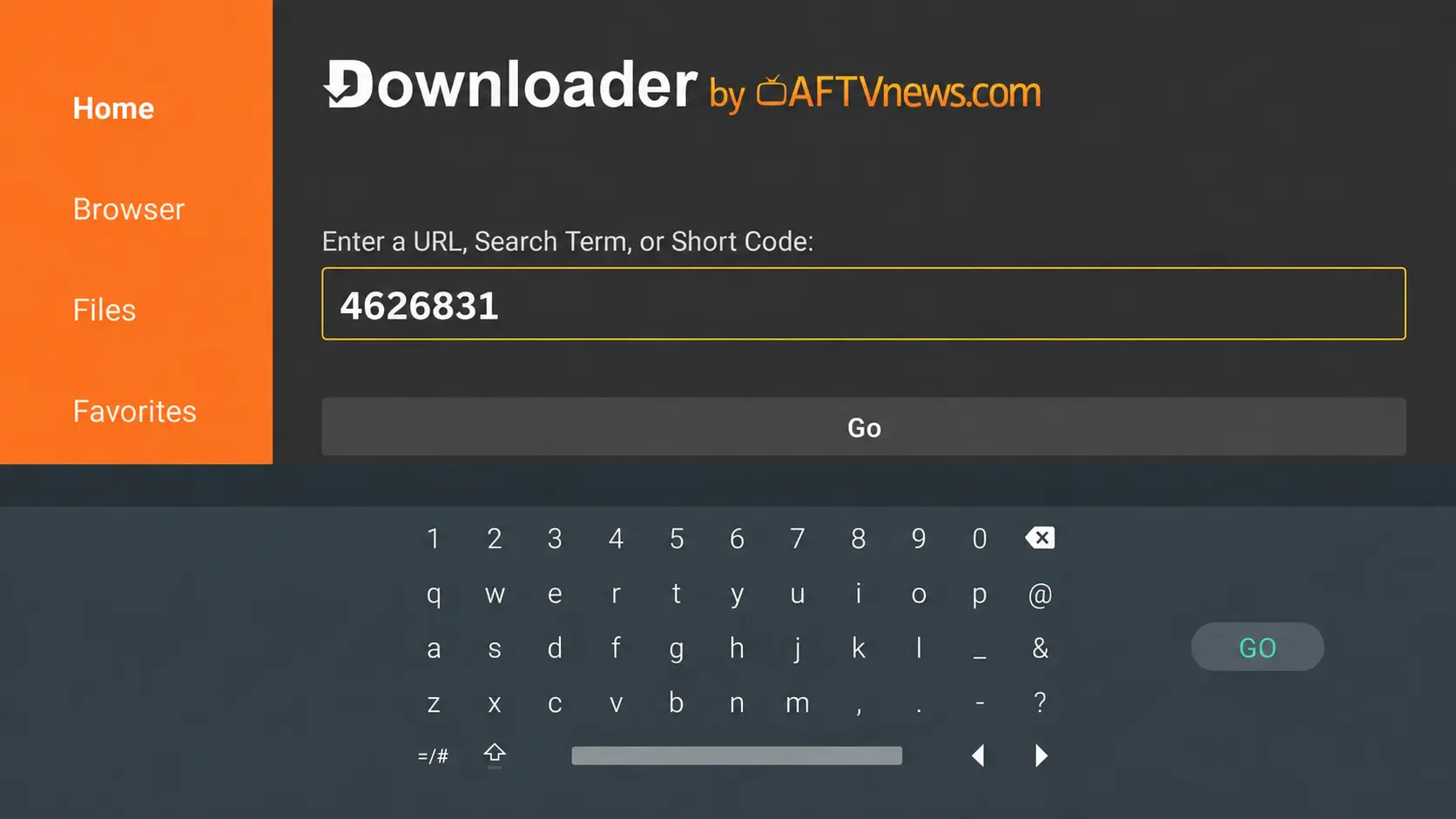
The IPTV Smarters Xtreme Edition APK should begin downloading.
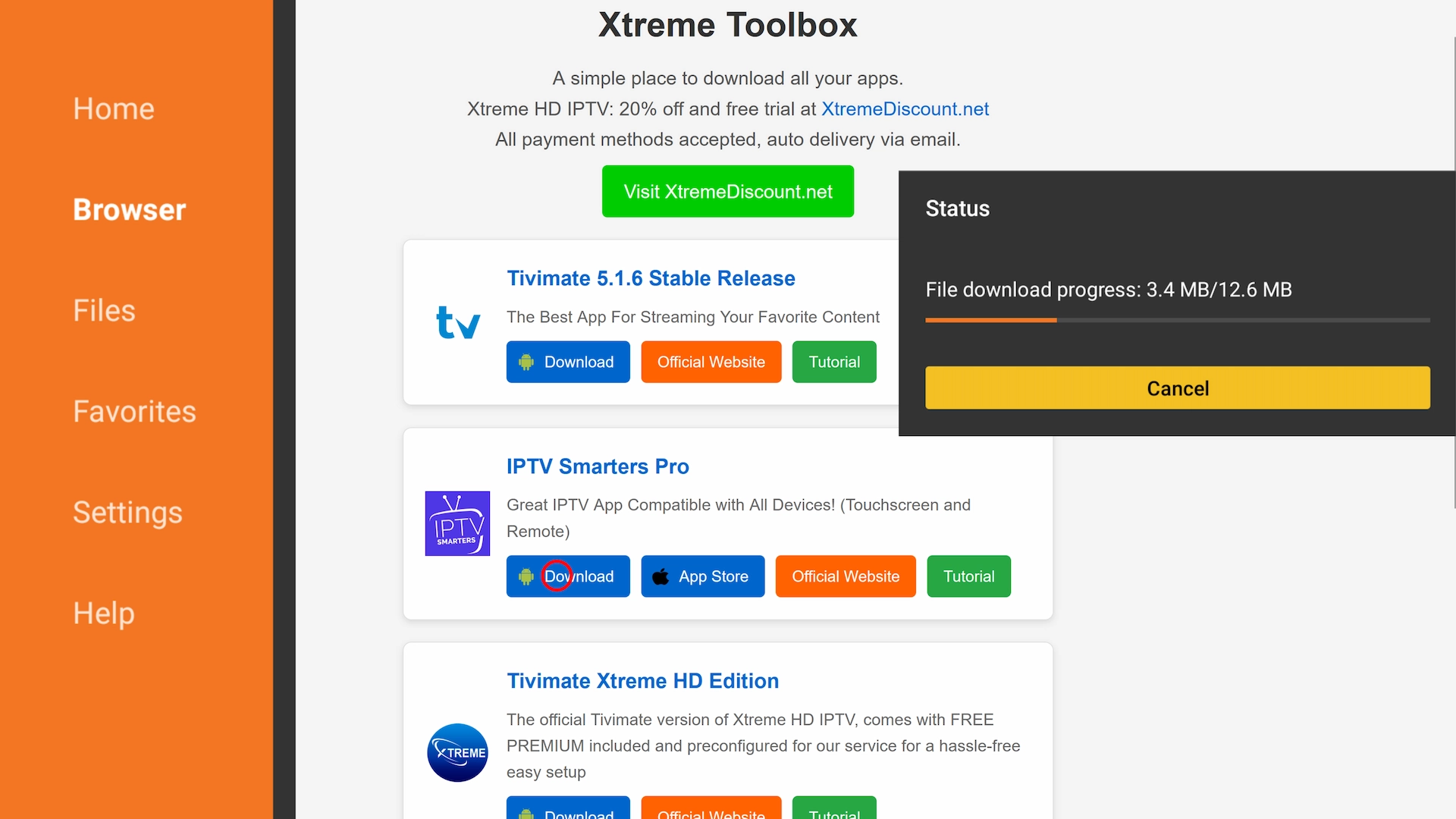
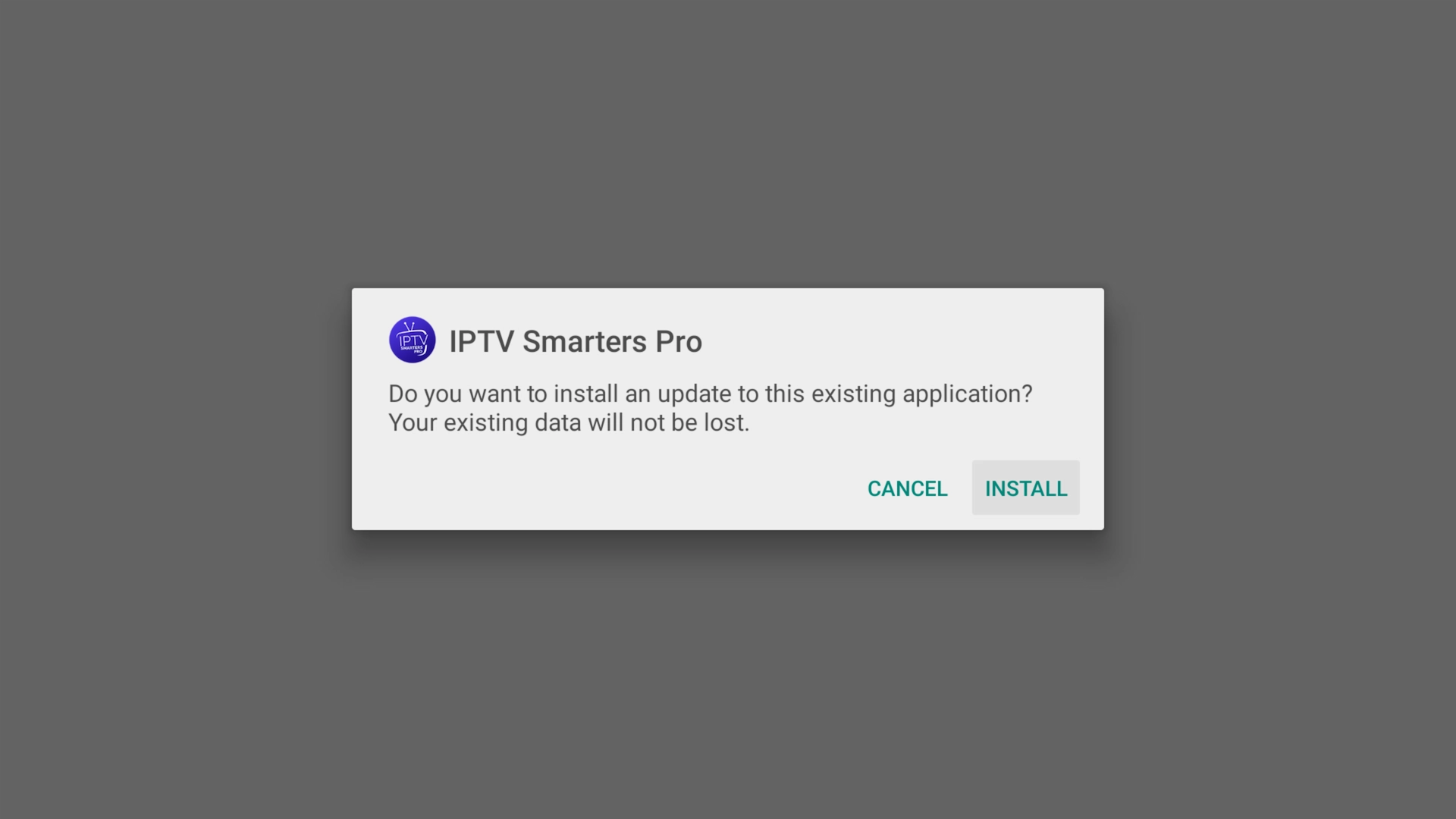
When the installation screen appears, select Install.
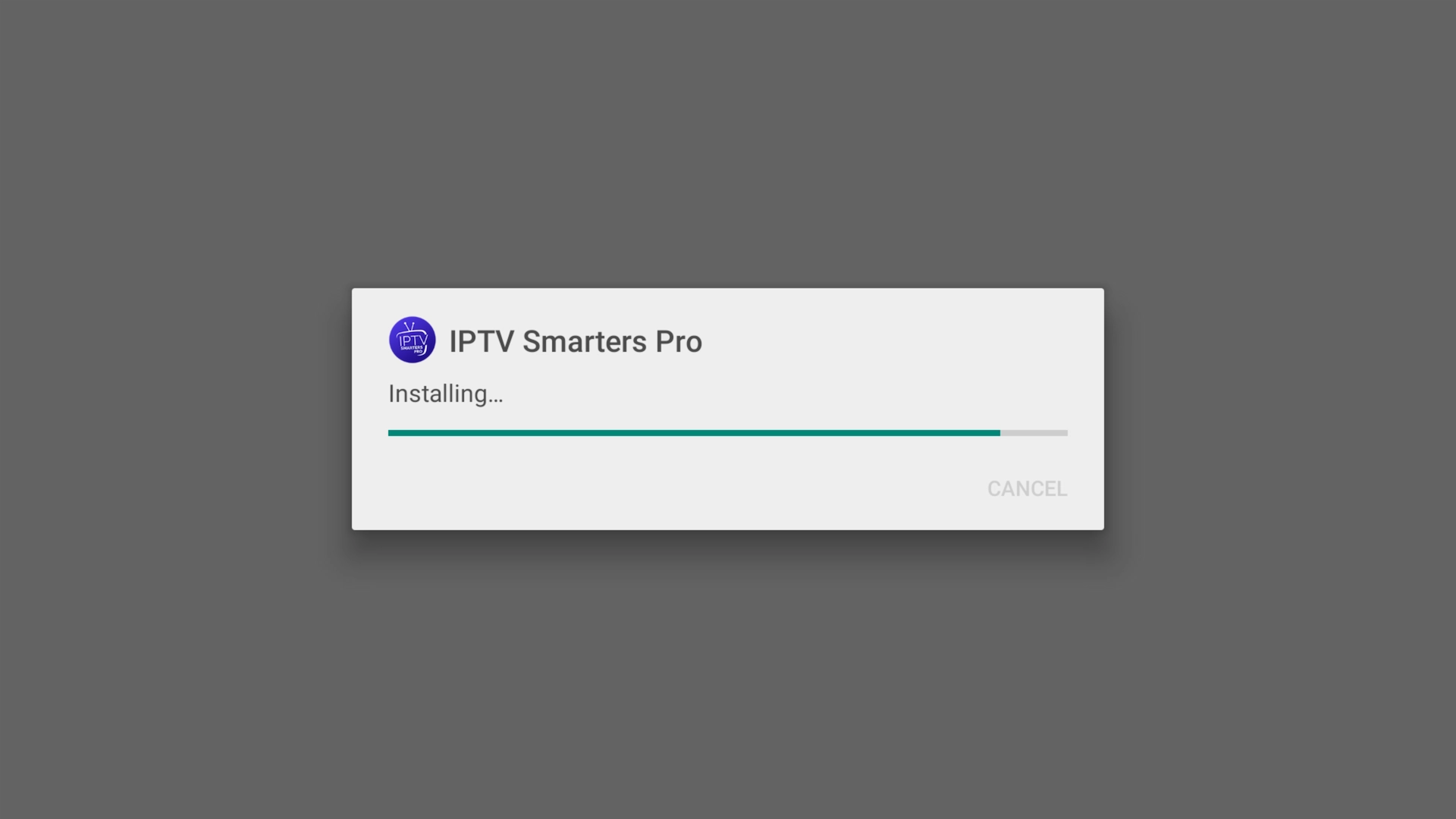
Wait for the installation to finish.
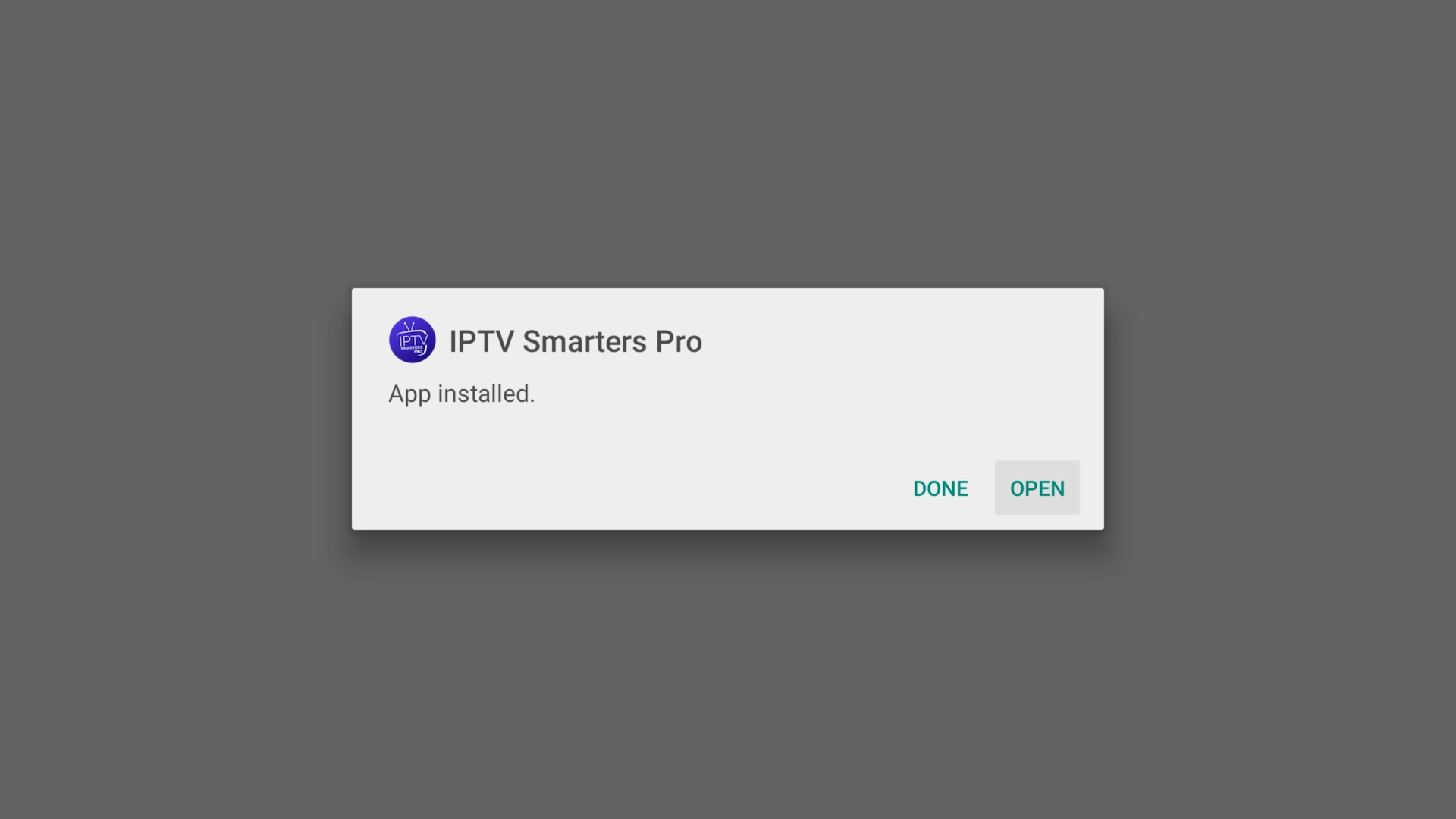
Once installation is complete, select Open.
IPTV Smarters on iPhone, iPad & Apple TV
Apple users don't need Downloader.
Open the Apple App Store on your iPhone, iPad, or Apple TV and search for:
Smarters Player Lite
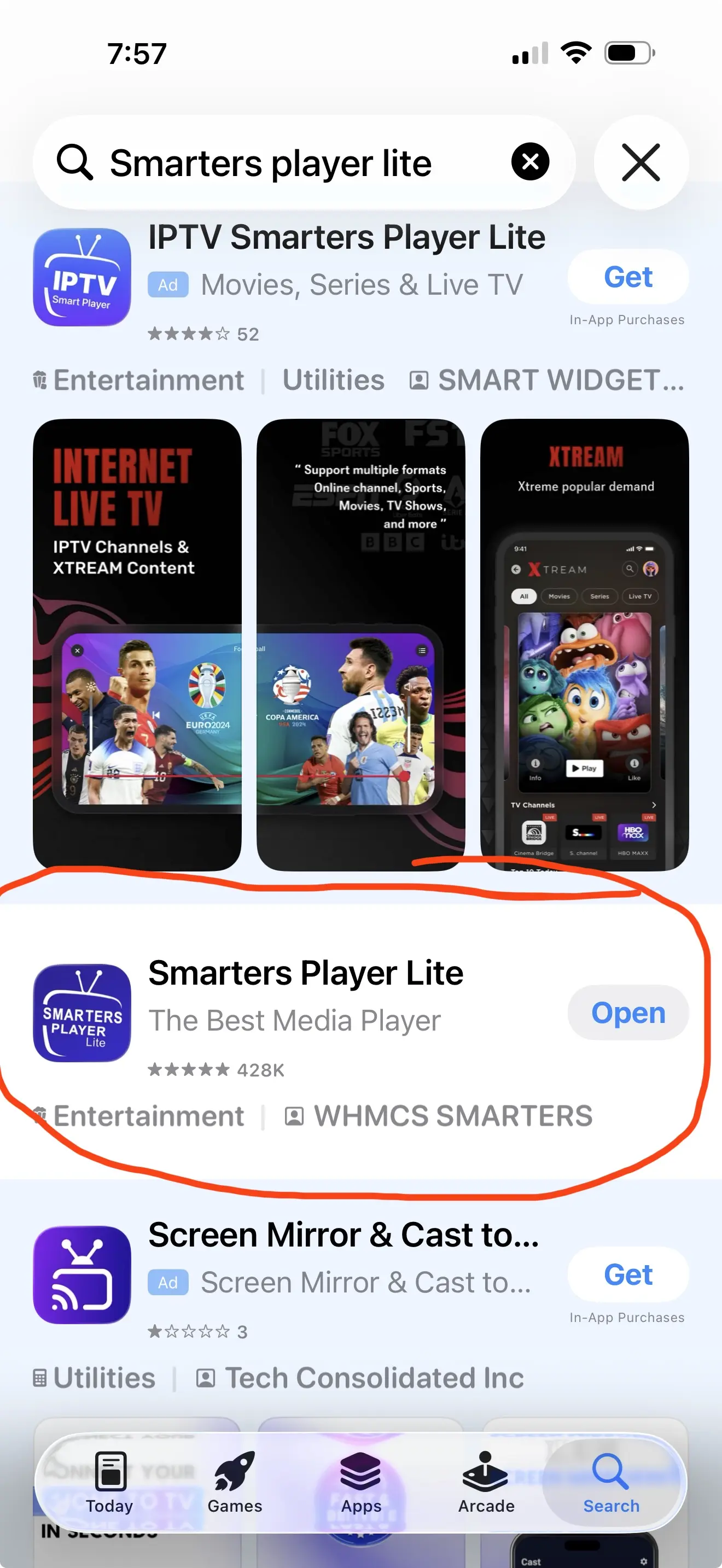
Install the app and open it. You can then add the login information supplied by your IPTV provider.
How to Add Your IPTV Account to IPTV Smarters
Once IPTV Smarters is installed, you'll need your IPTV login credentials.
If you're using our free 36-hour trial, use the Server URL, Username, and Password provided with your trial.
If you don't have credentials yet, you can get your free 36-hour IPTV trial here.
After opening IPTV Smarters:
- Choose Xtream Codes API or Login with Xtream Codes.
- Enter a name for your playlist if the app asks for one.
- Enter your Server URL.
- Enter your Username.
- Enter your Password.
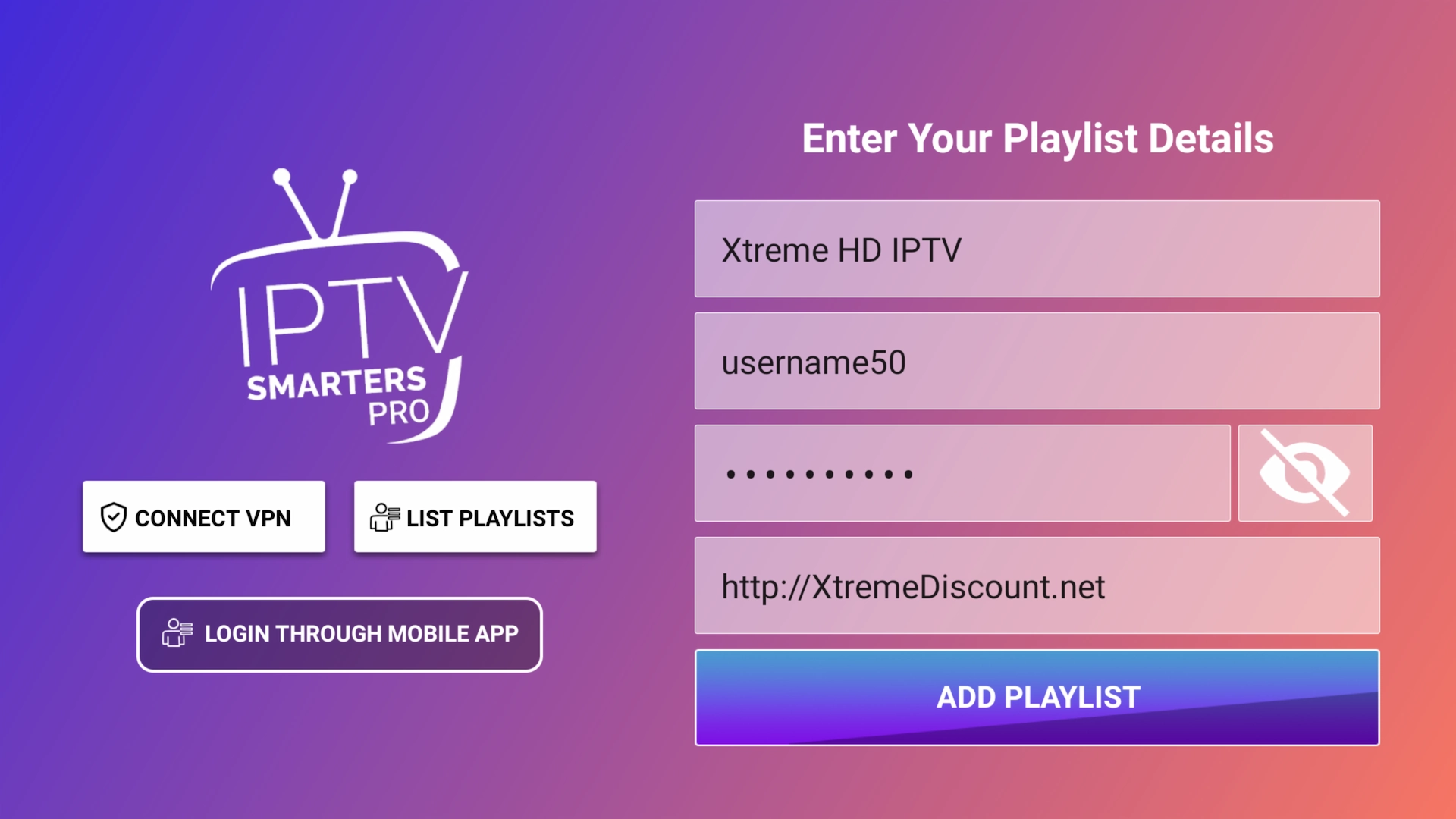
- Select Login or Add User.
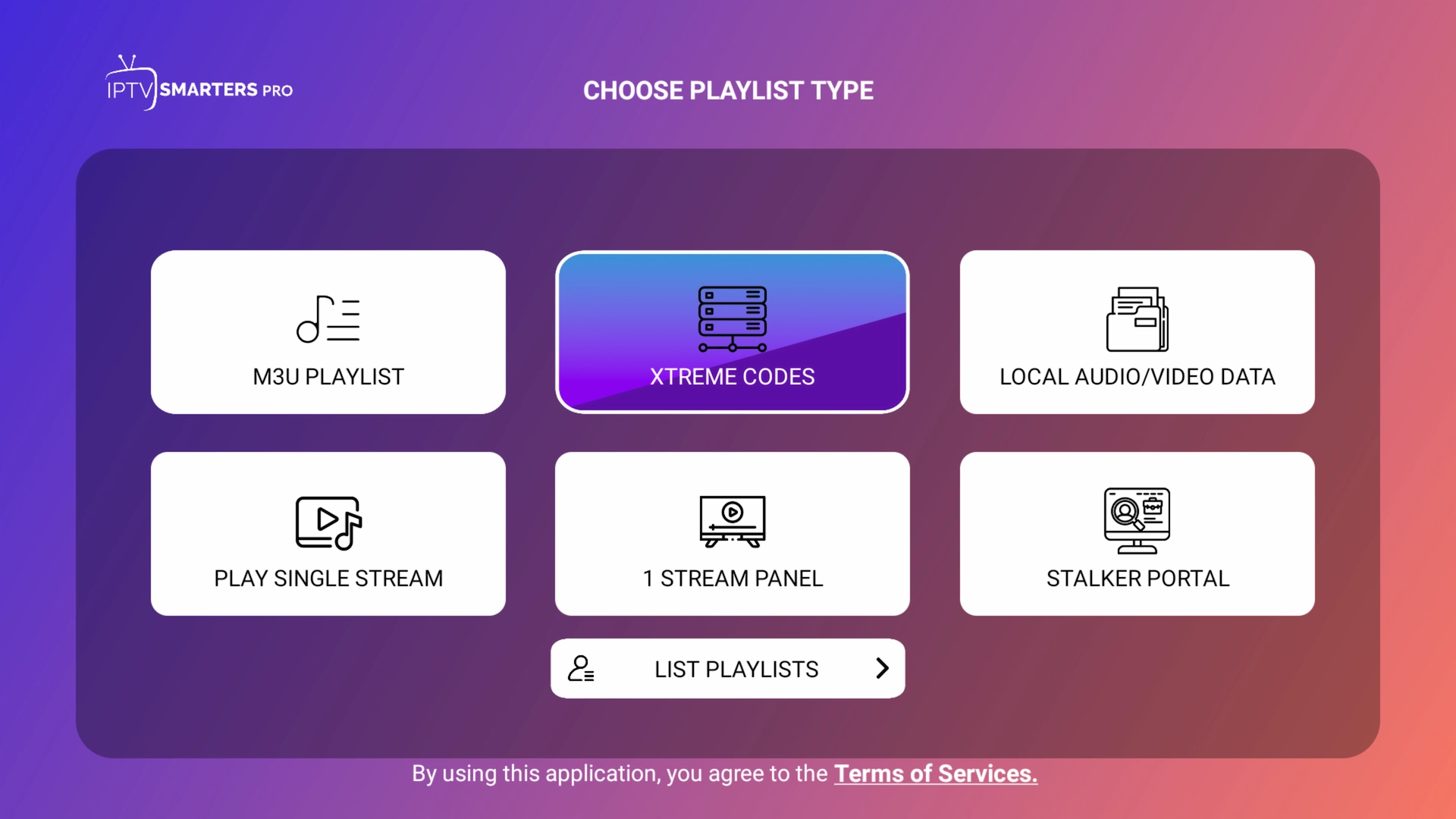
You'll then see the Xtream Codes login screen.
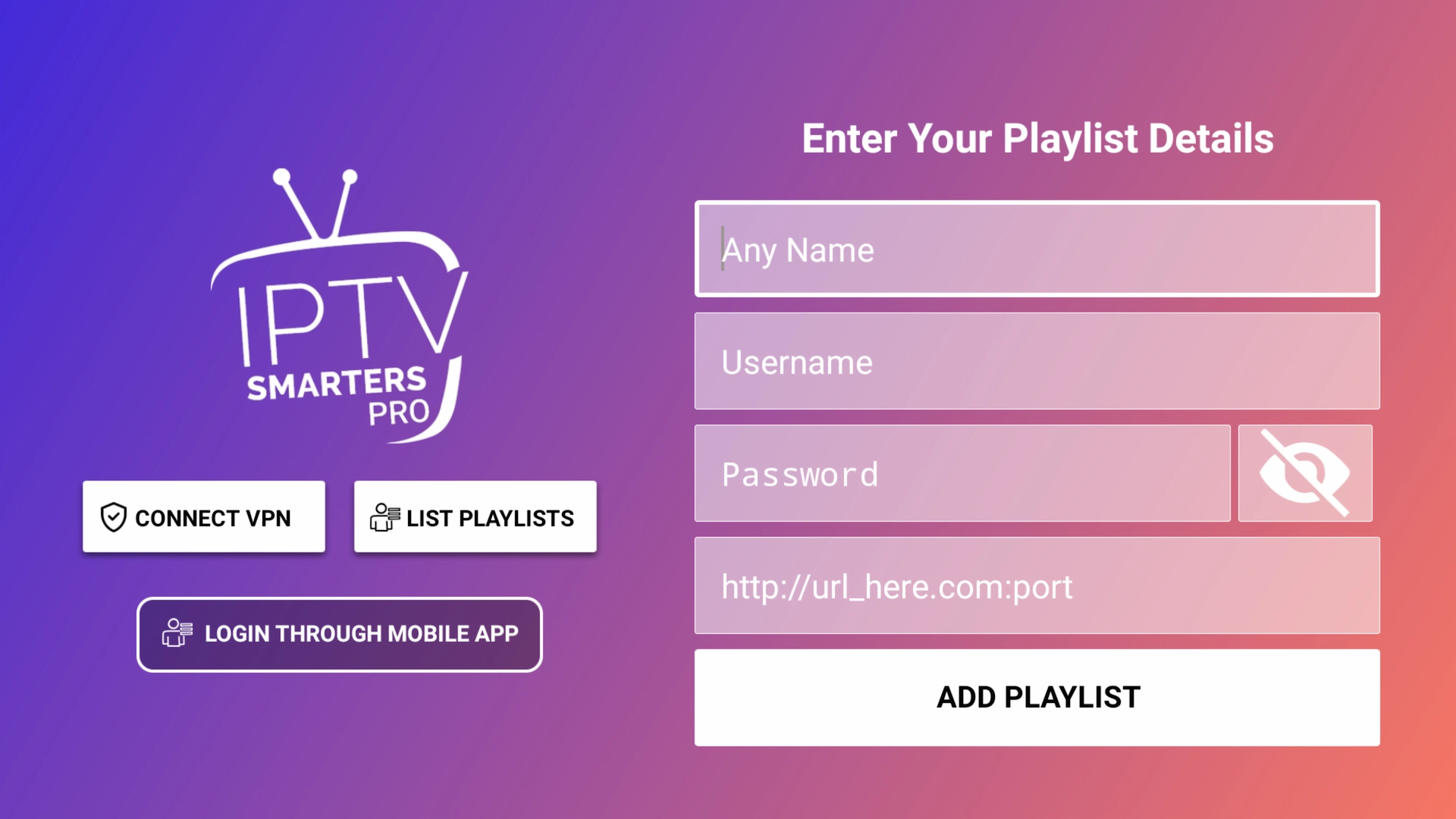
Carefully enter your credentials exactly as they were provided. IPTV usernames and passwords are typically case-sensitive.
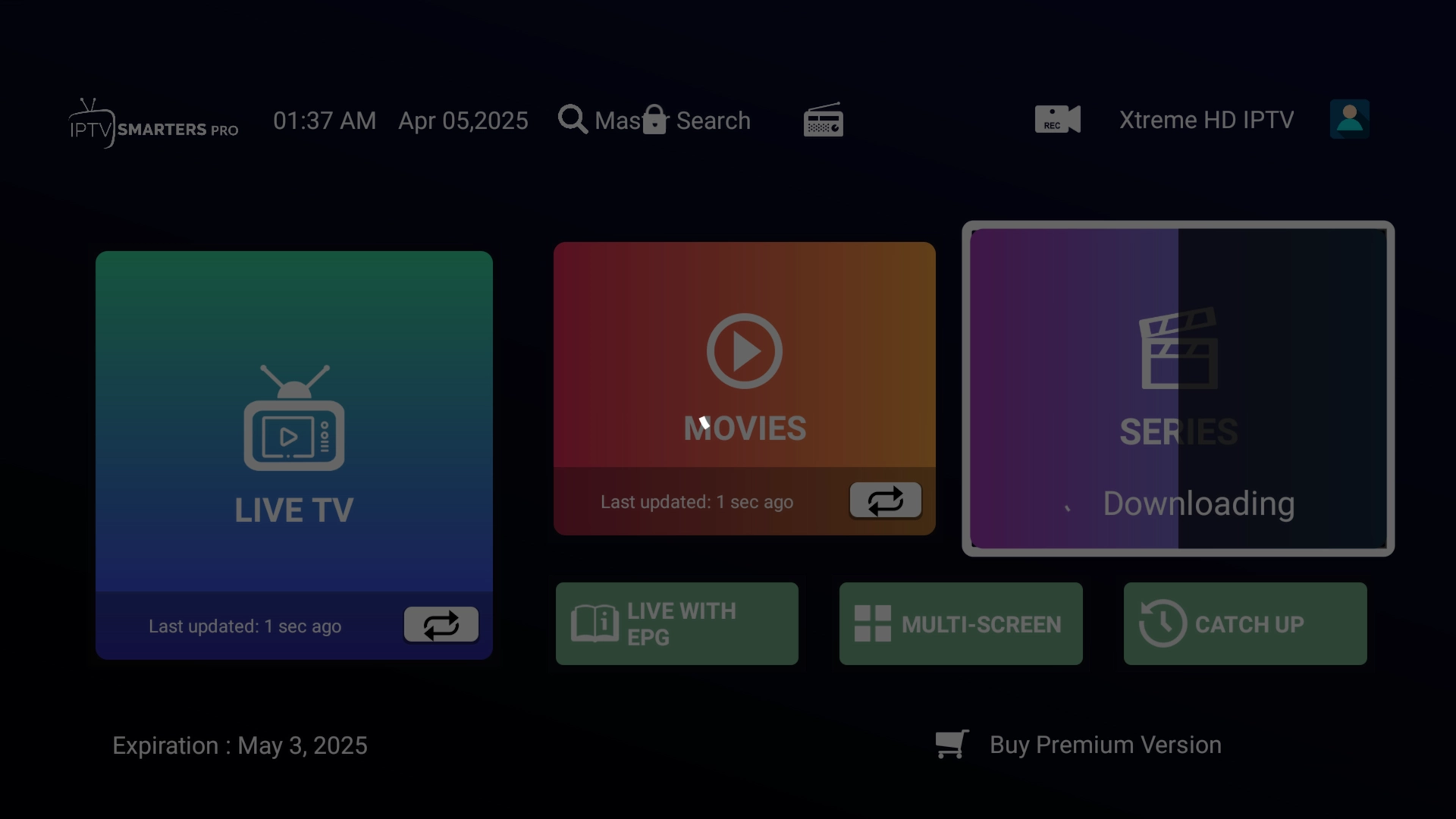
After successfully adding the account, IPTV Smarters will begin downloading the available information.
.webp)
Give the app a moment to finish updating the playlist and program guide.
See What IPTV Smarters Can Really Do
IPTV Smarters is only the player. What you can actually watch depends on the IPTV service you connect to it.
Our free 36-hour trial gives you a chance to load a full service into Smarters and explore it yourself before paying for anything.
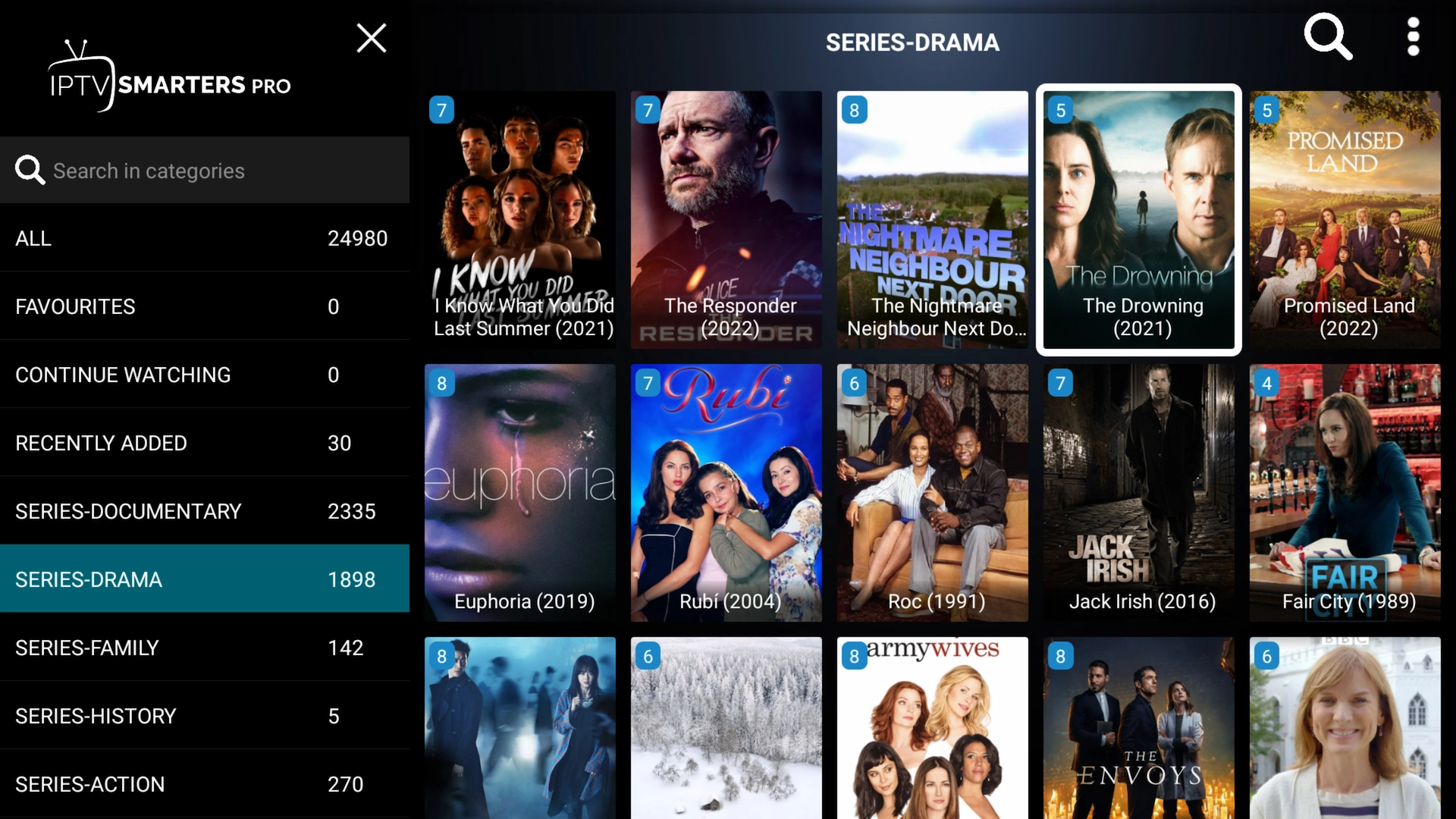
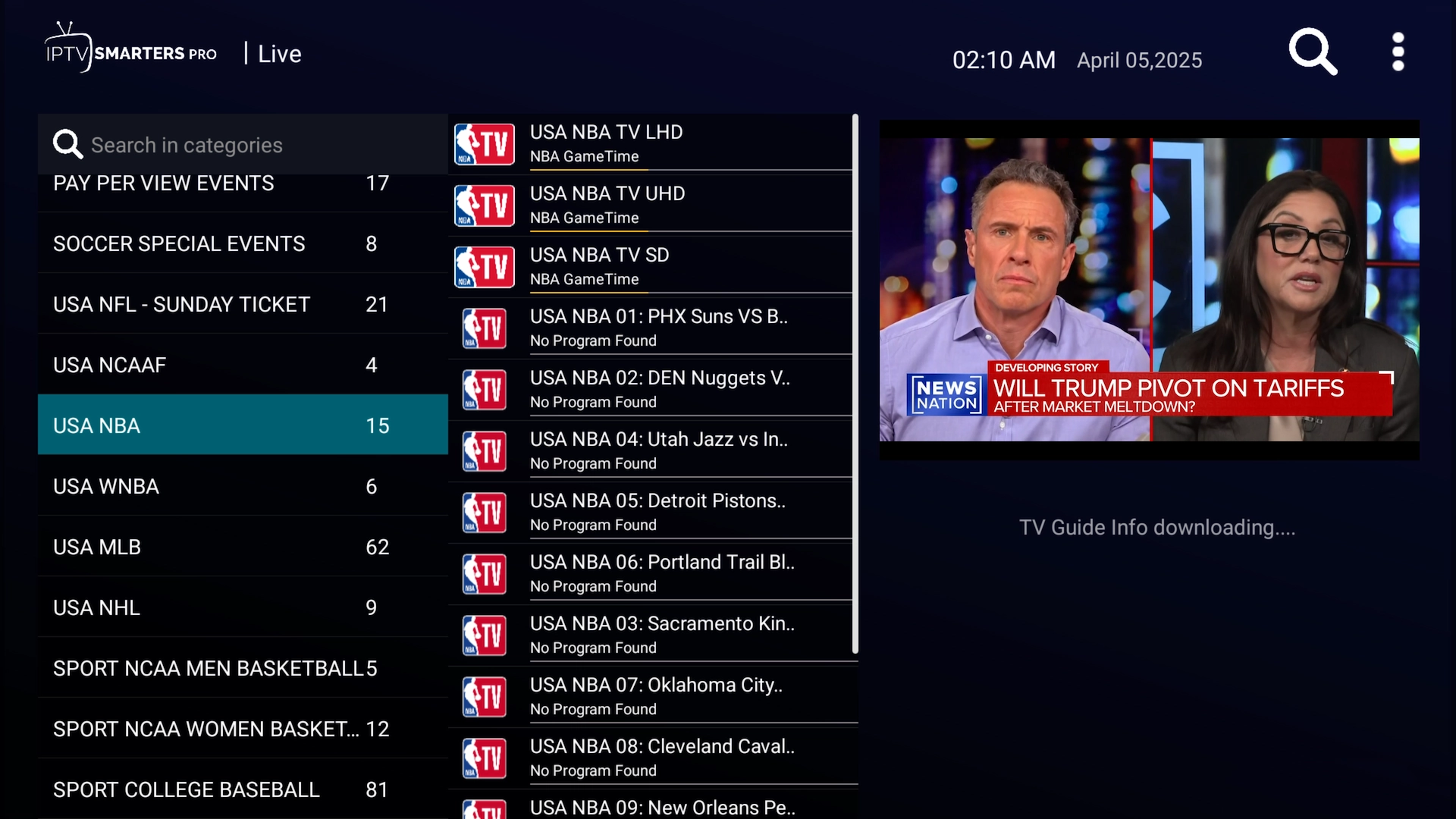
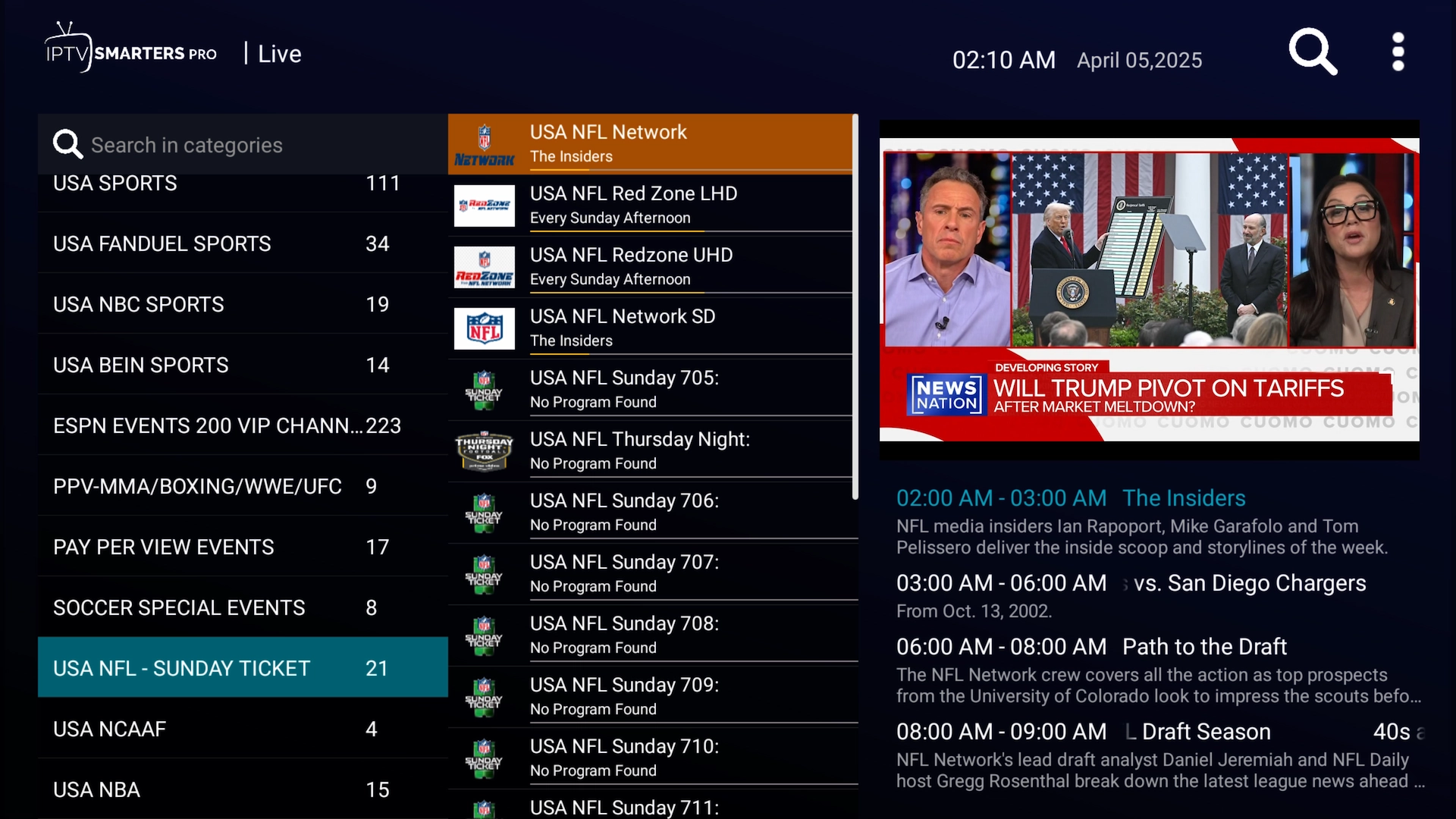
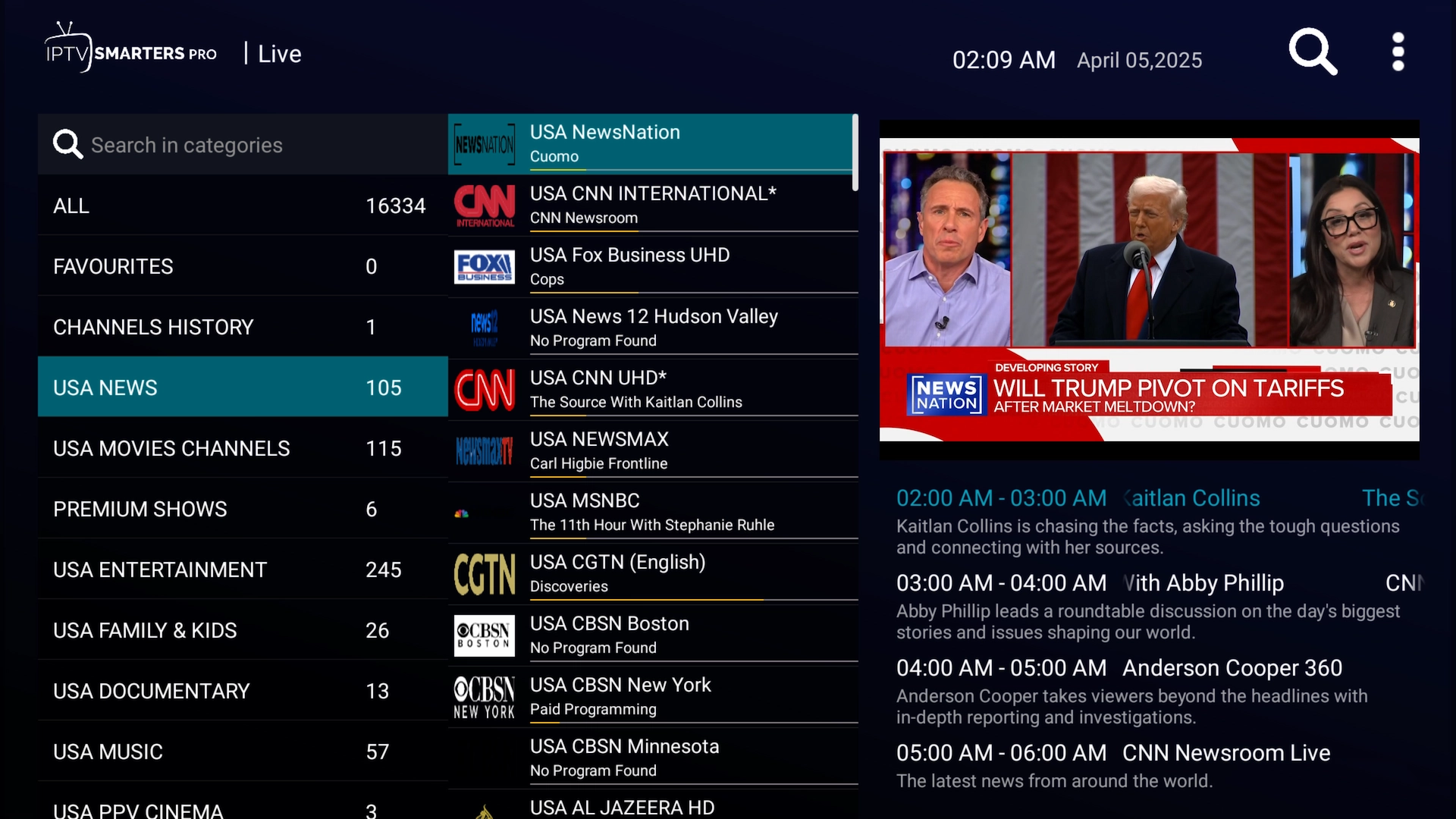
What IPTV Smarters Looks Like
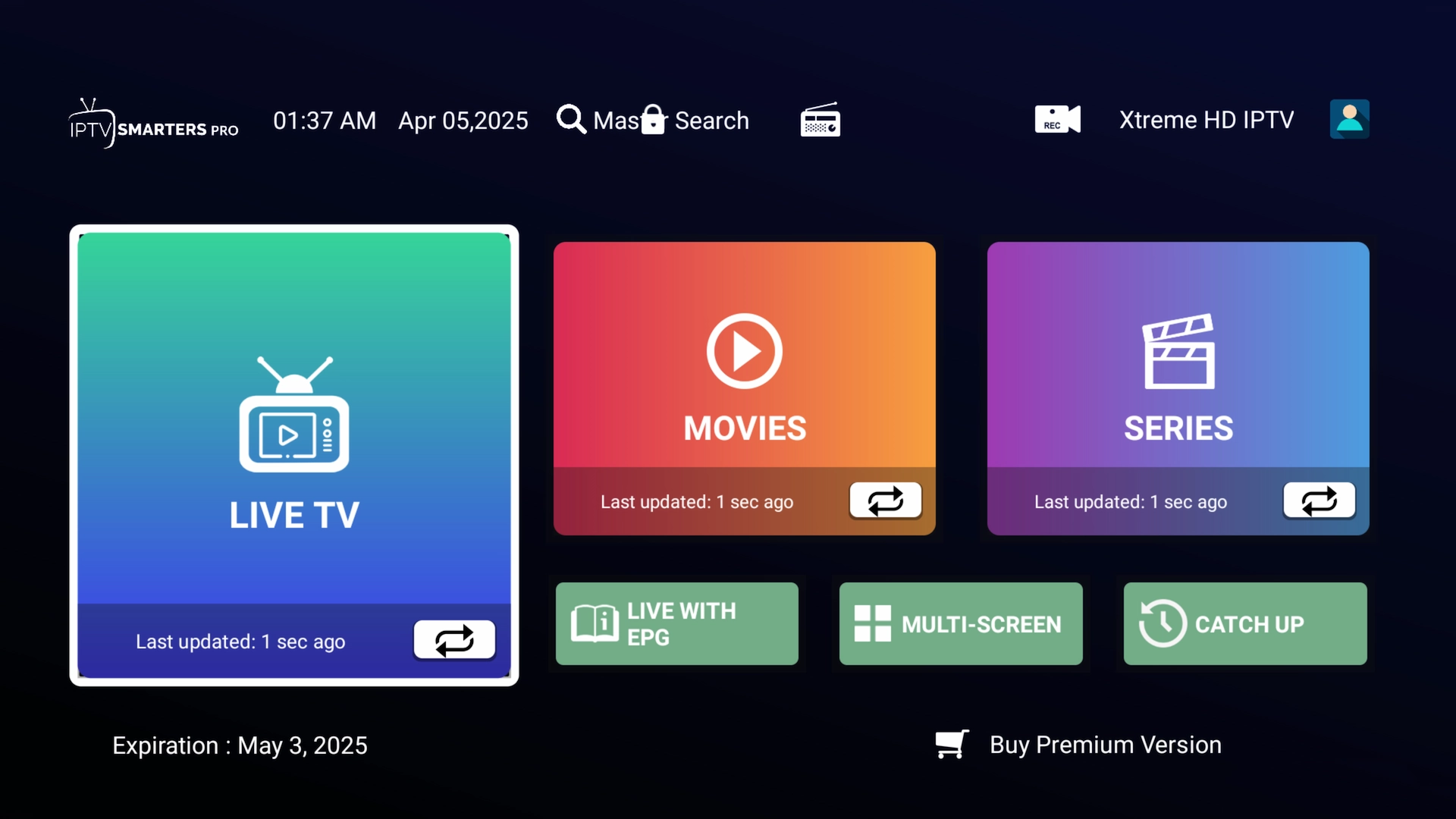
Once your account finishes loading, IPTV Smarters organizes your service into an easy-to-navigate interface for live TV and on-demand content.
IPTV Smarters Home Screen
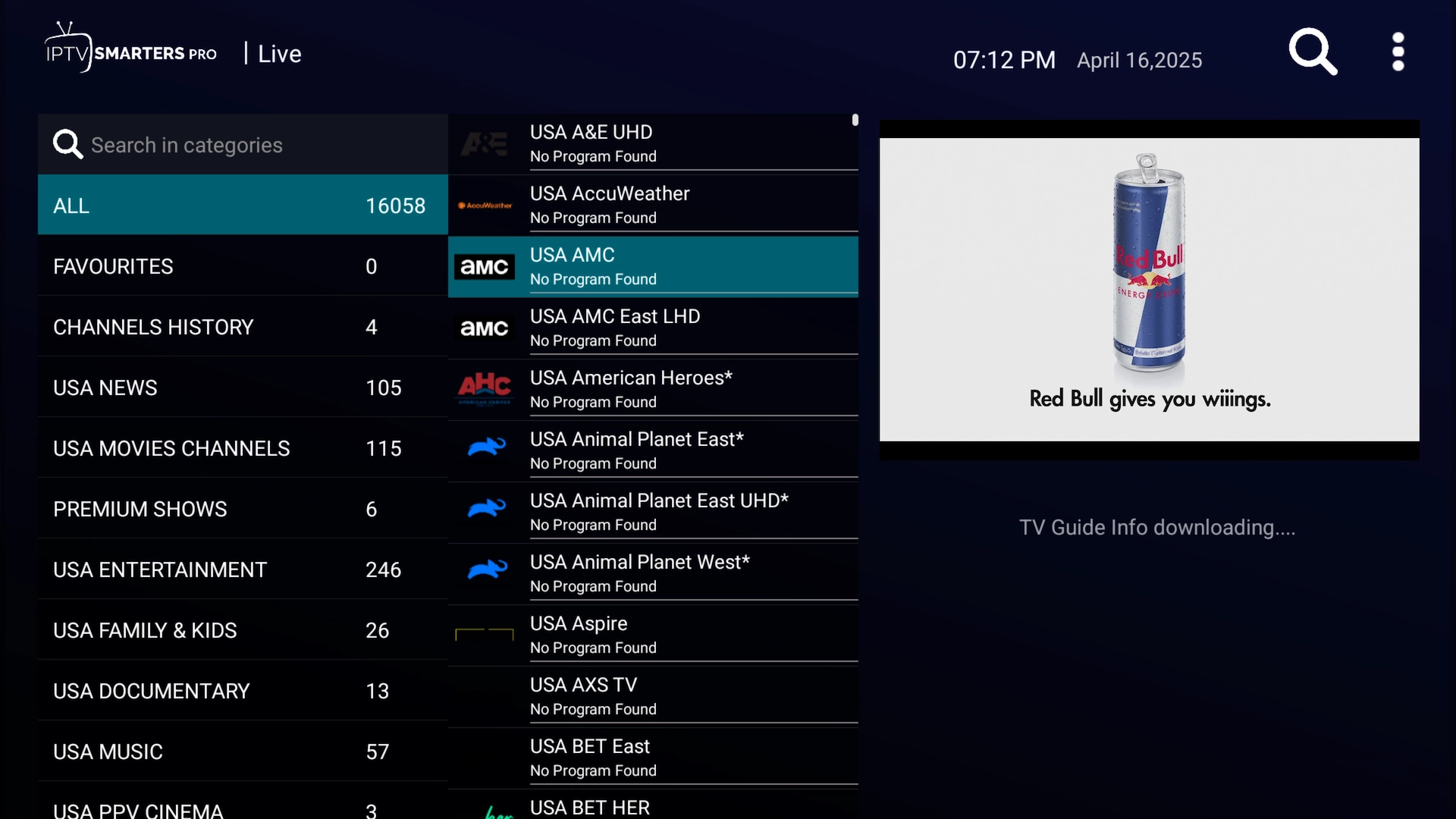
Browse Live TV
Browse the live channels and categories included with your service.
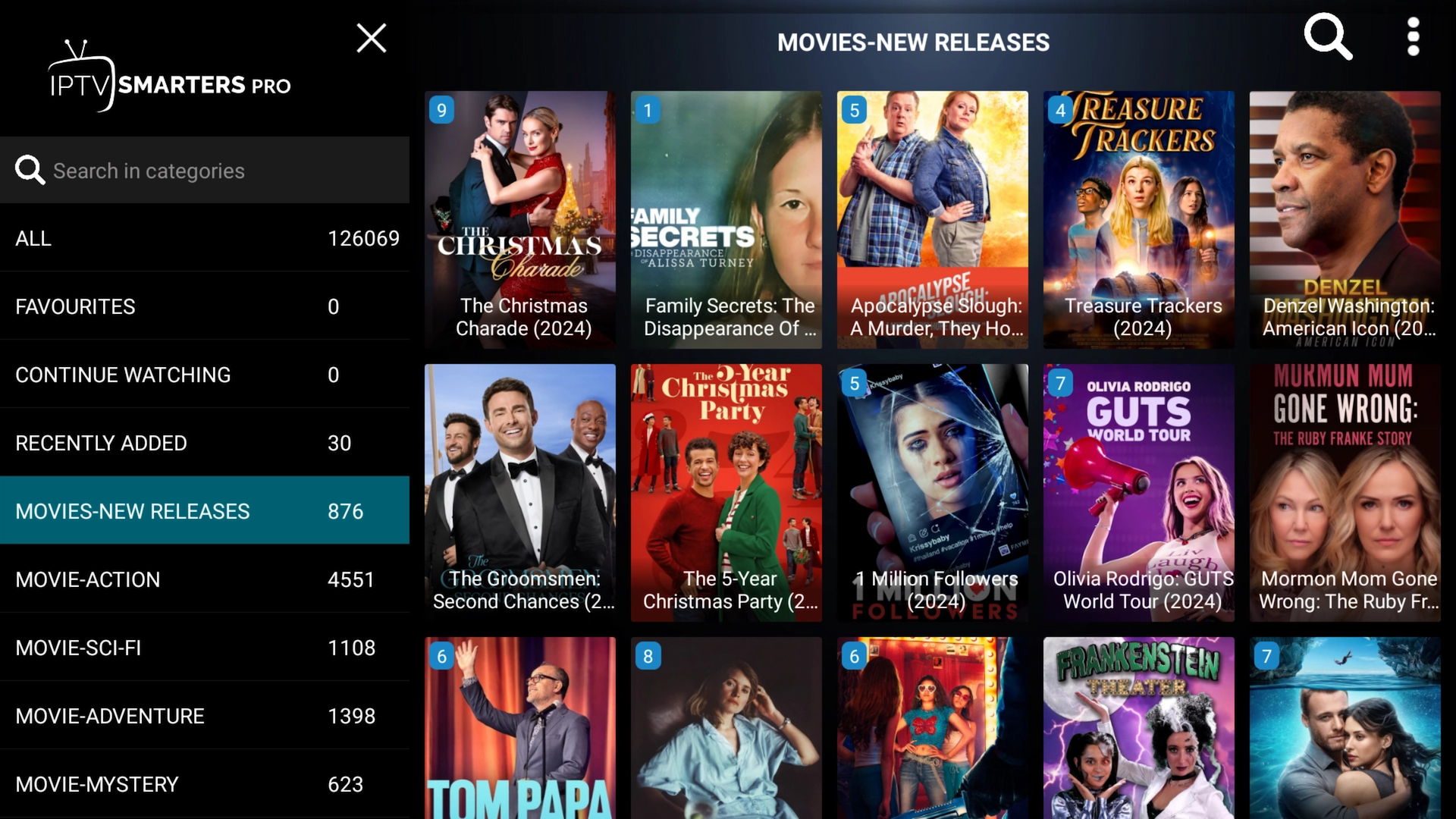
Browse Movies
IPTV Smarters also provides a TV-friendly interface for browsing the on-demand library included with your service.
Browse TV Series
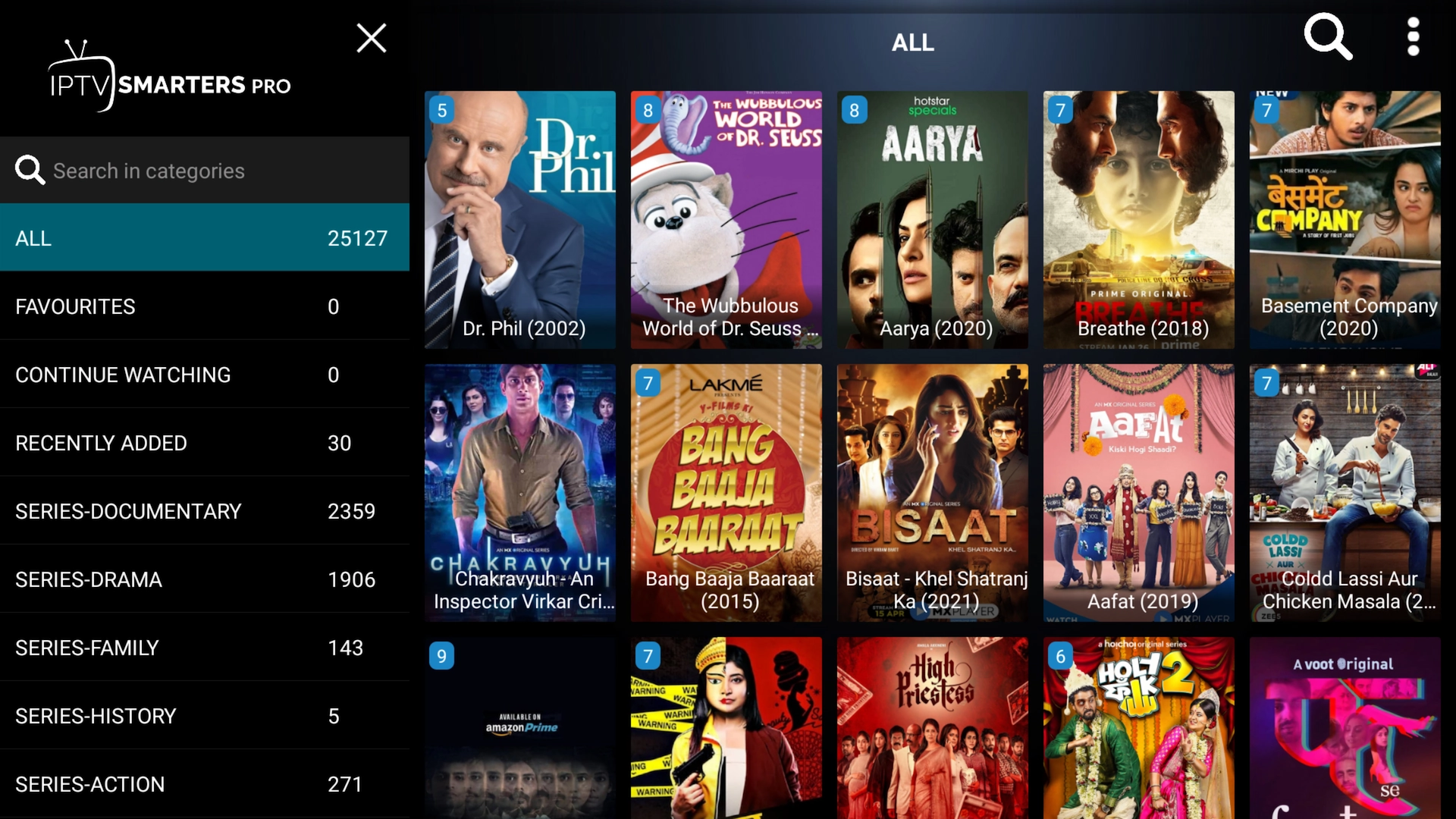
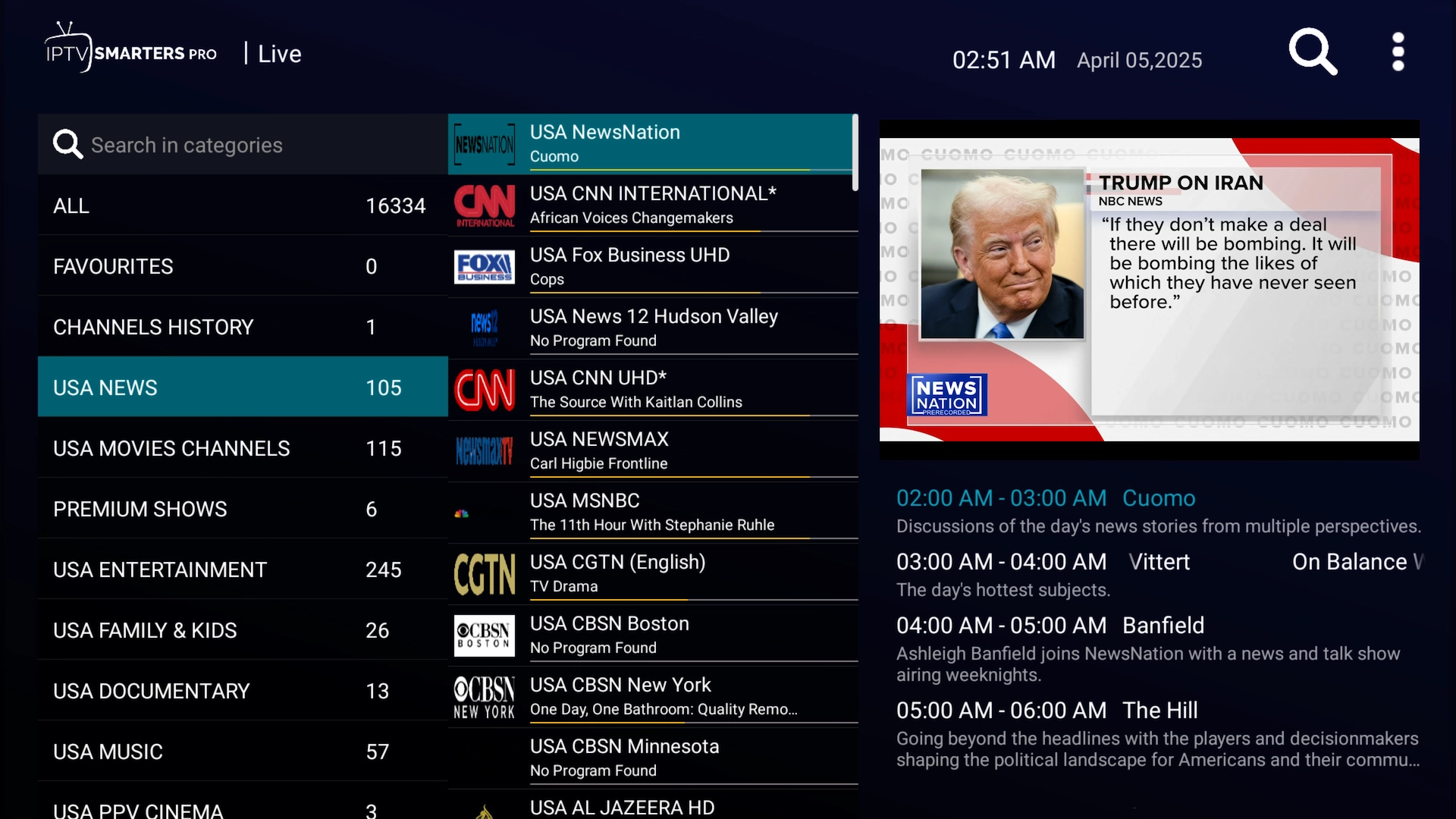
Explore Live Categories
Your available categories will depend on the IPTV service and package connected to the app.
Frequently Asked Questions
What is the IPTV Smarters Downloader code?
The current Downloader code used in this guide is 4626831. Enter the code into Downloader and select Go to begin installing IPTV Smarters Xtreme Edition.
Do I need Downloader to install IPTV Smarters?
Only for the Firestick and Android TV installation method. Android phone and tablet users can simply visit Toolbox.XtremeDiscount.net and tap Download next to IPTV Smarters Xtreme Edition.
What is IPTV Smarters Xtreme Edition?
IPTV Smarters Xtreme Edition is our branded Android version of IPTV Smarters. It includes premium Smarters features, VPN support, remote settings management, and remote support options.
Do I need to activate Smarters Premium?
No. Premium features are already included in IPTV Smarters Xtreme Edition. You do not need to visit another website to activate or unlock them.
Does IPTV Smarters include IPTV channels?
No. IPTV Smarters is a player. You need to connect an IPTV service to the app before you'll have content to watch.
If you don't already have an account, you can get a free 36-hour IPTV trial and use the supplied credentials to follow this guide.
What information do I need to log in?
For an Xtream Codes login, you'll generally need the Server URL, Username, and Password supplied by your IPTV provider.
Can I use IPTV Smarters on Firestick 4K?
Yes. The installation method in this guide can be used with compatible Amazon Fire TV and Firestick devices, including Firestick 4K models.
Can I use IPTV Smarters on iPhone or iPad?
Yes. Search the Apple App Store for Smarters Player Lite and install the app. You can then enter your IPTV credentials using the login instructions above.
Can I use IPTV Smarters on Apple TV?
Yes. Search the App Store on your Apple TV for Smarters Player Lite, install it, and enter the login information supplied with your IPTV service.
Why does IPTV Smarters say my login is invalid?
Double-check the Server URL, Username, and Password. Make sure there are no extra spaces and that uppercase and lowercase characters are entered correctly. If you're using a free trial, copy the credentials exactly as they were provided.
Ready to See It in Action?
Once IPTV Smarters is installed, the best way to learn how it works is to actually load a service and explore it yourself.
Get a free 36-hour IPTV trial, enter the credentials into IPTV Smarters, and test the experience on your own Android phone, tablet, Firestick, Android TV, iPhone, iPad, or Apple TV.
Try IPTV Free for 36 Hours
Set it up in IPTV Smarters and explore the service on your own device. No credit card required and nothing to cancel.