


UHF – Love Your IPTV is an excellent IPTV player for Apple users who want a polished, easy-to-navigate experience on Apple TV, iPhone, iPad, and compatible Mac computers.
In this guide, we'll show you how to install UHF, add your IPTV login, and start watching on your Apple device. If you don't have IPTV login details yet, you can also get a free 36-hour IPTV trial and use it to follow along with the guide.
Want to Try UHF with a Full IPTV Service?
Get a free 36-hour IPTV trial and use the login details we provide to set up UHF on your Apple TV, iPhone, iPad, or Mac.
No Credit Card Required • Nothing to Cancel
Table of Contents
- What Apple Devices Work with UHF?
- Step 1: Open the App Store
- Step 2: Find UHF – Love Your IPTV
- Step 3: Install UHF
- Step 4: Open UHF
- Step 5: Add Your IPTV Login
- Explore the UHF Interface
- Why We Like UHF on Apple Devices
- Frequently Asked Questions
What Apple Devices Work with UHF?
UHF is a great choice if you use Apple devices because you can use it across several devices in the Apple ecosystem.
- Apple TV
- iPhone
- iPad
- Compatible Mac computers
For Mac, UHF is available on compatible Apple Silicon Macs running a supported version of macOS.
Before starting, make sure your device is connected to the internet and signed in to the Apple App Store.
You'll also need IPTV login information consisting of a Server URL, Username, and Password.
If you don't have login details yet, get your free 36-hour IPTV trial here and you can use the credentials we provide throughout this guide.
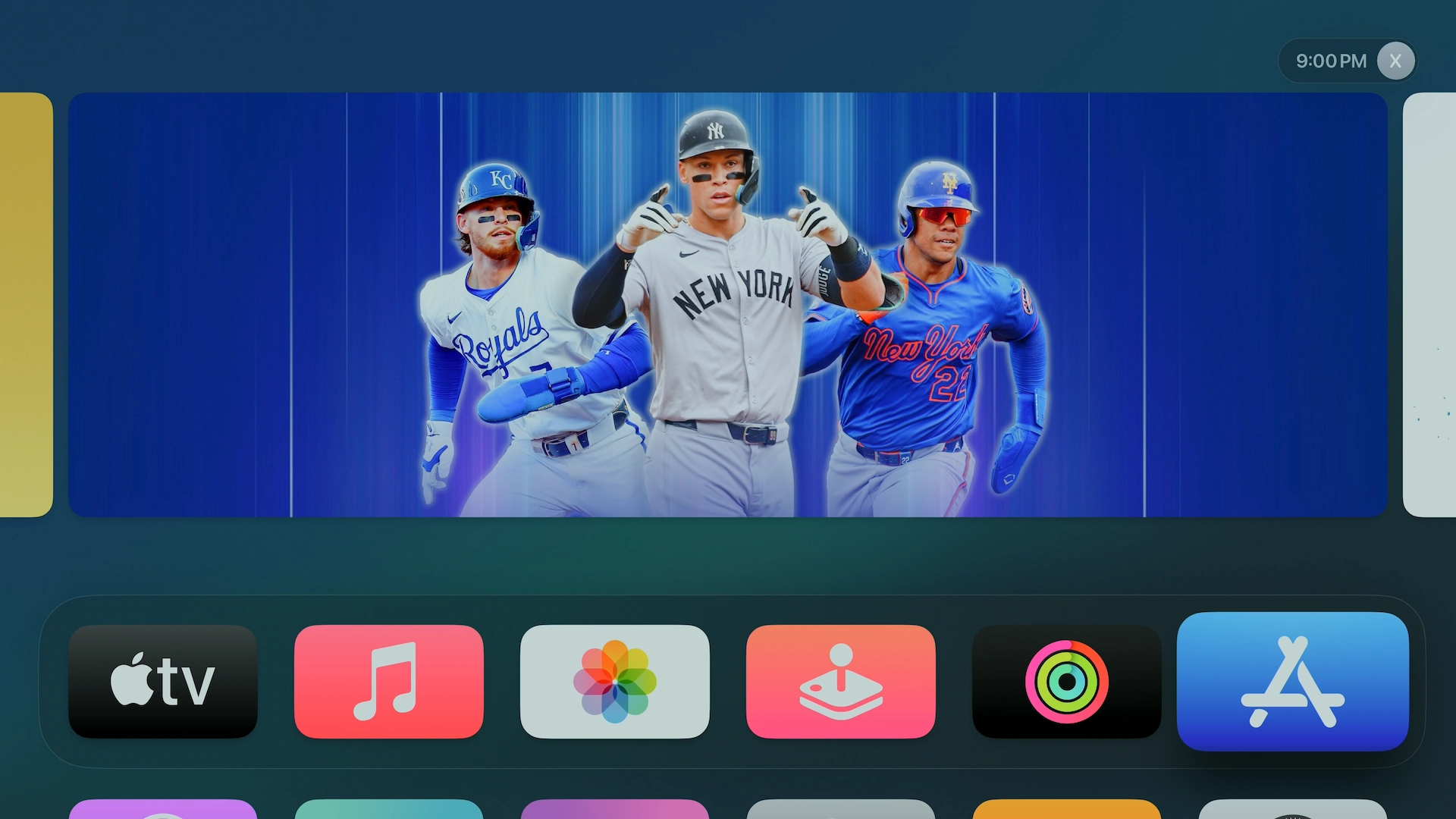
Step 1: Open the App Store
Start by opening the Apple App Store on the device where you want to watch.
- Apple TV: Highlight the App Store on your home screen and select it.
- iPhone / iPad: Tap the App Store icon.
- Mac: Open the App Store from your Dock or Applications.
Step 2: Find UHF – Love Your IPTV
Use the App Store search feature and search for:
UHF – Love Your IPTV
On Apple TV, you can search using the on-screen keyboard or Siri.
On iPhone, iPad, and Mac, simply enter the app name into the App Store search box.
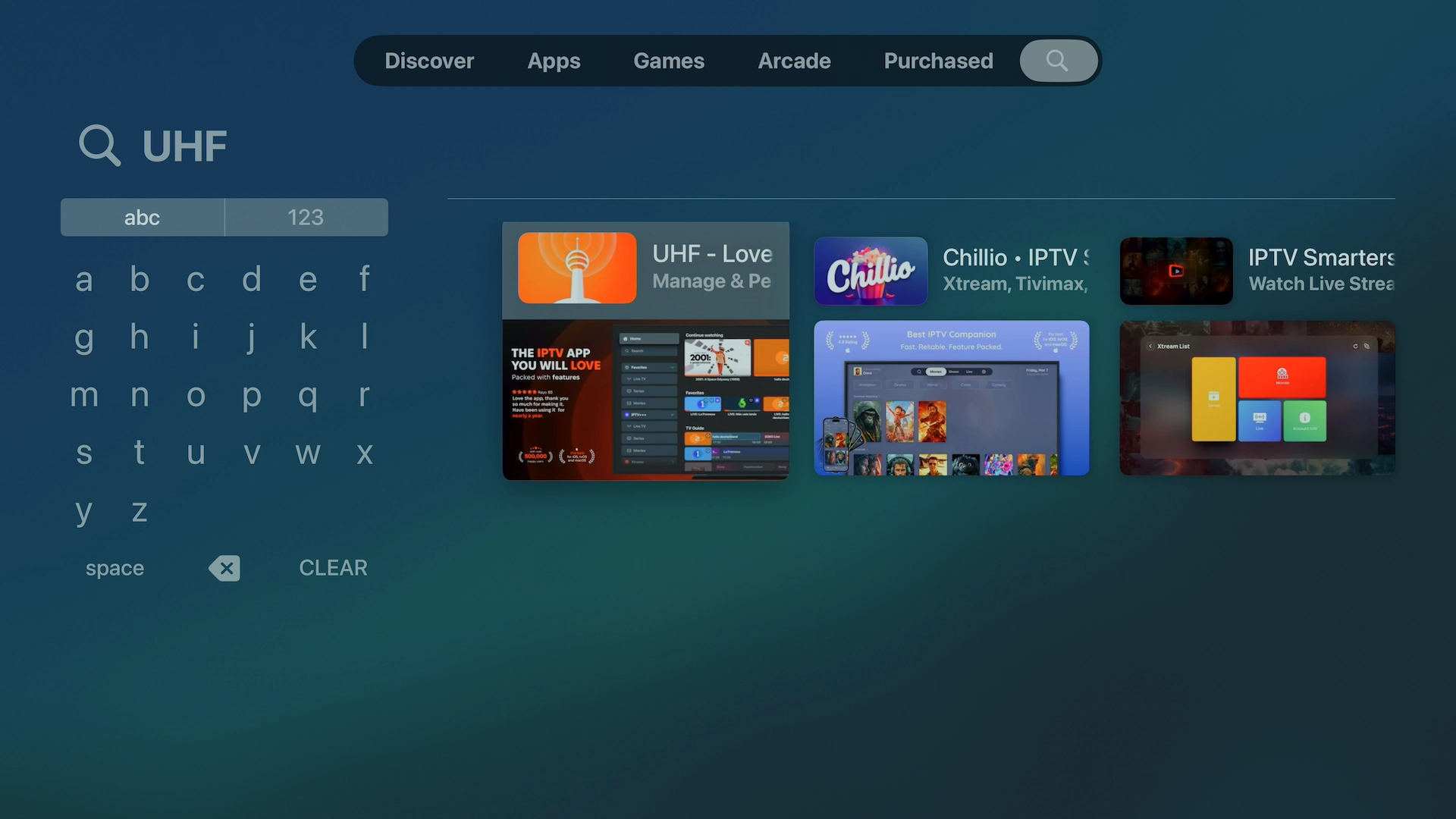
Look for UHF – Love Your IPTV from Short Wavelength Applications Ltd. so you know you're selecting the correct app.
Step 3: Install UHF – Love Your IPTV
Select Get, the download button, or the cloud download icon depending on your device and whether you've previously downloaded UHF.
You may be asked to confirm the download using your Apple ID.
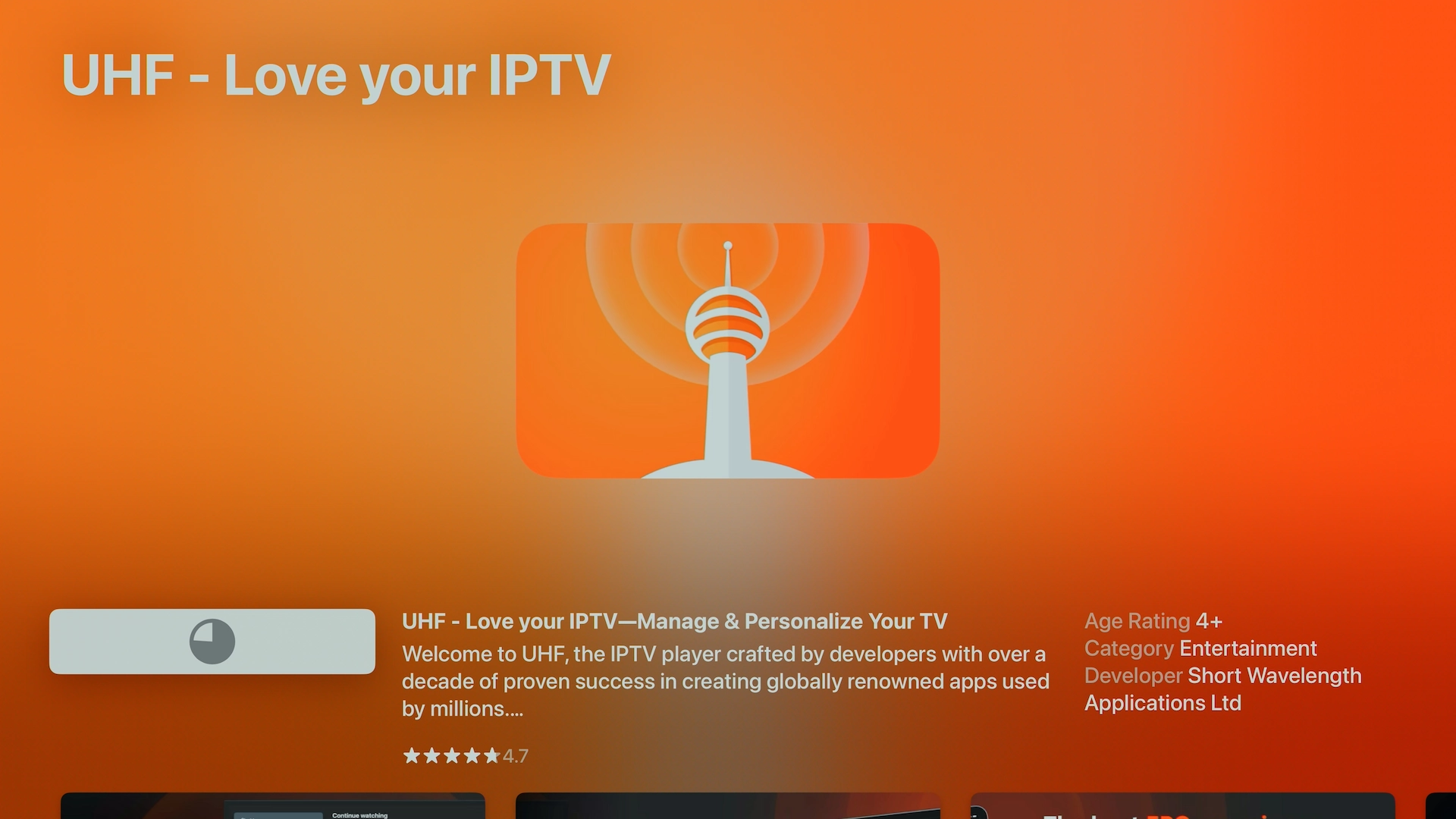
Wait for UHF to finish installing before continuing.
Step 4: Open UHF
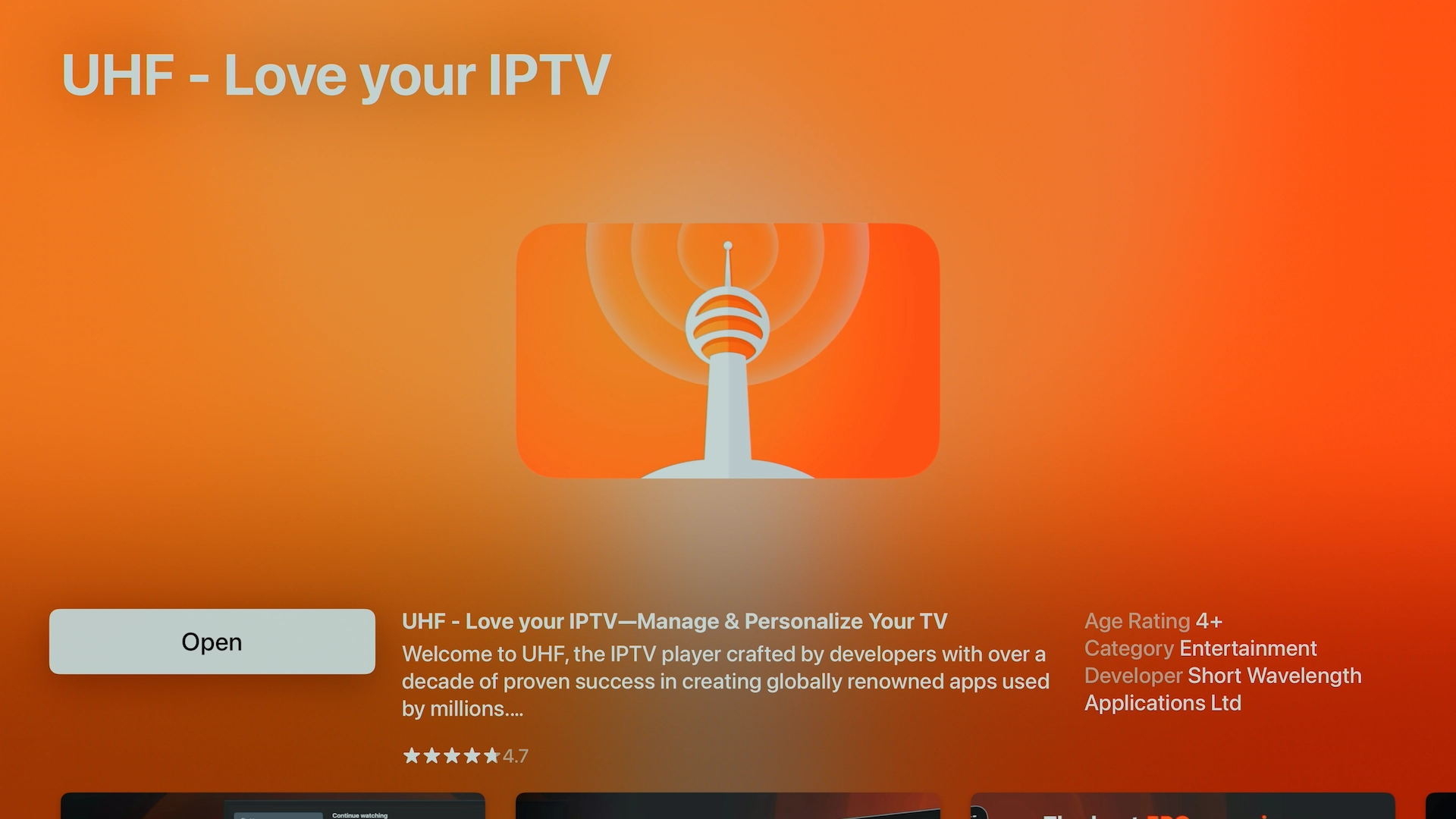
Once installation is complete, open the app.
- Apple TV: Open UHF from your Apple TV home screen.
- iPhone / iPad: Tap the UHF app icon.
- Mac: Open UHF from your Applications or Launchpad.
Step 5: Add Your IPTV Login to UHF
Now comes the important part: connecting UHF to your IPTV service.
UHF itself is the IPTV player. Your IPTV service provides the account and content that you load into it.
If you requested our free 36-hour trial, have the Server URL, Username, and Password we provided ready.
On your first launch, UHF may show an option related to importing a subscription. You can choose Continue to the Application to proceed to the main app.
- Select Create Playlist.
- Choose Xtream Codes.
- Enter a name for your playlist, such as My IPTV.
- Enter your Server URL.
- Enter your Username.
- Enter your Password.
- Select Create.
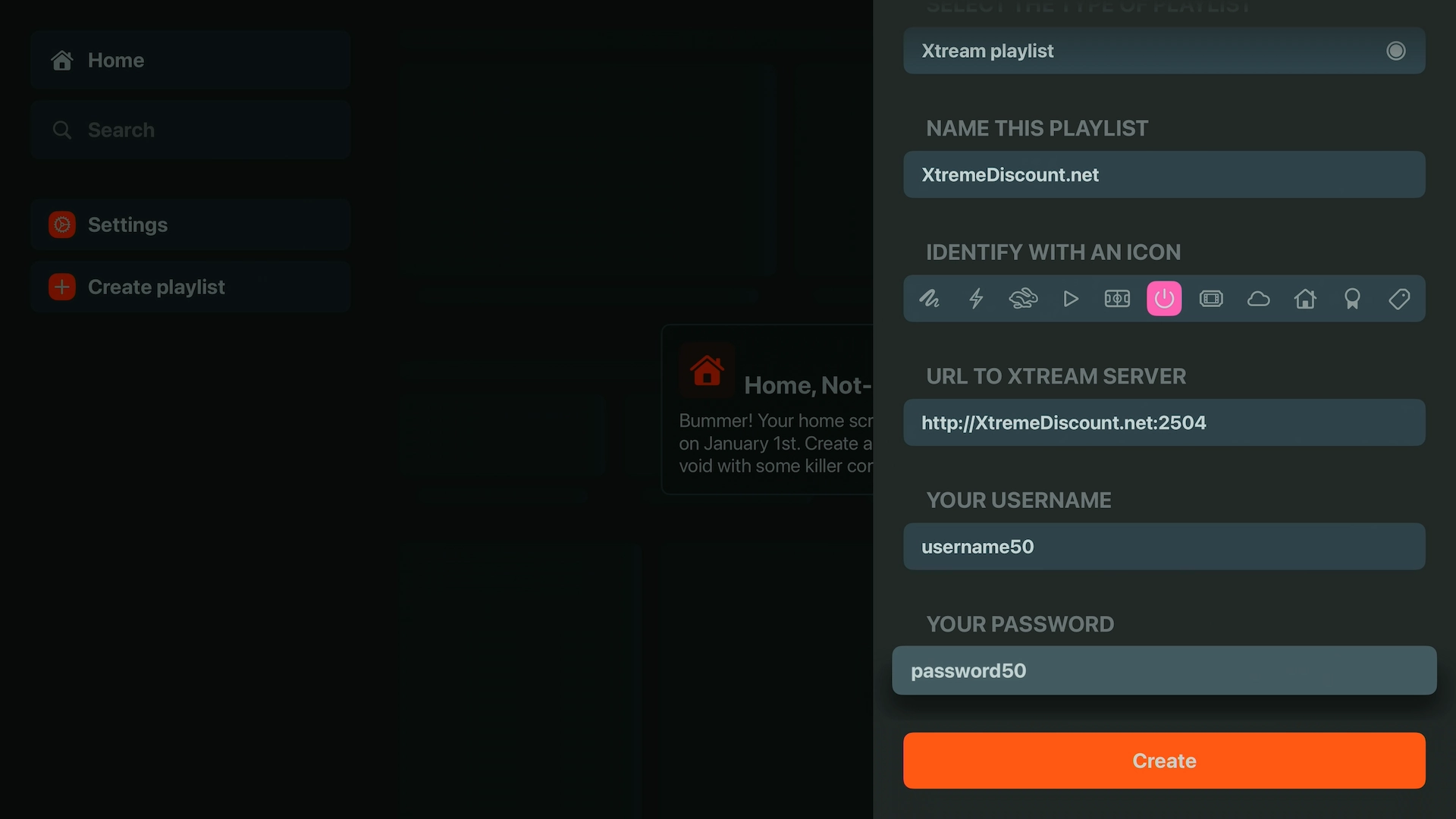
Make sure your Username, Password, and Server URL are entered exactly as provided. IPTV credentials can be case-sensitive.
After you create the playlist, UHF will begin loading the information associated with your account.
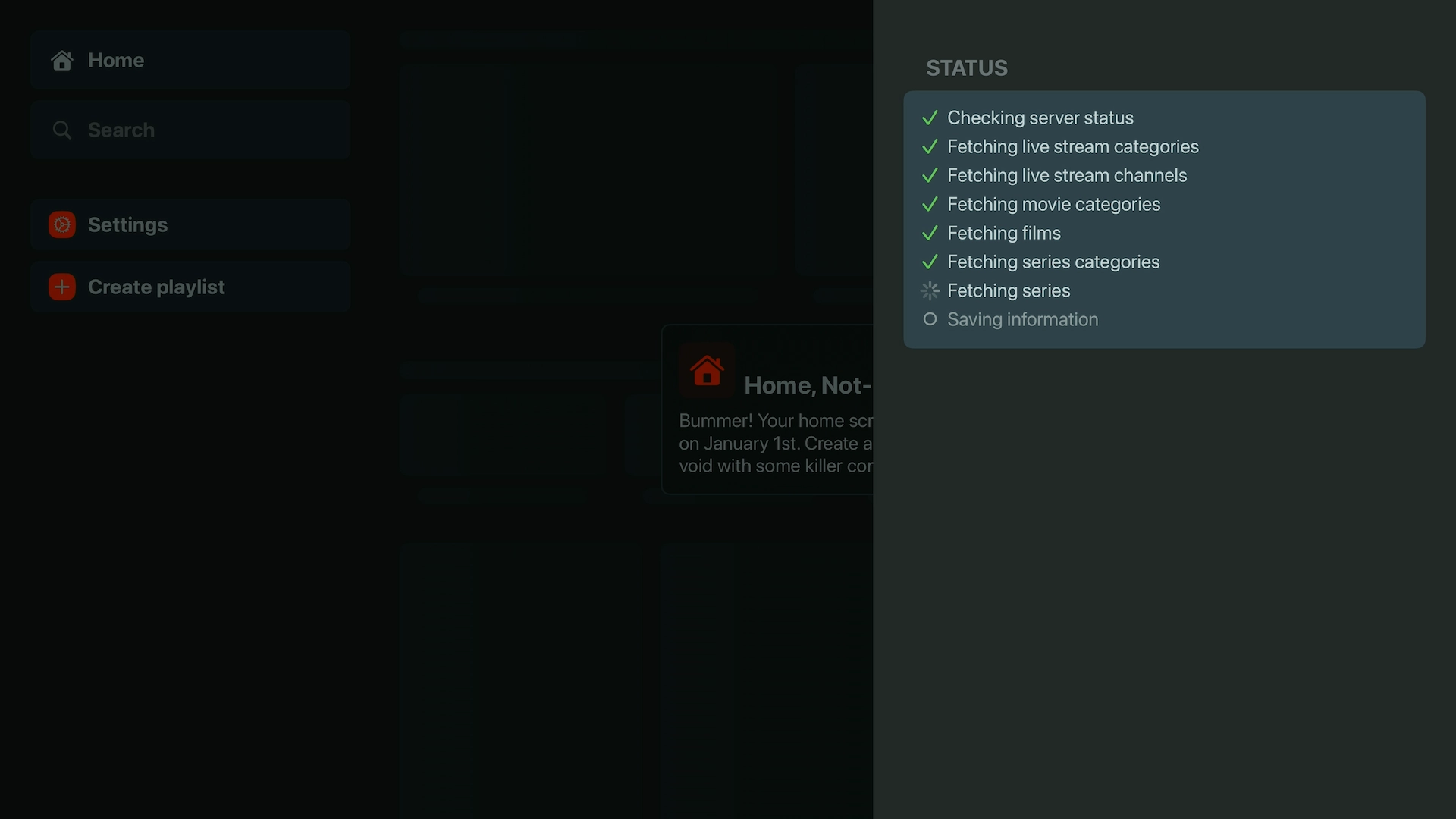
Depending on the size of the service and your internet connection, give the app a little time to finish its initial load.
Don't Have IPTV Login Details Yet?
That's exactly what the free trial is for. Get your credentials, load them into UHF using the steps above, and see how everything looks and performs on your own Apple device.
Explore the UHF Interface
Once your IPTV account finishes loading, UHF gives you a polished interface for navigating the content included with your service.
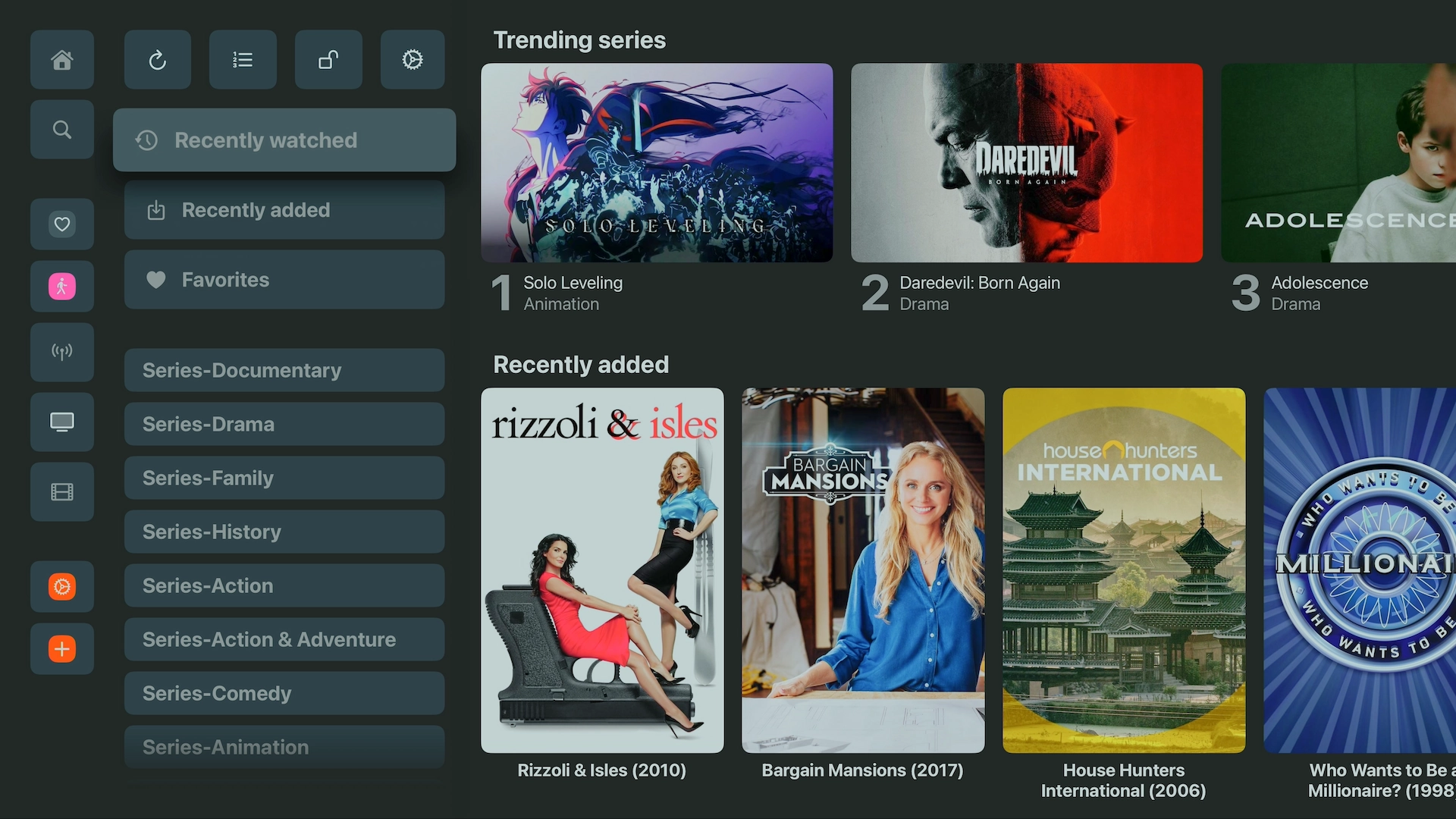
Browse TV Series
Series are organized into an easy-to-browse layout with categories and individual season and episode information.
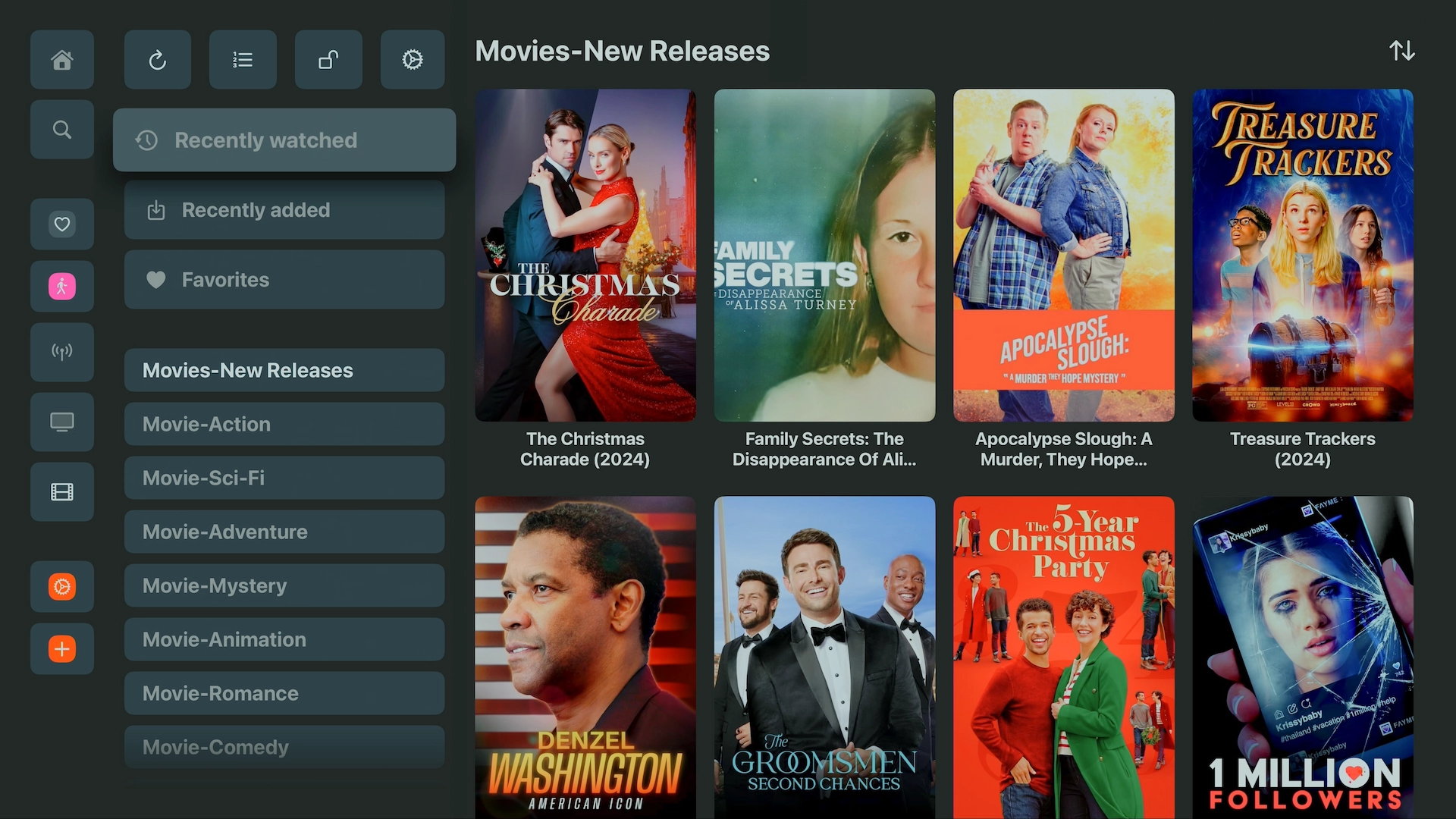
Browse Movies
UHF also provides a clean, visual interface for browsing the movie library available through your IPTV service.
Why We Like UHF on Apple Devices
There are plenty of IPTV players available, but UHF is particularly attractive for people who already use Apple products.
- Clean Apple-style interface that's easy to navigate with a remote or touchscreen.
- Apple TV, iPhone and iPad support lets you use a familiar player across several devices.
- Mac compatibility gives compatible Apple Silicon Mac users another way to watch.
- Xtream Codes support makes adding an IPTV account straightforward.
- EPG support provides an organized live TV guide when supplied by your IPTV service.
- Favorites and organization features make larger IPTV playlists much easier to navigate.
For someone trying IPTV for the first time on an Apple device, UHF is one of the players we recommend trying.
Frequently Asked Questions
Does UHF – Love Your IPTV work on Apple TV?
Yes. UHF is available for Apple TV and provides a TV-friendly interface that works well with the Apple TV remote.
Does UHF work on iPhone and iPad?
Yes. You can download UHF through the Apple App Store on supported iPhone and iPad devices.
Does UHF – Love Your IPTV work on Mac?
Yes, on compatible Macs. The App Store version can run on supported Apple Silicon Mac computers. Check the current App Store compatibility requirements for your Mac before installing.
Does UHF include IPTV channels?
No. UHF is an IPTV player. It doesn't provide the IPTV service itself.
You need IPTV credentials from a compatible service. If you don't have any, you can request a free 36-hour IPTV trial and use those credentials with UHF.
What login information do I need for UHF?
For the Xtream Codes setup shown in this guide, you'll need the Server URL, Username, and Password supplied by your IPTV provider.
Is UHF free?
UHF can be downloaded from the App Store, with additional features or options potentially available through in-app purchases. Check the current App Store listing for the latest pricing and feature information.
Should I choose Xtream Codes or an M3U playlist?
If your IPTV provider gives you a Server URL, Username, and Password, Xtream Codes is usually the easiest setup method. That's the method used throughout this guide.
Why isn't my IPTV login working in UHF?
Check that your Server URL, Username, and Password were entered exactly as provided. Look for accidental spaces and make sure uppercase and lowercase characters are correct.
If you're using a trial and still can't connect, contact support so the credentials can be checked.
Can I use my free IPTV trial with UHF?
Yes. Once you receive your trial credentials, choose Xtream Codes in UHF and enter the Server URL, Username, and Password provided with your trial.
Try UHF with a Free IPTV Trial
Installing UHF only takes a few minutes, and once it's ready, you can see what the IPTV experience actually looks like on your Apple device.
Instead of purchasing a plan before you've tried anything, start with our free 36-hour IPTV trial. Load the credentials into UHF and explore the service yourself on Apple TV, iPhone, iPad, or a compatible Mac.
Get Your Free 36-Hour IPTV Trial
Set it up with UHF and try the service on your own Apple device. No credit card required and nothing to cancel.